The dashboard is the first page you see after you log in. It shows your caseload at a glance. The bar along the top of every page shows where you are and holds the things you do most. The screenshots in this article come from a demo workspace. The clients in them, such as Aisha Patel and Tino Jones, are fictional, and no real client information is shown.
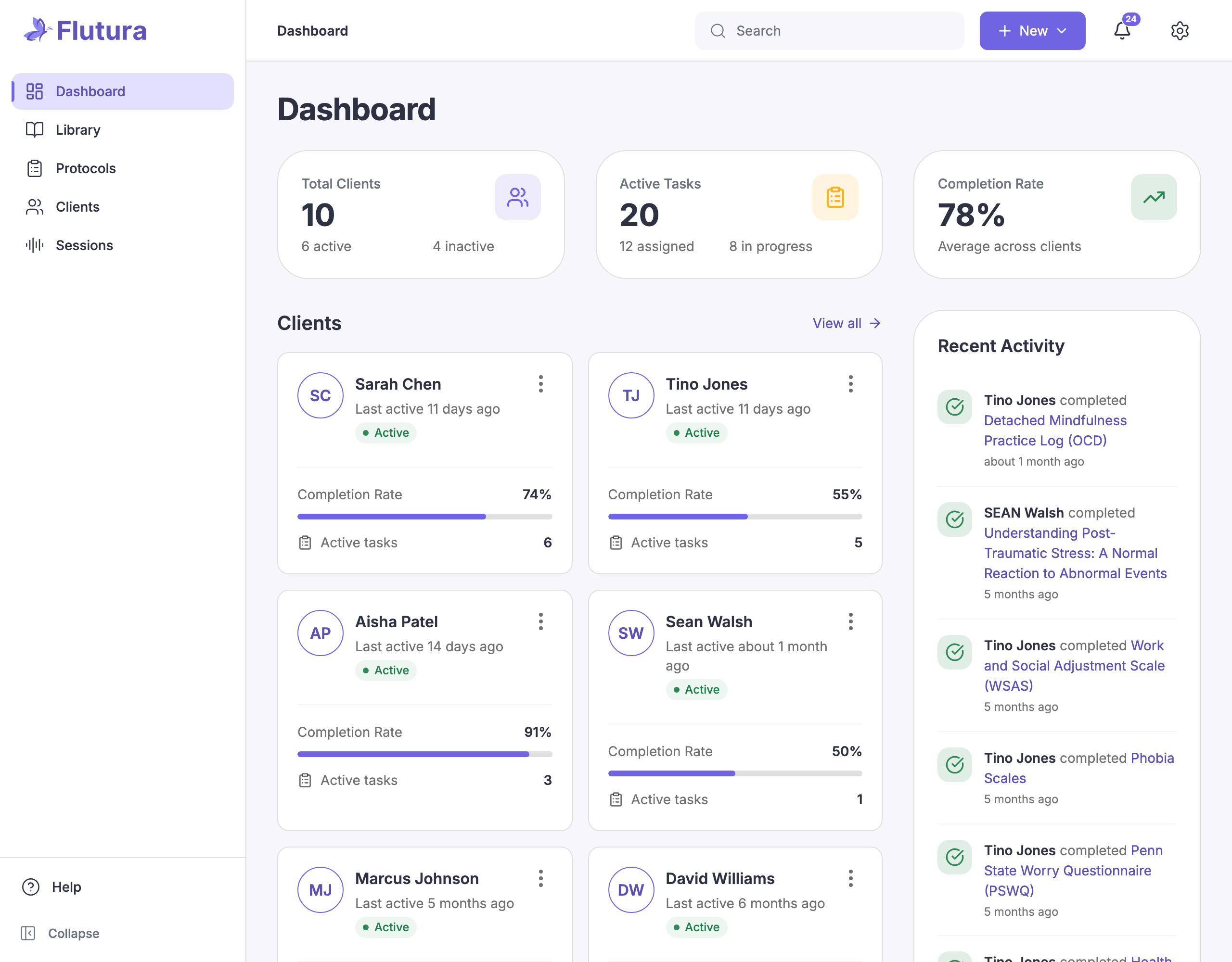
The sidebar on the left has Dashboard, Library, Protocols, Clients and Sessions. Help at the bottom opens the help centre.
The top bar shows where you are. On a page inside another, such as a client's task history, it reads, for example, "Clients › Sarah Chen › Task history". Select an earlier part of it to go back to that page.

On a phone, the header shows a back link instead, such as "‹ Clients", whenever you are on a page inside another. Select it to go up one level.
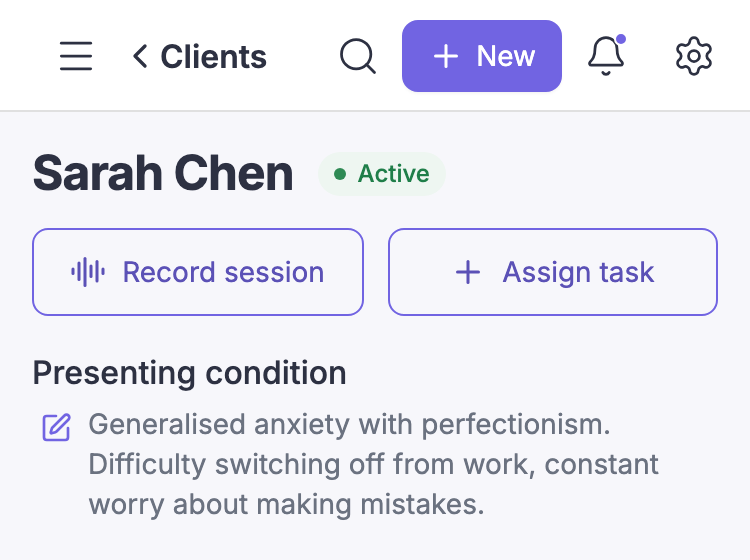
On the right of the top bar:
Search is coming soon. To find a client or a session now, use the search box on the Clients page or the Sessions page.
The bell shows your notifications.
The settings icon (a gear) opens your account menu, with Settings and Sign out. Finding your account and settings explains what is in Settings.
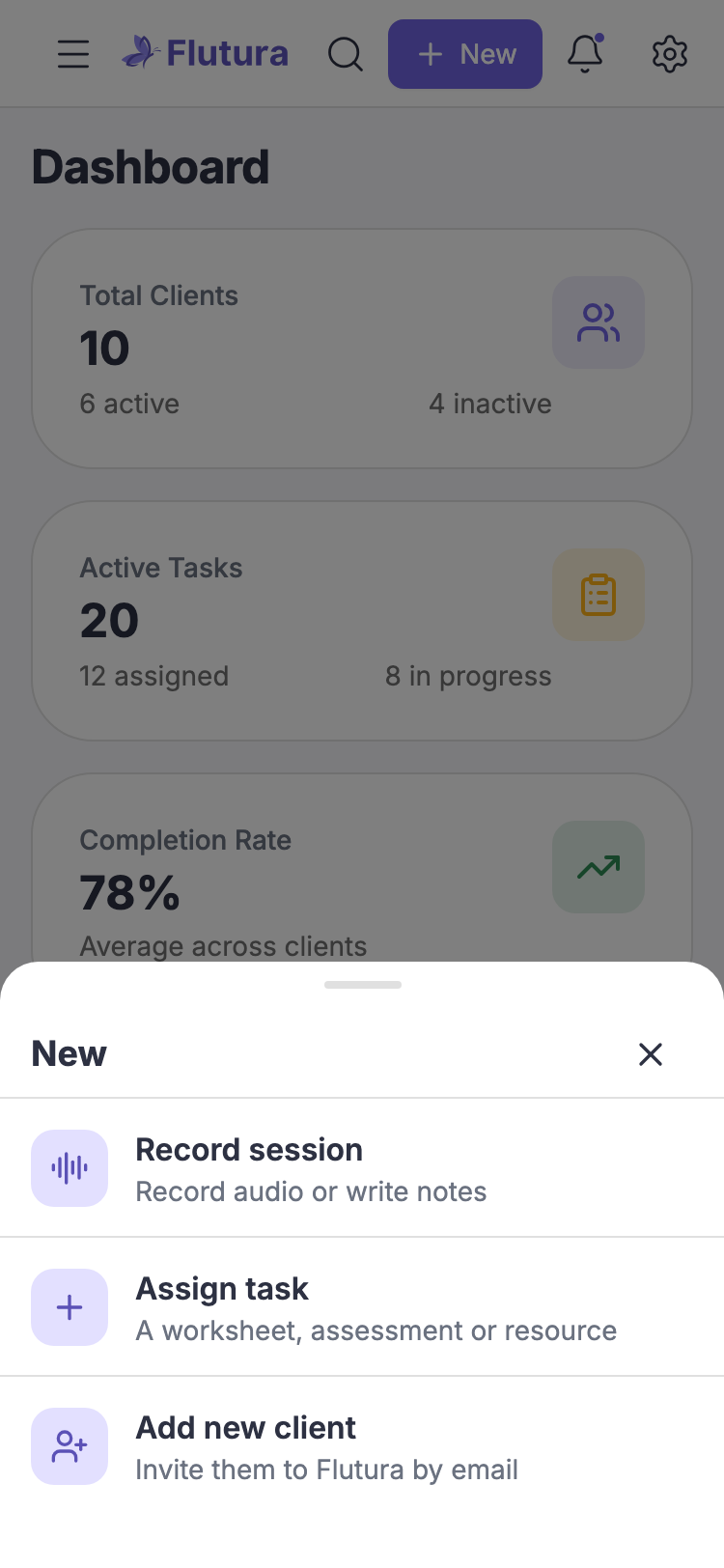
New, in the top bar of every page, lists the three things you do most:
Record session starts a session for a client. How to record a session explains the steps.
Assign task opens the Library, where you choose the tools to send and then the client. Assign a worksheet to a client explains the steps.
Add new client invites a client. See Add a client.
On a phone, New is in the header and opens the same list at the bottom of the screen.
Three cards sum up your clients:
Total Clients shows the total, with how many are active and how many are inactive.
Active Tasks shows how many tasks are assigned and how many are in progress.
Completion Rate shows the average across your clients.
The Clients section shows a card for each client with their name, when they were last active, their status, their completion rate and their number of active tasks. Select View all to open the full Clients page.
Recent Activity lists what your clients have completed, such as a worksheet or an outcome measure, with how long ago.
Below your clients, Recent Tasks lists the tasks you have assigned most recently and who they are for. Select View all to see more.
When your account is new, a Welcome to Flutura! banner asks you to complete your profile. How to sign up for Flutura covers it.