You record a session from your browser. When you stop, Flutura makes your notes in the background, and you then open the session to read the clinical notes and the transcript. If you would rather write your own notes, you can start a session without recording anything. The screenshots in this article come from a demo workspace. The clients in them, such as Aisha Patel, are fictional, and no real client information is shown.
You need a device with a microphone and a stable internet connection. Flutura uploads the audio while you record, so a connection that drops for long stretches can interrupt it.
The first time you record, your browser asks to use the microphone. Choose to allow it. If you blocked it by mistake, Flutura shows "Microphone access needed" and tells you how to undo it:
In Chrome, click the lock icon in the address bar and set Microphone to "Allow".
In Safari, go to Safari > Settings for This Website and set Microphone to "Allow".
In Firefox, click the permissions icon to the left of the address bar and allow Microphone.
On an iPhone, keep Flutura open and the screen on for the whole session. Recording on iPhone: keep the screen on explains why.
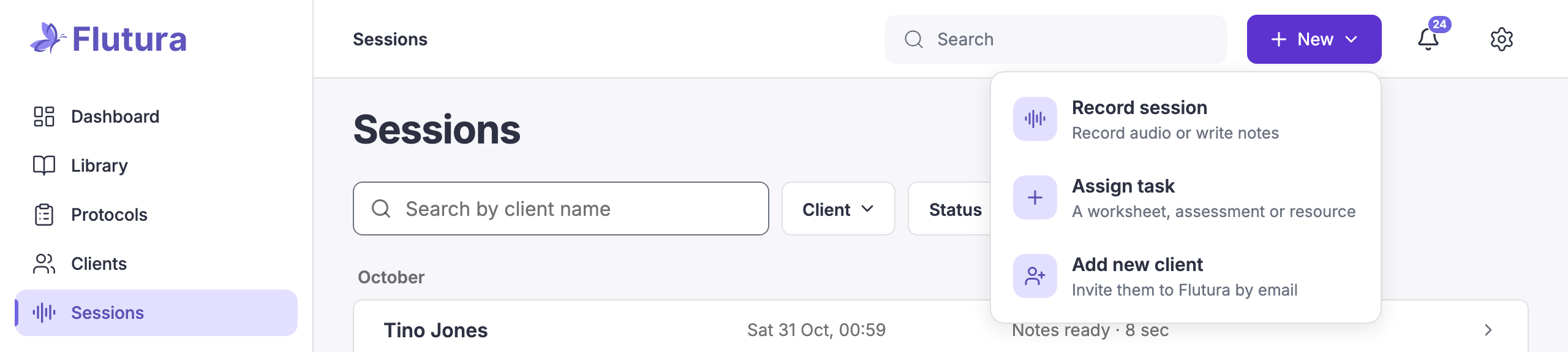
Select New at the top of any page, then Record session. On a phone, New is in the header and opens the same list at the bottom of the screen. On a client's profile, you can select Record session under the client's name instead.
If you started from New, choose the client in the Select client window. You can search by name. Starting from a client's profile skips this step.
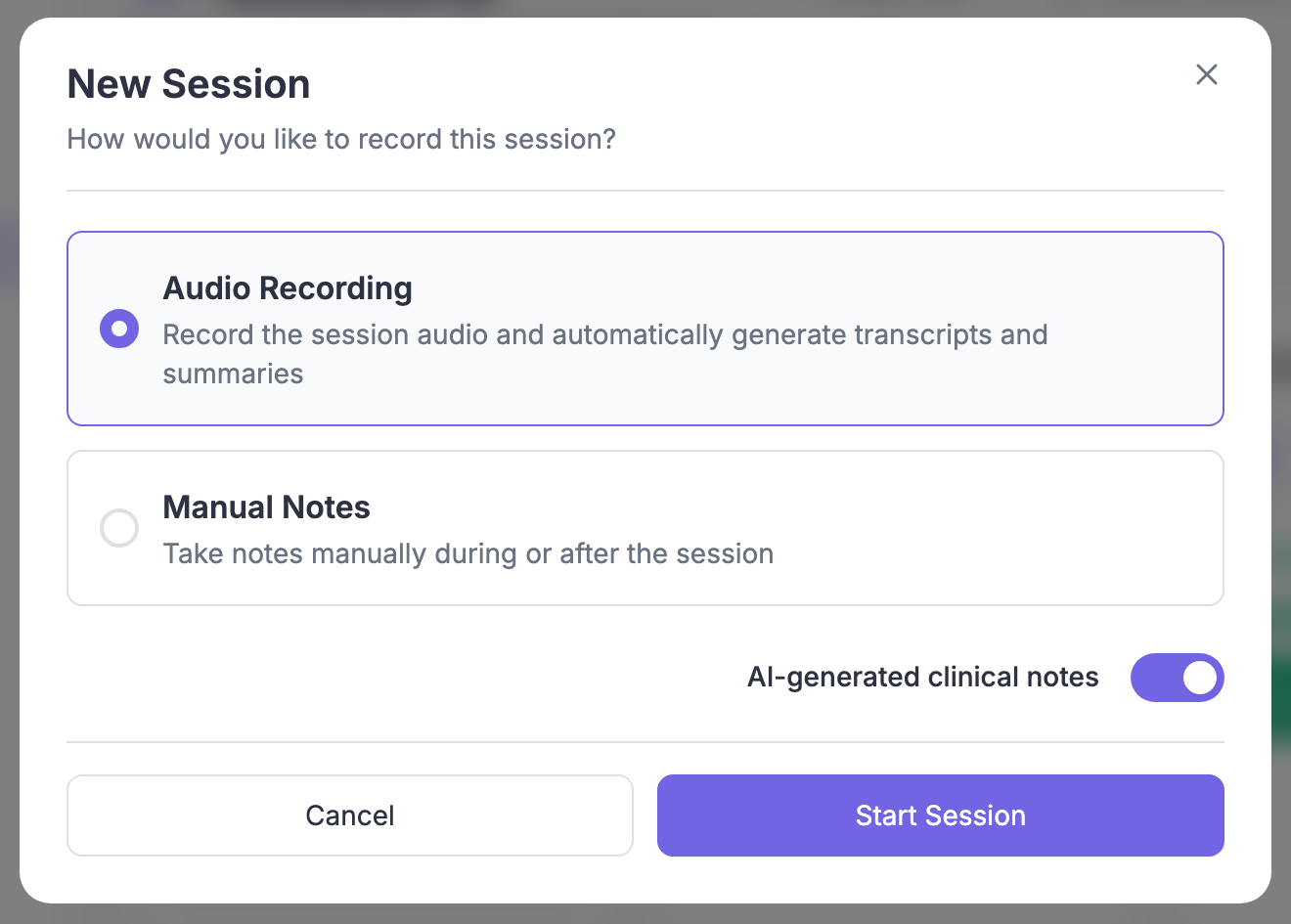
In the New Session window, choose how you would like to record the session. Audio Recording is selected for you.
Leave the AI-generated clinical notes switch on if you want Flutura to write clinical notes from the recording. Switch it off if you do not.
Select Start Session.
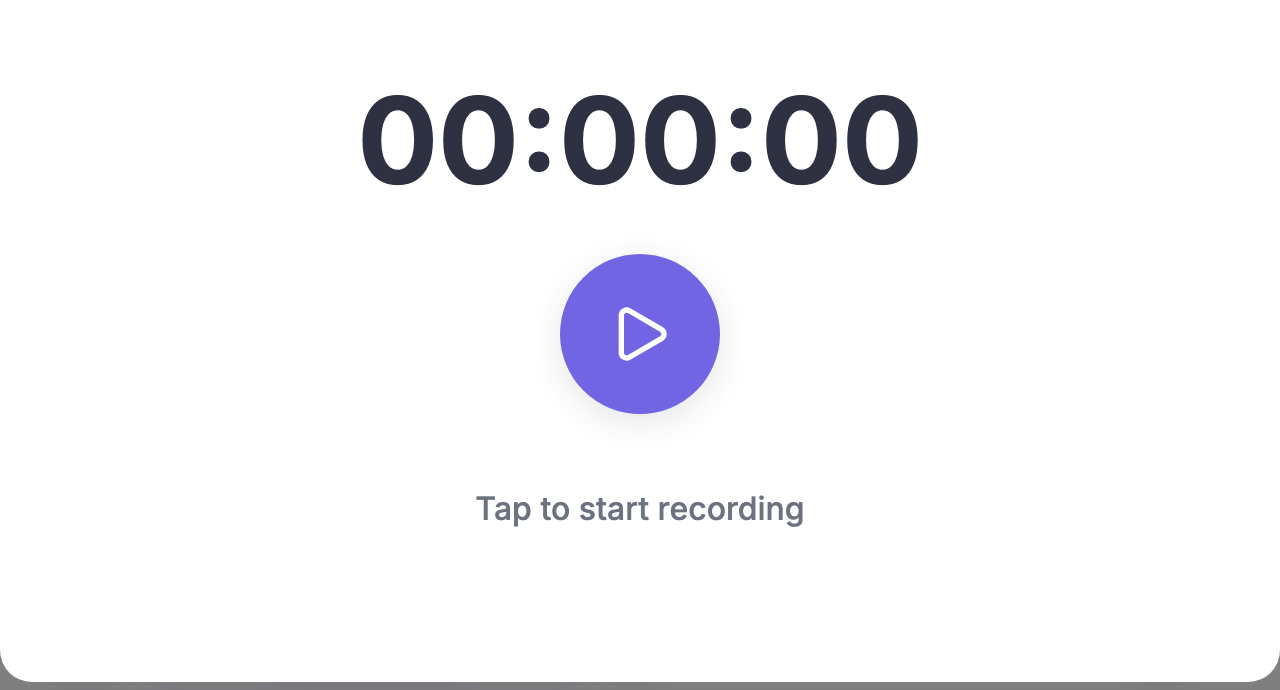
The Session Recording window opens with a timer. When you are ready, select the purple play button. Until you do, the window says "Tap to start recording".
On an iPhone, a window called "Before you start recording on iPhone" appears first. It says "Keep this app open and your iPhone screen on while recording." Select Got it, I understand to carry on.
If Flutura finds a problem before recording starts, such as "Low storage" or "Low battery", it shows a warning with Cancel and Record Anyway buttons. Choose Cancel to stop and fix the problem, or Record Anyway to start recording regardless.
While you record:
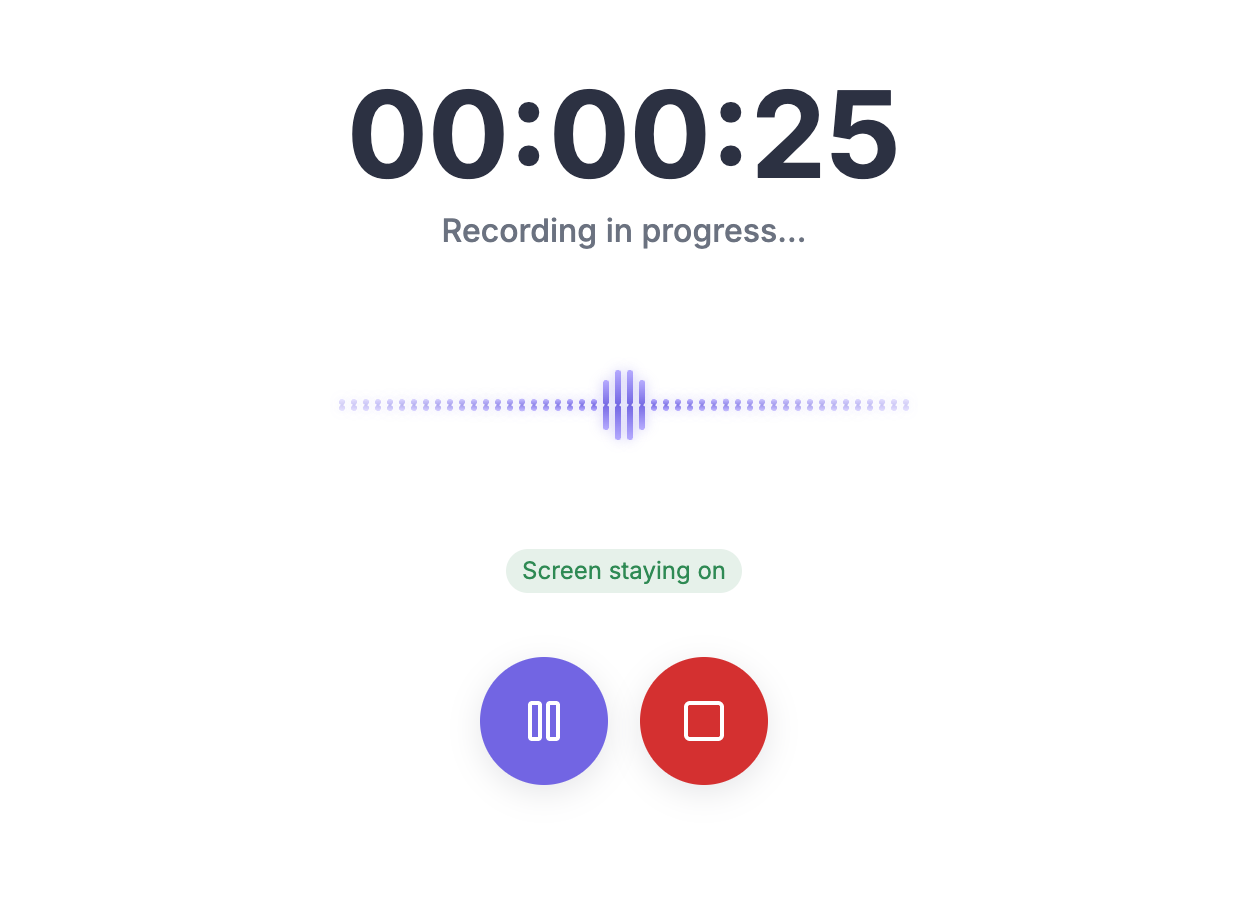
The window shows "Recording in progress..." with the timer and a moving sound wave. Two round buttons sit below: a purple pause button and a red stop button.
A green label reading "Screen staying on" means Flutura is keeping your screen awake. If it changes to "Screen may lock. Tap to fix.", tap it to ask your device to keep the screen on again. Browsers that cannot do this show neither label.
Select the pause button to pause. The window shows "Paused". Select the same button again to resume.
At 2 hours Flutura shows "Still recording? Your session is 2 hours long." At 3 hours it asks "Your recording is 3 hours long. Did you forget to stop?"
If you close the window, Flutura asks "Cancel recording?" The message says "The current recording will be cancelled and not saved." Choose Go Back to Recording to carry on, or Cancel Recording to discard it.
Select the red stop button. The window shows "Saving your recording..." while the rest of the audio uploads, and asks you to keep this tab open until it finishes. If some audio is still to send, it says how much. When it has finished, the window closes and takes you to the Sessions page.
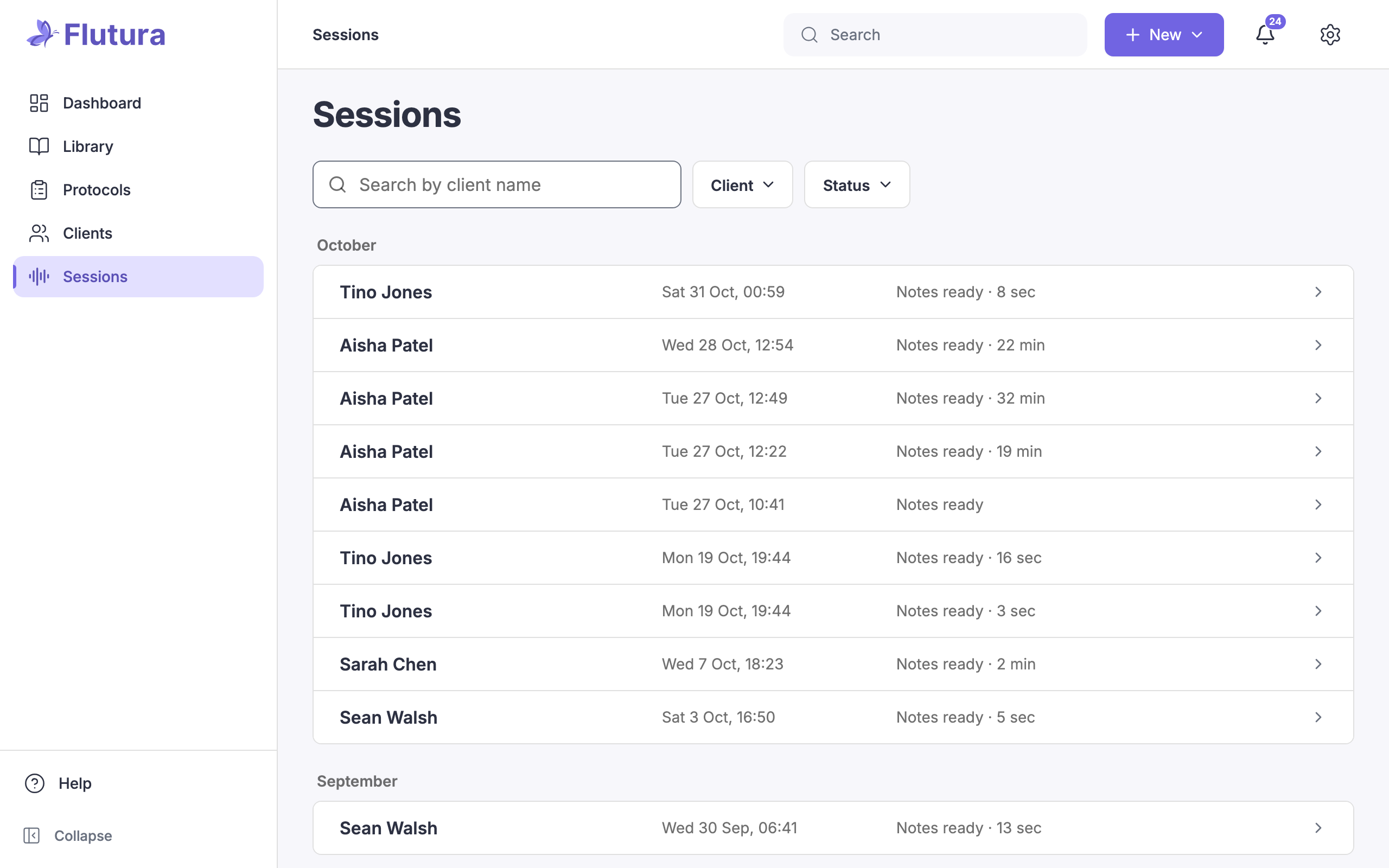
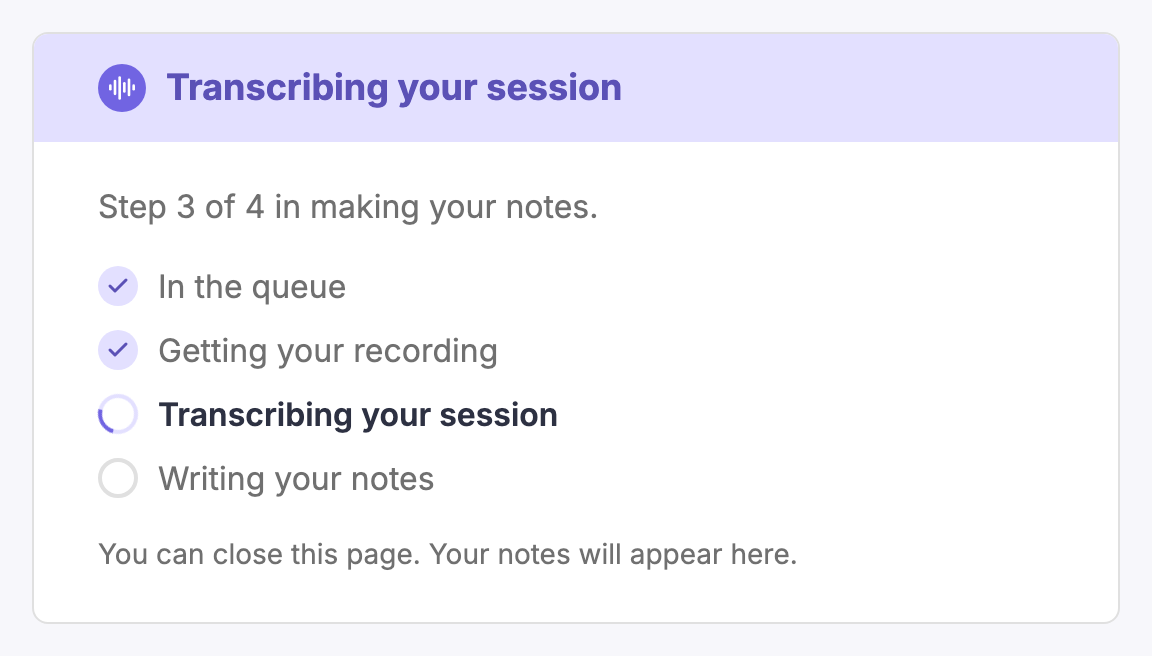
The new session is at the top of the list, under Today. While Flutura makes your notes, the row shows which of four steps it is on: "In the queue", "Getting your recording", "Transcribing your session" and "Writing your notes". You can leave the page and come back. When the row says "Notes ready" and how long the session ran, select the row to open the session.
You can open a session before its notes are ready. The page shows the step Flutura is on and says "You can close this page. Your notes will appear here."
If a step takes longer than usual, or a session needs something from you, the row says so. If a recording goes wrong explains each message and what to do.
If you were signed out during the recording, the stop button takes you to the sign-in page instead of the Sessions page, with this message:
You were signed out. Your recording is saved on this device. Sign in as ... to finish uploading it.
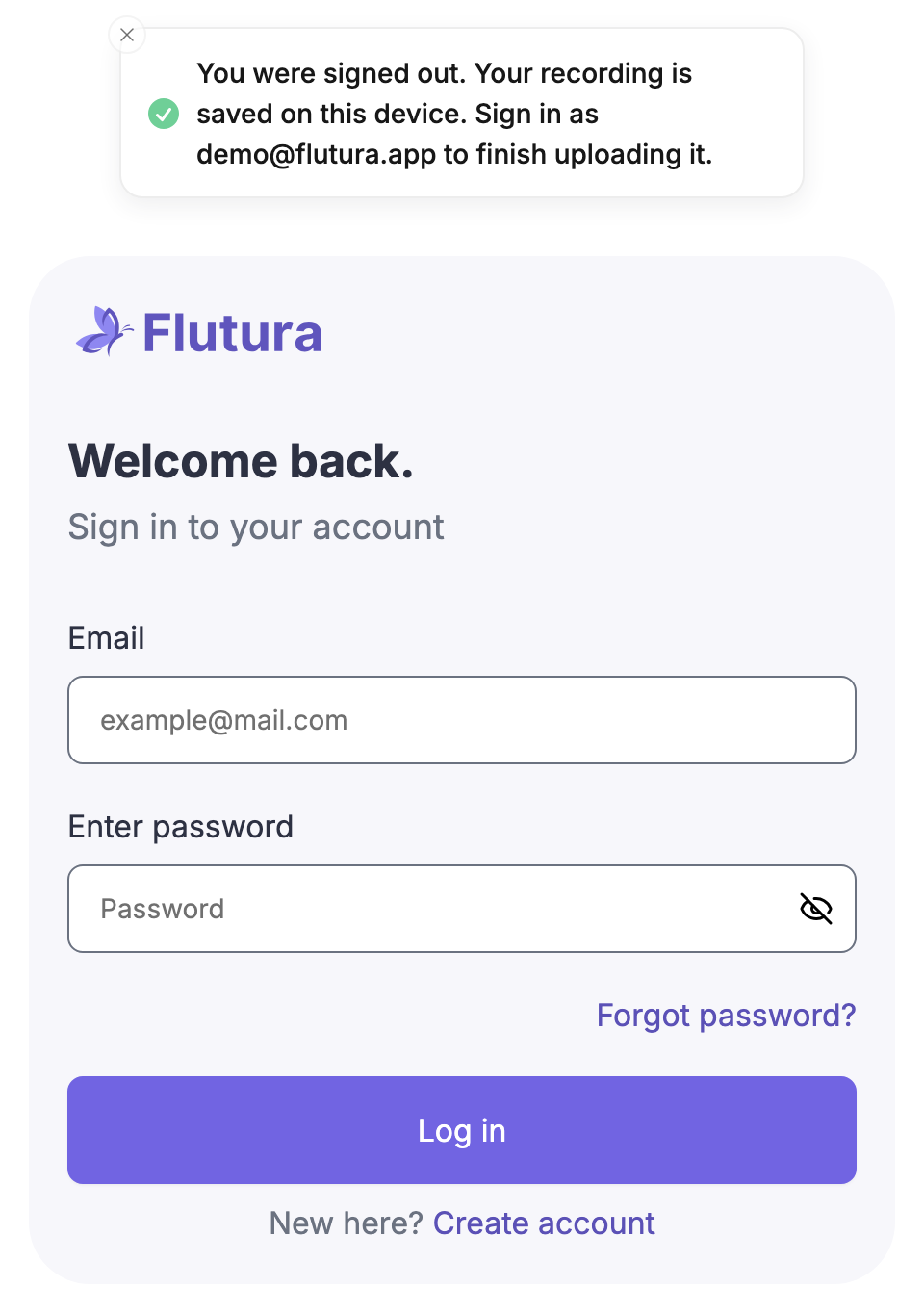
Sign in on the same device with the email address the message shows. The rest of the recording then uploads by itself and Flutura makes your notes as usual. Keep Flutura open on that device until the session says "In the queue".
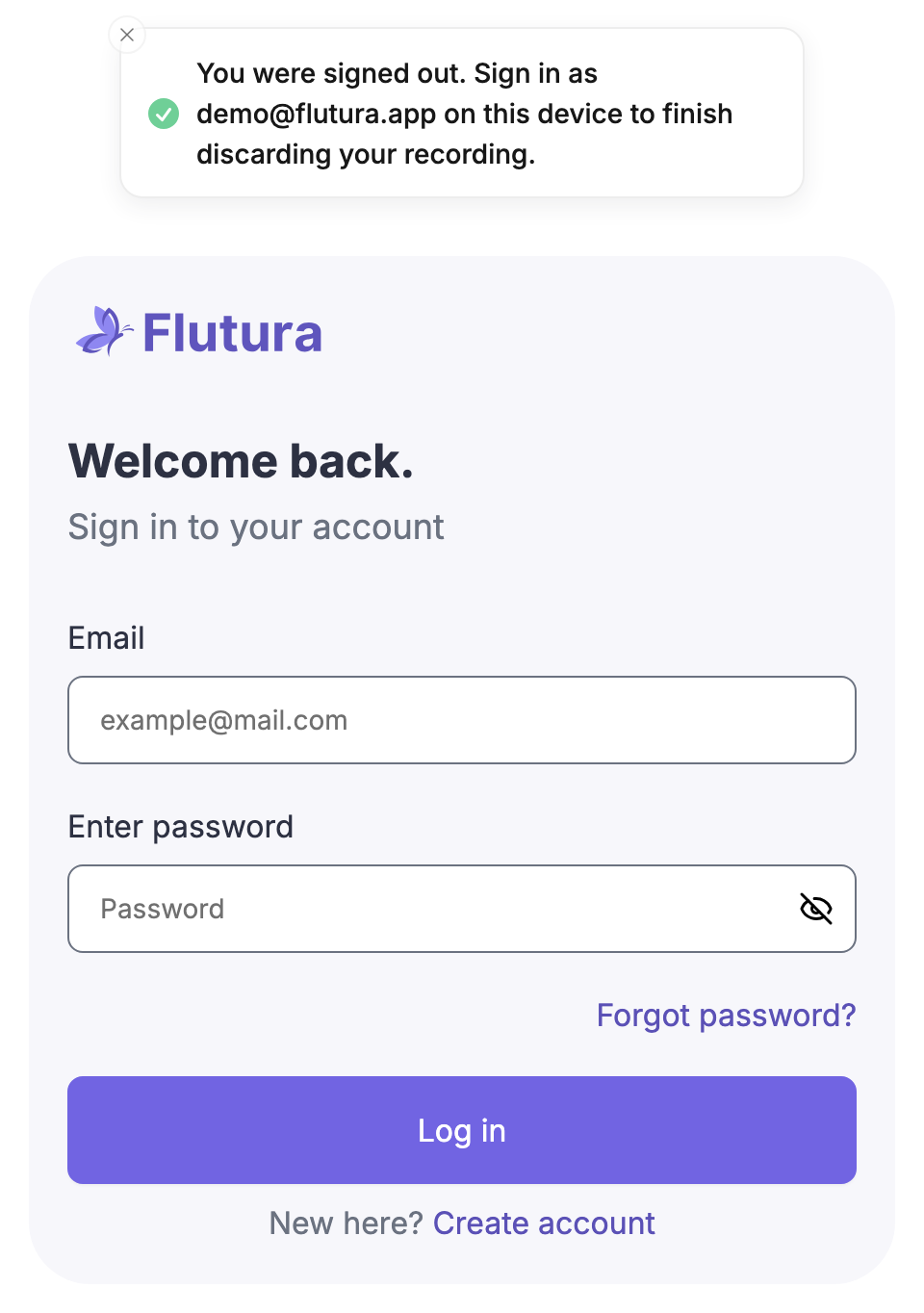
If you cancel instead, Cancel Recording removes the recording from this device straight away. The part that had already uploaded stays in Flutura until you sign in again on the same device, which finishes discarding it. The sign-in page reminds you:
You were signed out. Sign in as ... on this device to finish discarding your recording.
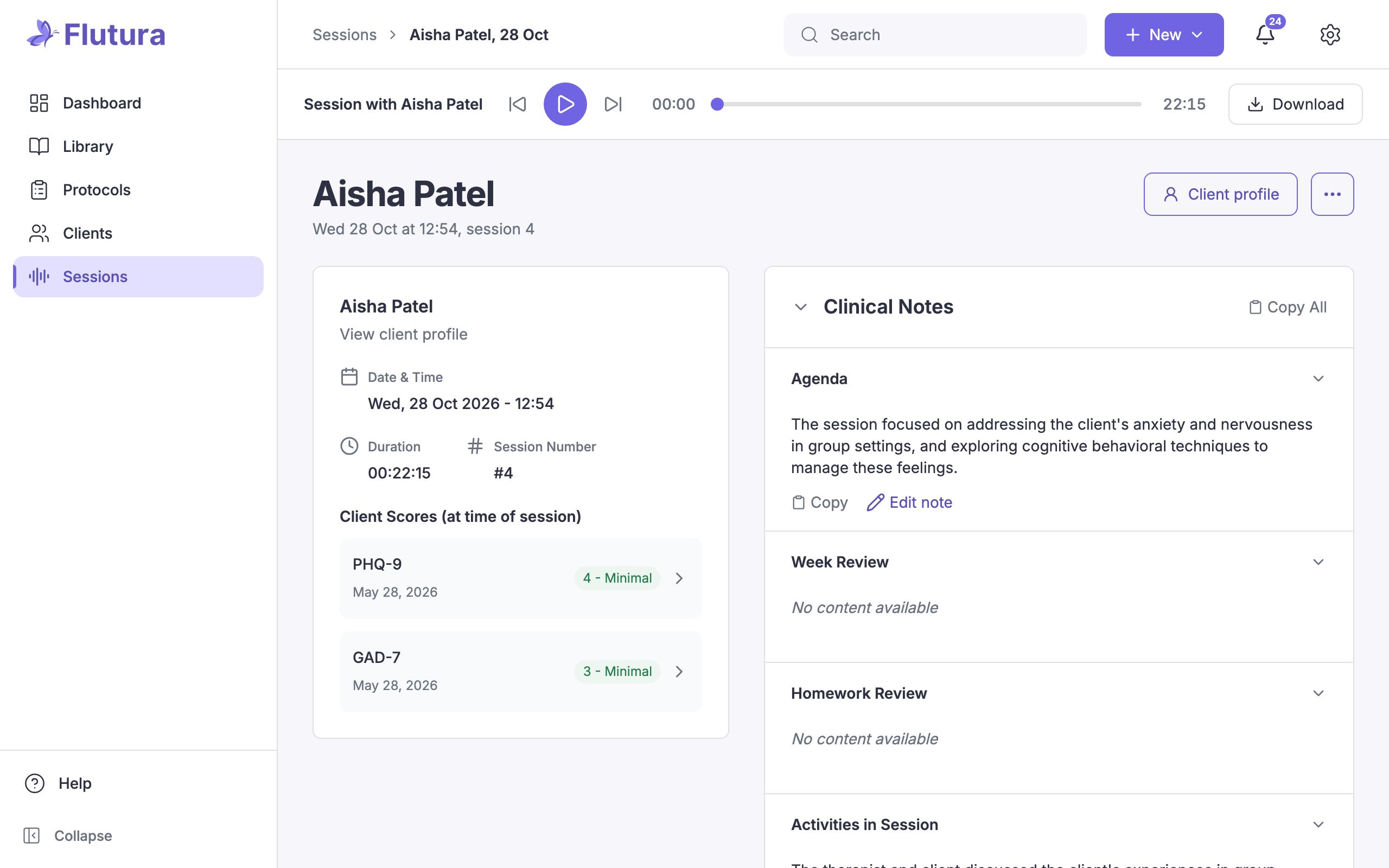
At the top of the session page, an audio player lets you play the recording back, with a Download button beside it. Under it you see the client's name, the date and time, and the session number. Client profile takes you to the client's profile. Below that you will find:
Clinical Notes, split into sections such as Agenda, Week Review and Next Steps. Each section has Copy and Edit note, and Copy All at the top copies everything.
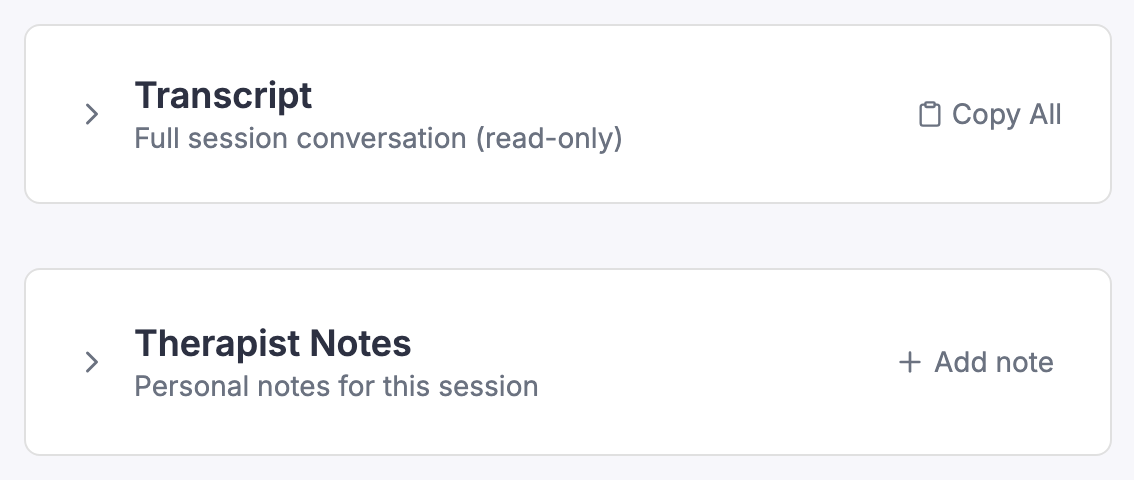
Transcript, described as "Full session conversation (read-only)". It stays closed until you open it, and it has its own Copy All.
Therapist Notes, described as "Personal notes for this session". Select Add note to write your own.
If part of the recording did not reach Flutura, a line at the top of the session says how many minutes are missing and how many minutes your notes cover.
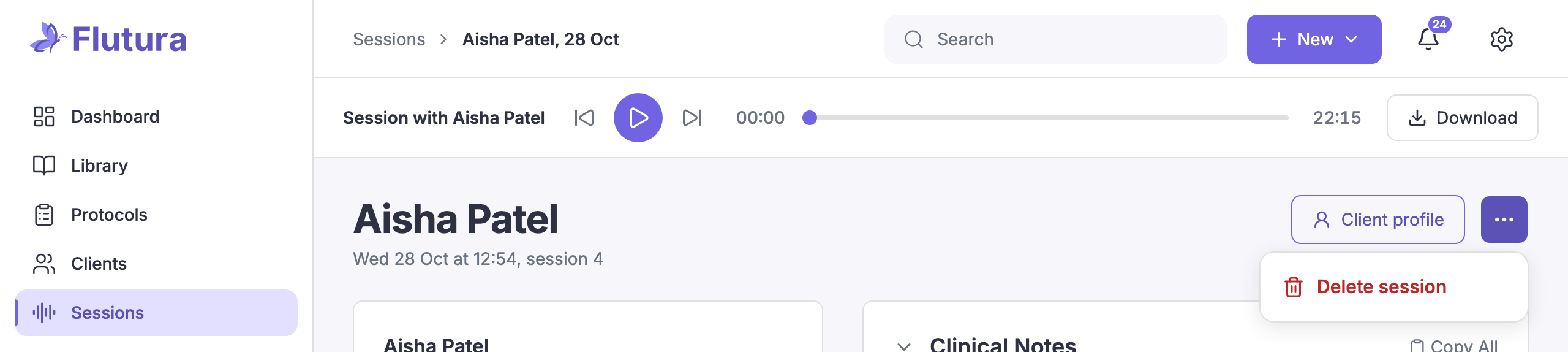
Select More actions (the three dots beside Client profile), then Delete session. Flutura asks you to confirm in the Delete Session window. Deleting can't be undone.
Delete session does not appear while a session is still recording, or while Flutura cannot yet tell whether the recording has finished.
At step 3, choose Manual Notes ("Take notes manually during or after the session"). The AI-generated clinical notes switch turns off and cannot be changed. Select Start Session, and Flutura opens the session with Therapist Notes ready. Select Add note to write your notes before, during or after the session.