Flutura watches a recording while it uploads and tells you when something is wrong. Afterwards, the Sessions page shows where each session has got to, and a session that needs you says what happened and what to do. Find the message you can see on screen below. The screenshots in this article come from a demo workspace. The client in them, Tino Jones, is fictional, and no real client information is shown.
While you record, a warning can appear in the recording window:
Your recording isn't uploading. Nothing has uploaded for 2 minutes, so your notes for this session may be incomplete. Keep written notes as a backup.
If your device has lost its connection, the warning starts with "You're offline." instead:
You're offline. Nothing has uploaded for 2 minutes, so your notes for this session may be incomplete. Check your internet connection and keep written notes as a backup.
The warning appears once nothing has uploaded for 2 minutes, and the message shows how long it has been. Check your internet connection. The warning goes away by itself as soon as an upload goes through. Until then, keep your own written notes, as the message says.
This recording can't be saved any more. Stop recording and write your notes for this session instead.
This means Flutura has stopped trying to save the recording. Stop the recording and write your notes for the session, as the message says.
If you are signed out while you record, for example after a password change on another device, the recording carries on and the window shows:
You've been signed out of Flutura. Keep recording: your audio is saved on this device. When you stop, sign in again to finish uploading it.
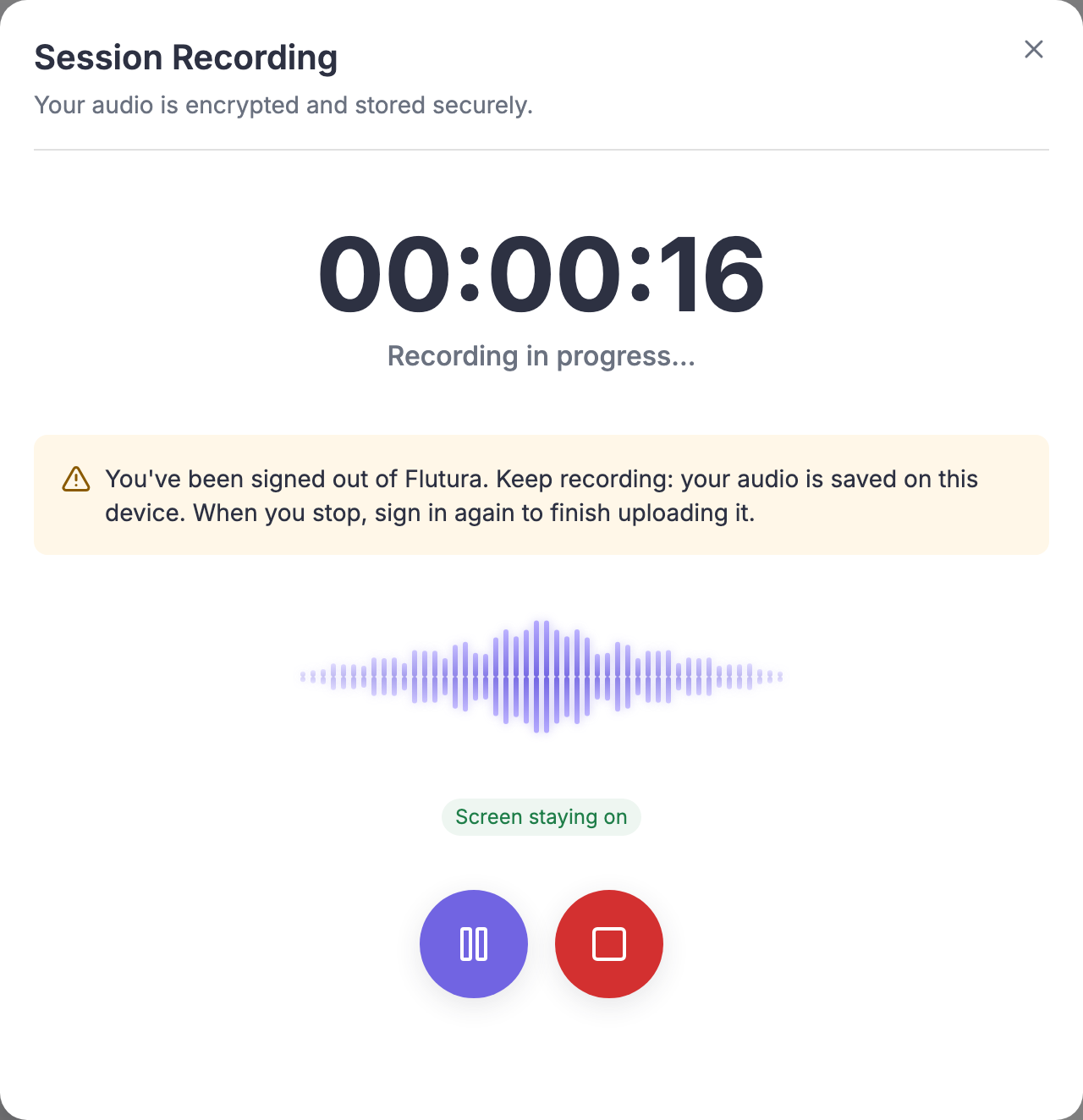
Carry on with the session and stop when you are ready. The window then takes you to the sign-in page, which names the account to use. Sign in on the same device with that account, and the rest of the recording uploads by itself. While this message shows, the "Your recording isn't uploading" warning does not appear.
If the message changes to this one, this device can no longer keep the recording:
You've been signed out of Flutura, and this recording can no longer be kept on this device. Stop now; you will need to write your notes for the part after this point.
Stop the recording, then write your own notes for the part of the session after the message appeared.
After you select the stop button, the window shows "Saving your recording..." while the rest of the audio uploads. Keep the tab open until it finishes. While it works, it can show one of these messages:
"Nothing has uploaded for", followed by how long, then "Check your connection and keep this tab open." If you are offline, it starts with "You're offline." and asks you to reconnect.
"Uploads are failing. Check your connection and keep this tab open, or part of this recording may be lost."
"Uploading has paused because you may have been signed out. Reload this page and sign in if asked. The rest of this recording is kept on this device and will carry on uploading."
"Flutura no longer has this session, so the rest of this recording can't be saved. Write your notes for this session instead."
When the window closes, one of these messages can appear:
About ... of this recording could not be uploaded. The session will be saved without it.
Part of the recording could not be uploaded. Flutura makes notes from the rest, and the session shows how much is missing. "Missing audio" below explains what you will see.
This recording didn't upload and can't be processed. Write your notes for this session instead.
No audio from this recording reached Flutura, so there is nothing to make notes from. Write your notes for the session yourself.
On the Sessions page, a session that needs something from you sits at the top under "1 session needs you" (or how many there are). Each row says what happened and what to do. A session stays there for 14 days, then goes back to its place in the list, and the Still need you option in the Status filter finds it. If sessions from last week still need you, Flutura also sends you one email about them.
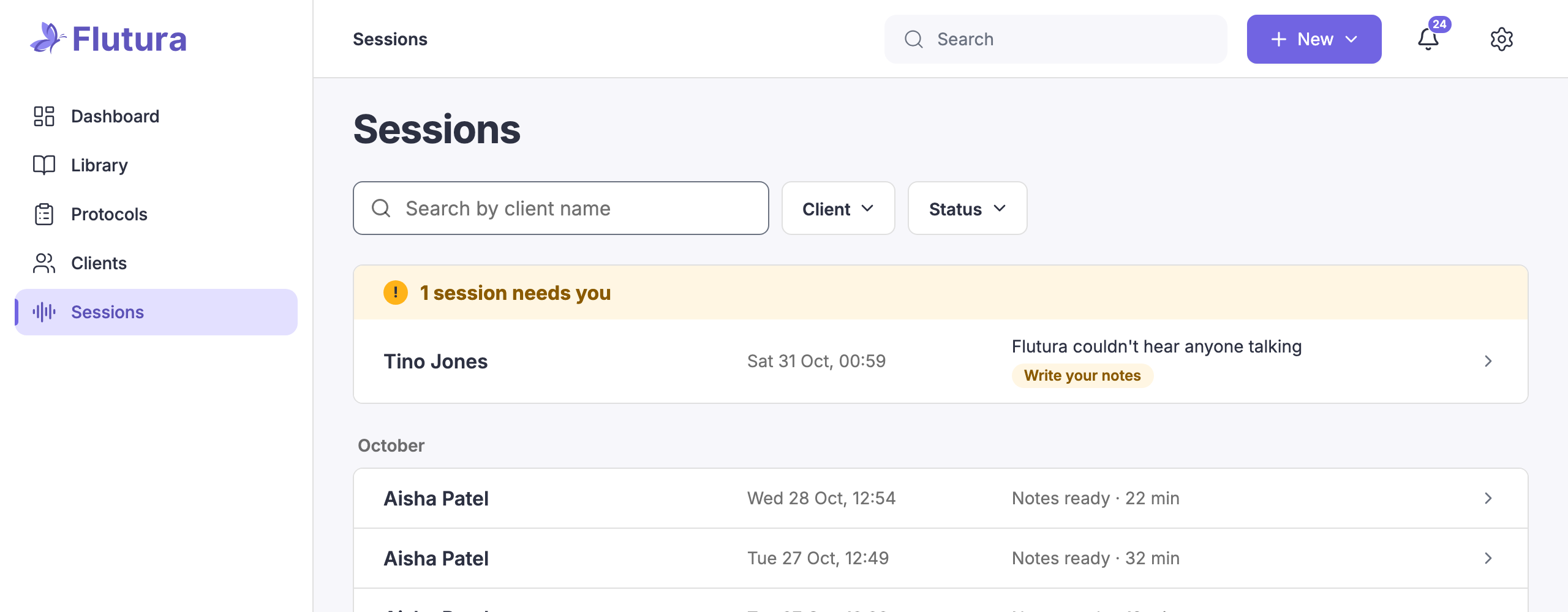
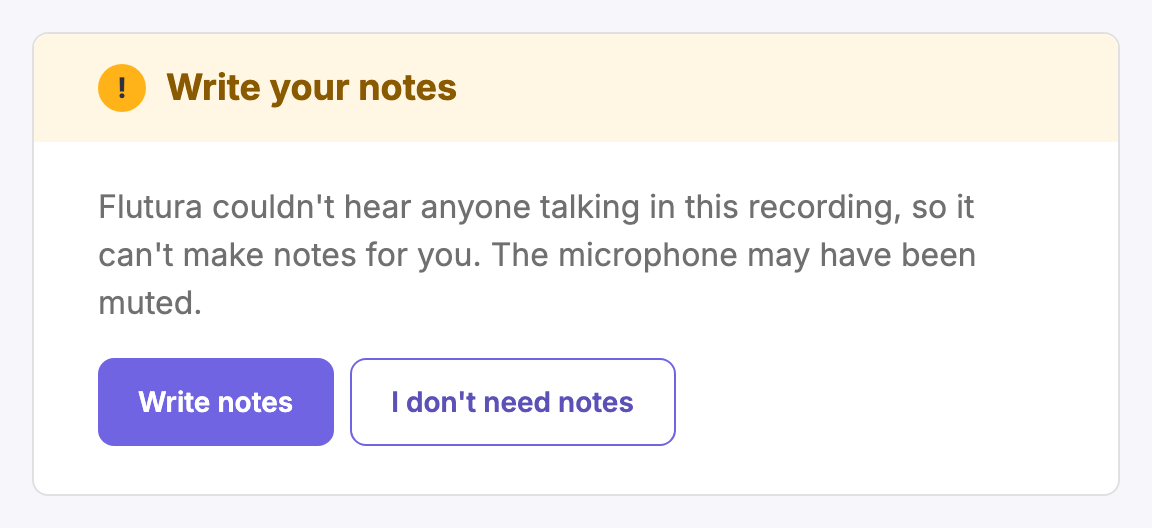
Select the row to open the session. A panel at the top says what happened, with two buttons.
Flutura couldn't hear anyone talking in this recording, so it can't make notes for you. The microphone may have been muted.
Nothing was recorded in this session, so Flutura can't make notes for you.
Something went wrong while Flutura was making your notes, and it couldn't finish.
Flutura has already tried once more by itself before it shows this, so there is no button to try again.
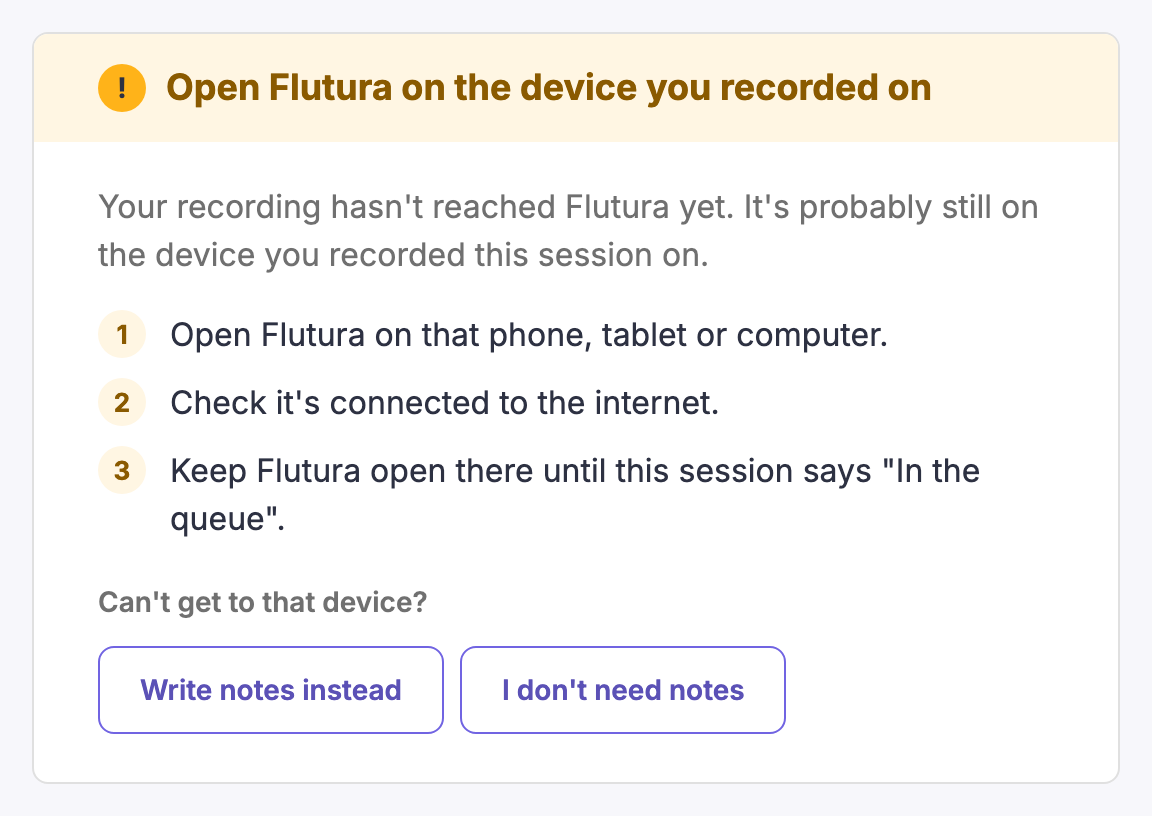
The panel is titled "Open Flutura on the device you recorded on":
Your recording hasn't reached Flutura yet. It's probably still on the device you recorded this session on.
It lists three steps: open Flutura on that phone, tablet or computer; check it's connected to the internet; and keep Flutura open there until this session says "In the queue". If you can't get to that device, use the buttons under "Can't get to that device?".
Write notes (or Write notes instead) opens Therapist Notes below the panel, ready for you to type. When you save a note, the session reads "Your notes" and leaves the list of sessions that need you.
I don't need notes records that this session does not need notes. Flutura shows "Marked as no notes needed", and the session reads "No notes". There is no undo, but if you write a note on the session later, it reads "Your notes".
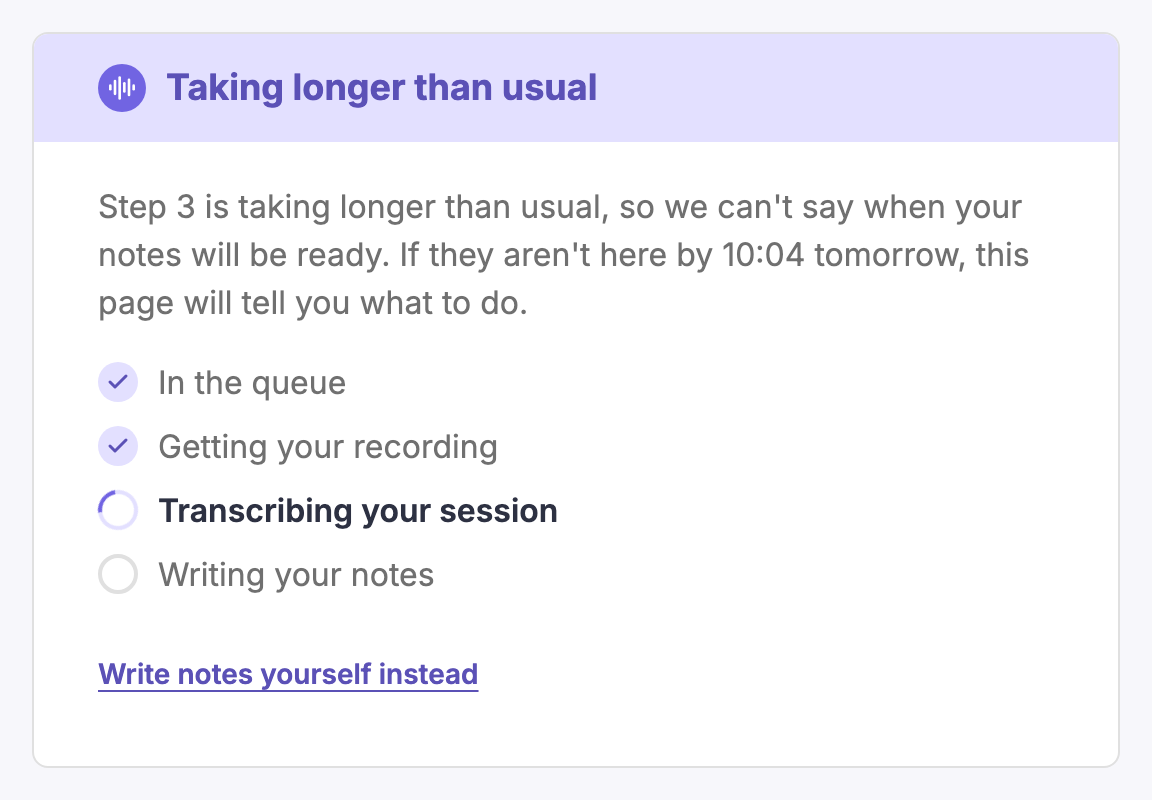
If a step takes longer than it should, the row and the session page say "Taking longer than usual". The page tells you which step, and gives a time tomorrow by which it will tell you what to do if your notes have not arrived. You do not need to do anything. If you would rather not wait, select Write notes yourself instead.
A row that says "Recording" is a session that is still being recorded, on this device or another. Its page says "This session is still being recorded. Your notes will start once the recording ends." Delete session is not offered while a session may still be recording, so a recording that is still running cannot be removed by mistake.
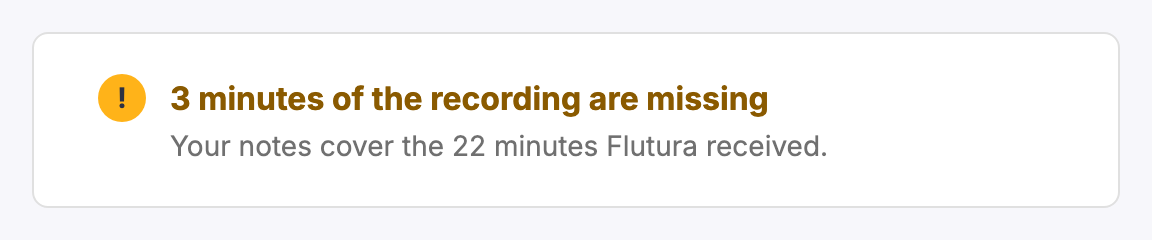
When part of the recording did not reach Flutura, the session still gets notes from the rest. A line at the top of the session says how much is missing and how much your notes cover, for example "3 minutes of the recording are missing" and "Your notes cover the 22 minutes Flutura received." Select Add note under Therapist Notes to write down what the recording missed.