
Overview
Your account menu lives behind your profile photo in the top corner of Flutura. From there you open Settings, a single panel that holds everything about your account.
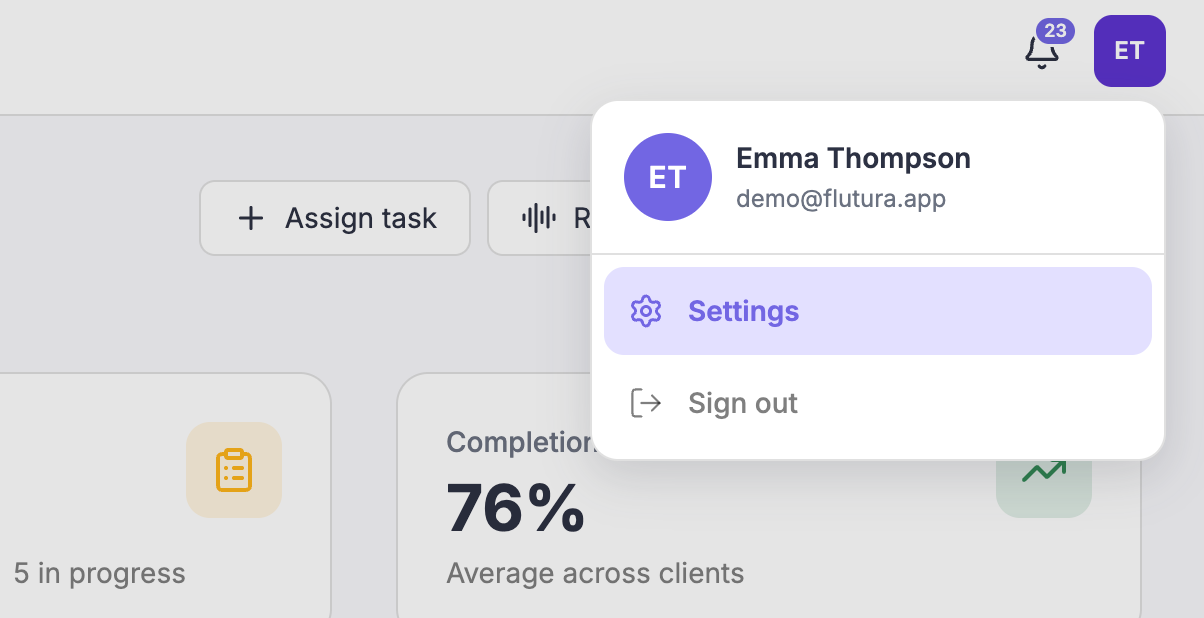
Opening your account menu
Select your profile photo in the top right of the header.
The account menu opens, showing your name, your email, a Settings option and Sign out.
Select Settings.
The Settings panel opens over your current screen. You do not leave the page you were on.
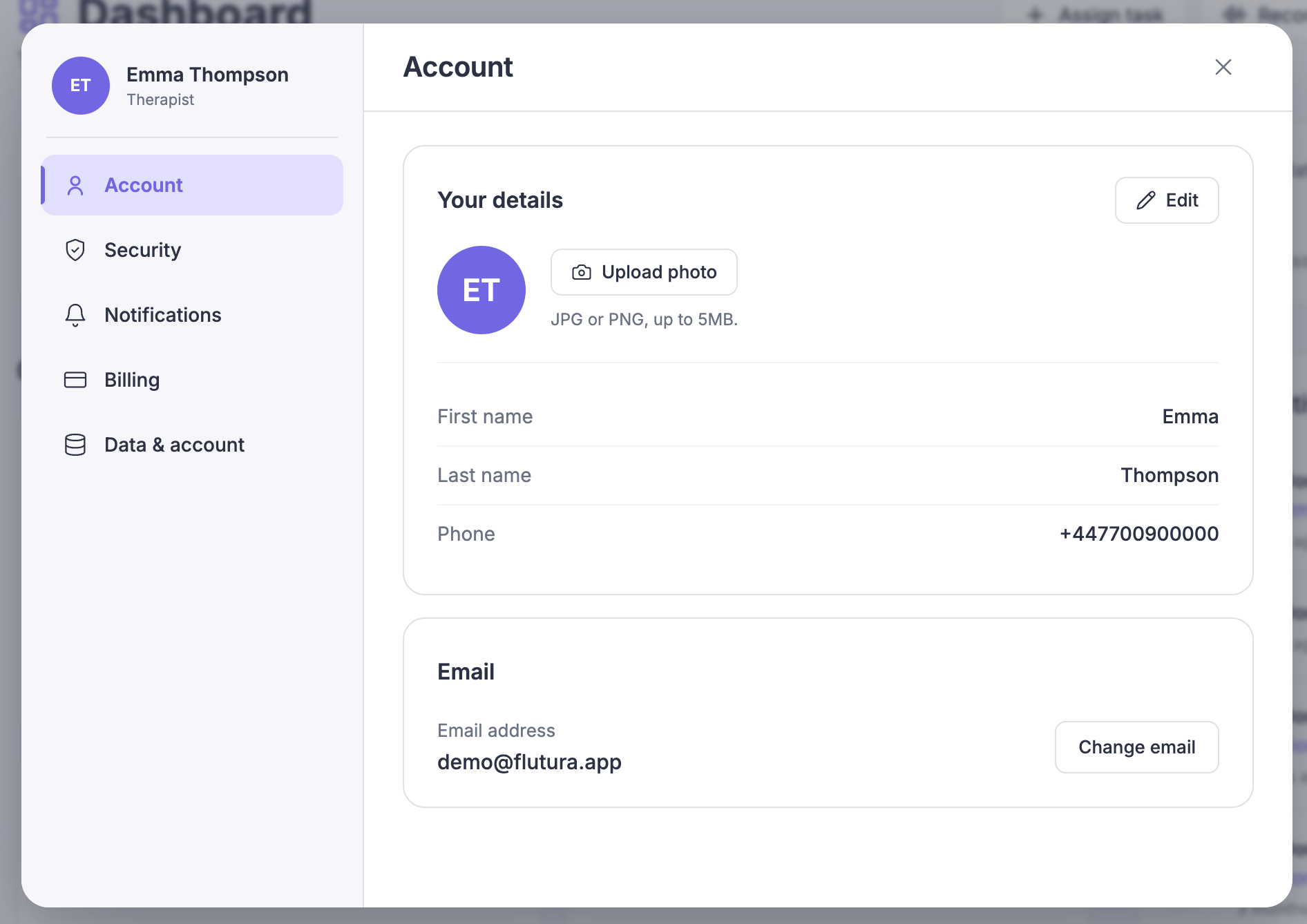
What is in Settings
The panel has five sections in the left rail:
Account: your profile photo, name, phone number and email.
Security: change your password or email address.
Notifications: choose which updates and emails you receive.
Billing: your plan, invoices, payment method and cancellation.
Data & account: export your data or delete your account.
Select any section to move straight to it.
On a phone
The panel fills the screen and shows the section list. Tap a section to open it, then use Back to return to the list.
Closing Settings
Select the close icon, press Escape, or select the area outside the panel. Any changes you saved stay saved.