Installing Flutura gives you a dedicated app icon and a distraction-free window, no browser tabs or address bars. It takes under a minute.
Most therapists use Flutura on desktop during sessions. Here is how to install it:
Open workspace.flutura.app in Chrome, Edge, or another Chromium browser
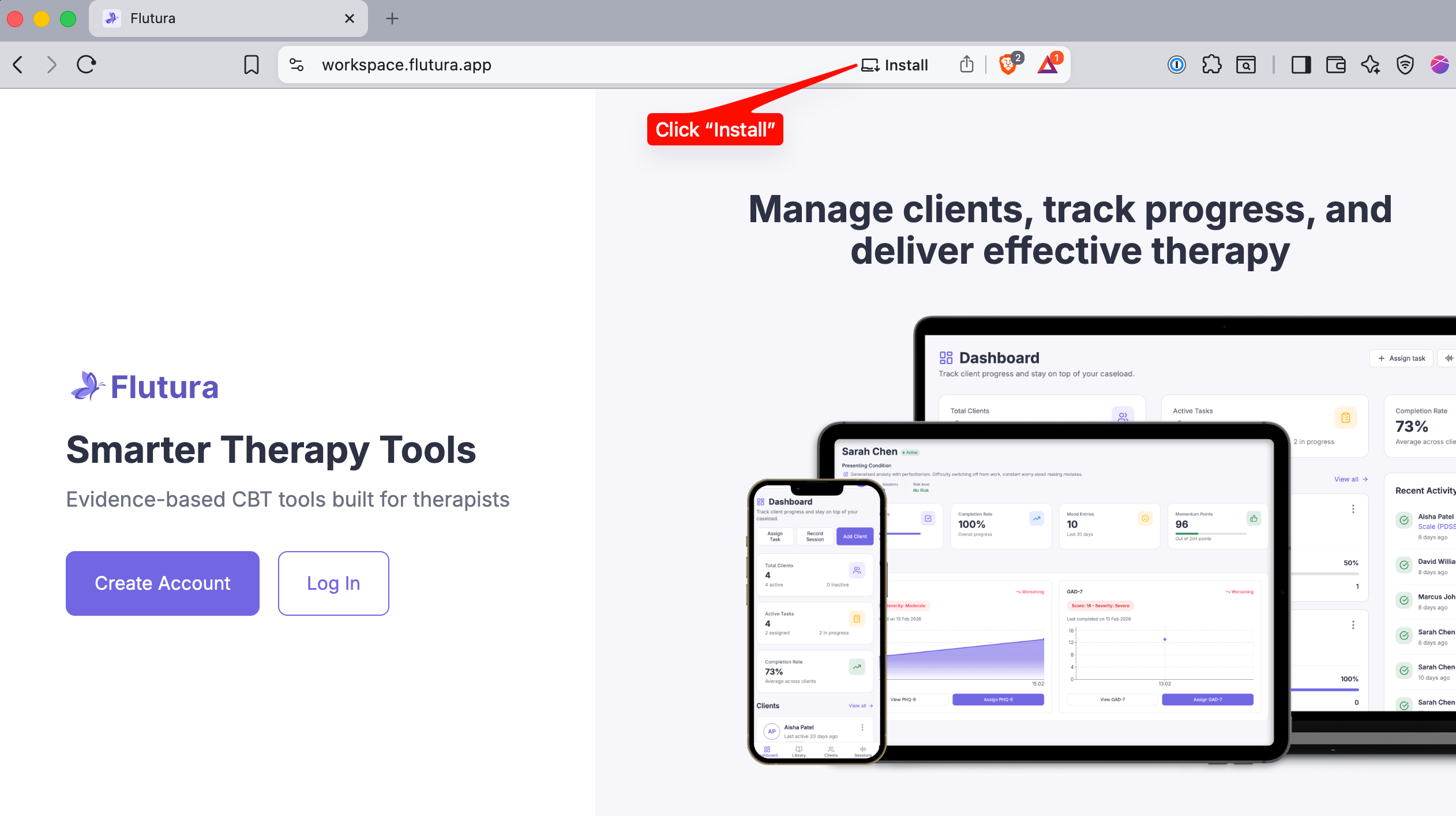
Look for the Install icon in the address bar (a small screen with a down arrow)
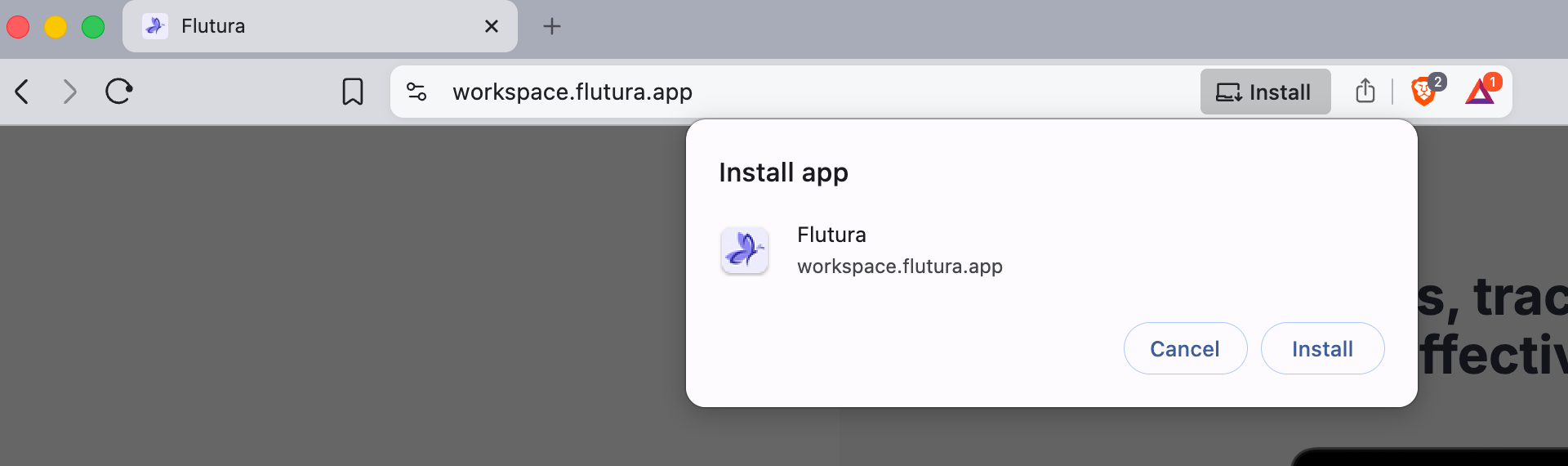
Click Install
Flutura opens in its own window. Pin it to your taskbar (Windows) or Dock (Mac) for one-click access.
Desktop Chrome install icon in address bar
Desktop install confirmation dialog
Open workspace.flutura.app in your browser
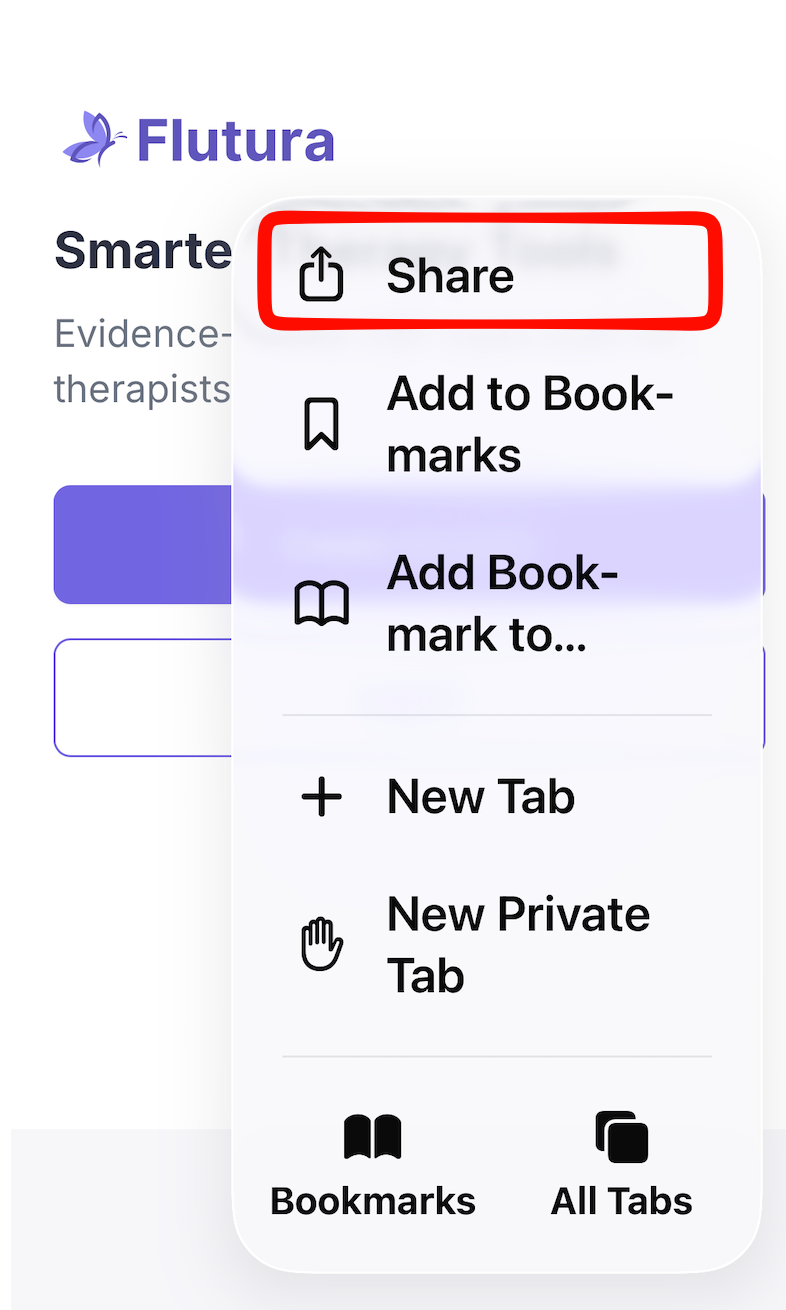
Tap the Share button (square with upward arrow)
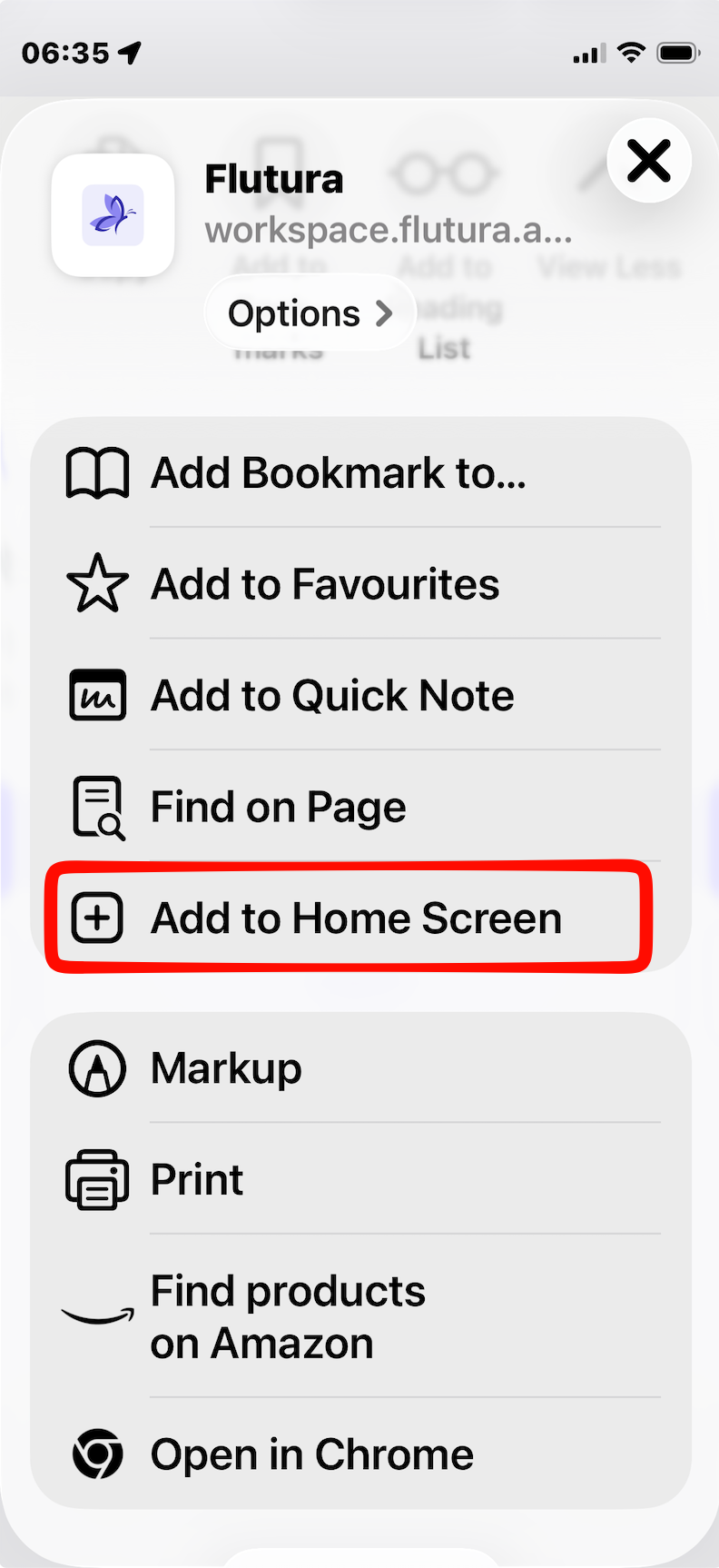
Tap Add to Home Screen
Tap Add
iOS Safari share button location
iOS "Add to Home Screen" option in share sheet
iOS confirm "Add" dialog
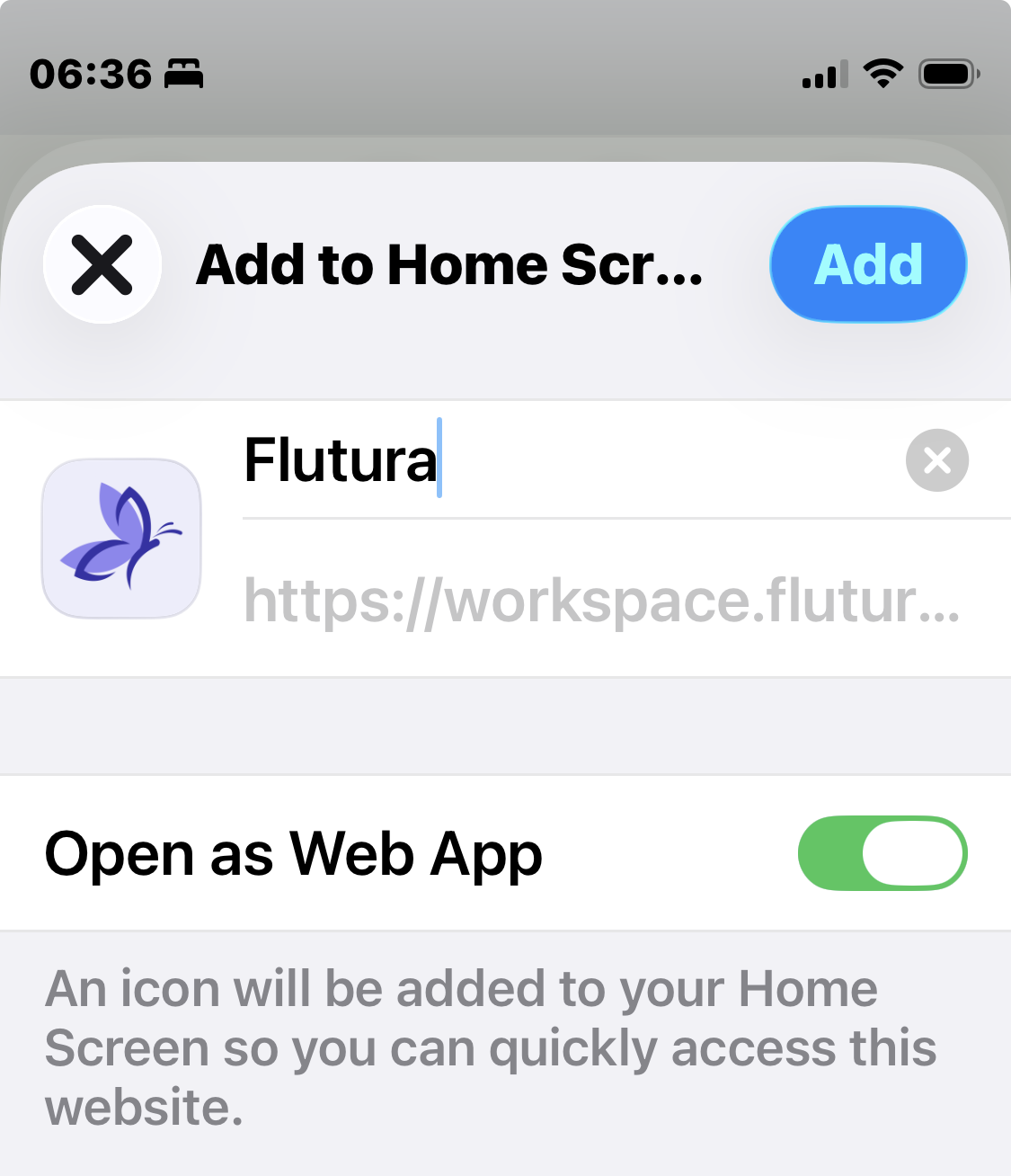
Open workspace.flutura.app in your browser
Tap the menu (three dots in Chrome, or three lines in Samsung Internet)
Tap Install app or Add to Home Screen
Tap Install or Add
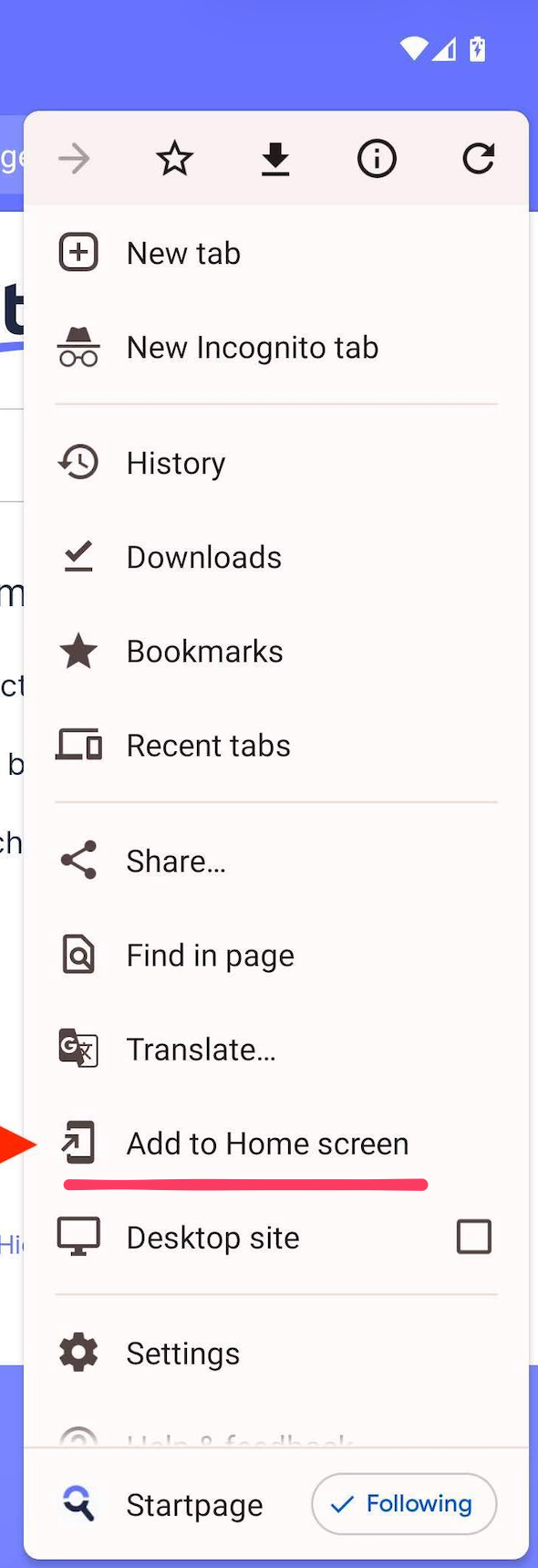
This is the single most effective way to make sure clients can find and access Flutura between sessions. It takes 60 to 90 seconds during a session, and clients are far more likely to complete it with you guiding them.
Use this script after you have invited them and they have created their account:
"Now that your account is set up, let us save Flutura to your phone so you can find it easily. Open your browser, go to workspace.flutura.app, and I will walk you through adding it to your home screen. It takes about 30 seconds."
Then guide them through the steps for their device (see Part A above, or share the help article: https://help.flutura.app/en/articles/13-how-to-install-flutura-on-your-device)
These clients can already access Flutura but may not have it saved to their home screen. Use this:
"Quick thing before we start today. You can save Flutura to your home screen so it works just like a regular app. Want me to walk you through it? It takes 30 seconds."
Then guide them through the steps for their device.
If your client currently uses the Flutura app downloaded from the App Store or Play Store:
"We have upgraded Flutura to a new version that runs through your browser. It is faster and gets updates immediately. Let me help you set it up. Everything you have done so far, your mood logs, worksheets, all of it, is still there."
Walk them through:
Open workspace.flutura.app in their browser
Log in with their existing email and password
Follow the install steps for their device
Confirm they can see their data
Once they are happy, they can remove the old app
Do it during the session, not as homework. Completion rates are near 100% when you guide them in person.
Check it worked: Ask the client to close Flutura, find the icon on their home screen, and reopen it. If it opens without the browser address bar, it is installed correctly.
Reassure on data: Everything syncs automatically. There is nothing to transfer or download.
For less confident clients: Offer to share a walkthrough video via WhatsApp (see WhatsApp templates below).
The Share button is a square with an upward arrow. In Safari it is at the bottom centre of the screen. In Chrome it is near the address bar. If the toolbar is hidden, scroll up on the page to reveal it.
Ask them to check they are using the full address (workspace.flutura.app). If the option still does not appear, try clearing the browser cache or switching to Chrome.
This can happen after a phone software update. They just need to follow the install steps again.
Clients can use the "Forgot password" link on the login page. If they never completed signup, you can resend the invitation from your Flutura dashboard.
Flutura works on any device with a modern browser. If they are on iOS 14 or older, some features (like offline access) may be limited, but the core experience works.
Material | How to Share | When to Use |
Help article | Send link via WhatsApp/email | Client wants to install on their own |
WhatsApp templates | Copy and paste from template | Before or after a session |
Walkthrough video | Send link via WhatsApp | Client prefers visual instructions |
In-session walkthrough | Guide them live | During any session (recommended) |
Client help article: https://help.flutura.app/en/articles/13-how-to-install-flutura-on-your-device
WhatsApp templates: https://help.flutura.app/en/articles/14-whatsapp-message-templates-for-therapists