When you install Flutura, three things change:
An app icon appears on your home screen (phone/tablet) or taskbar/desktop (computer)
Flutura opens in its own window, without browser tabs or address bars
You stay logged in, so you can get straight to your tools every time
Nothing is downloaded from an app store. Flutura runs in your browser, but installing it gives you the same experience as a regular app.
These steps work in Safari, Chrome, and other browsers on iOS.
In Safari:
Open workspace.flutura.app in Safari
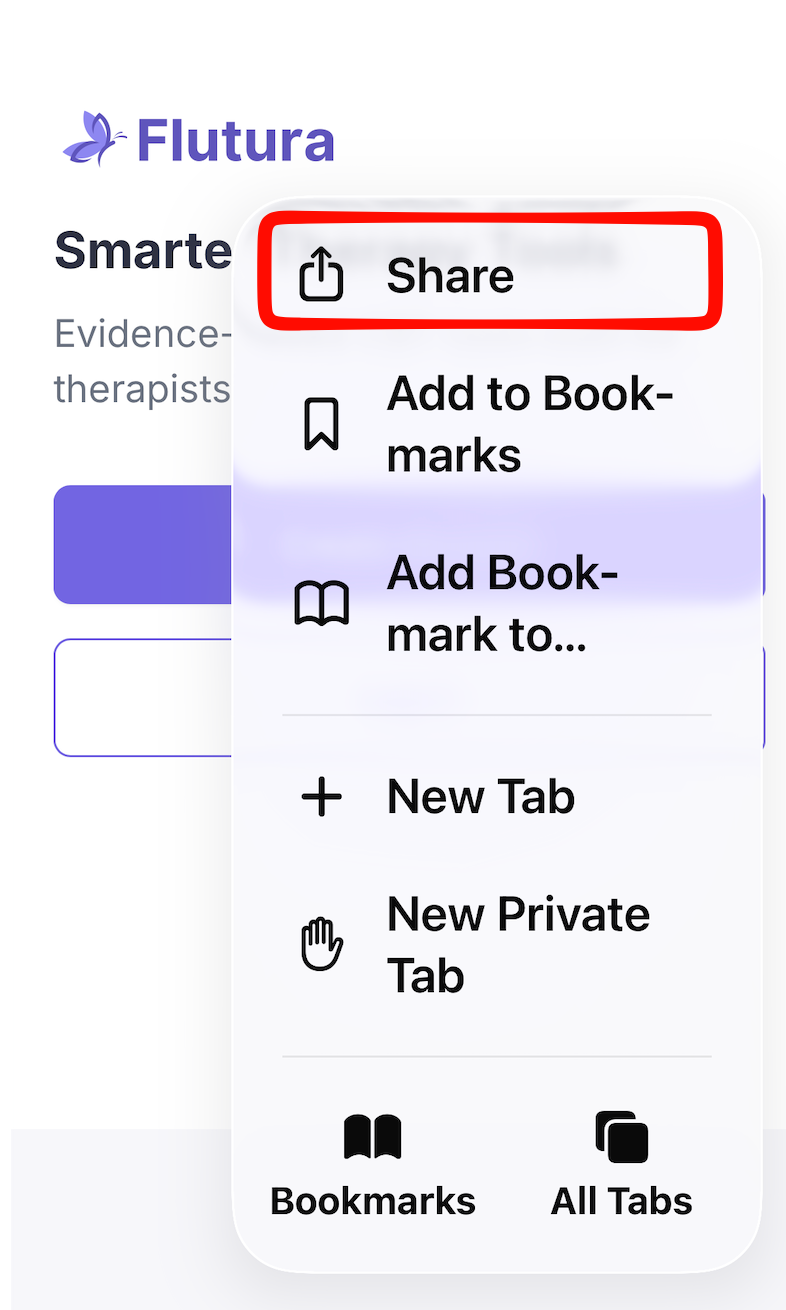
Tap the Share button (the square with an upward arrow, usually at the bottom of the screen)
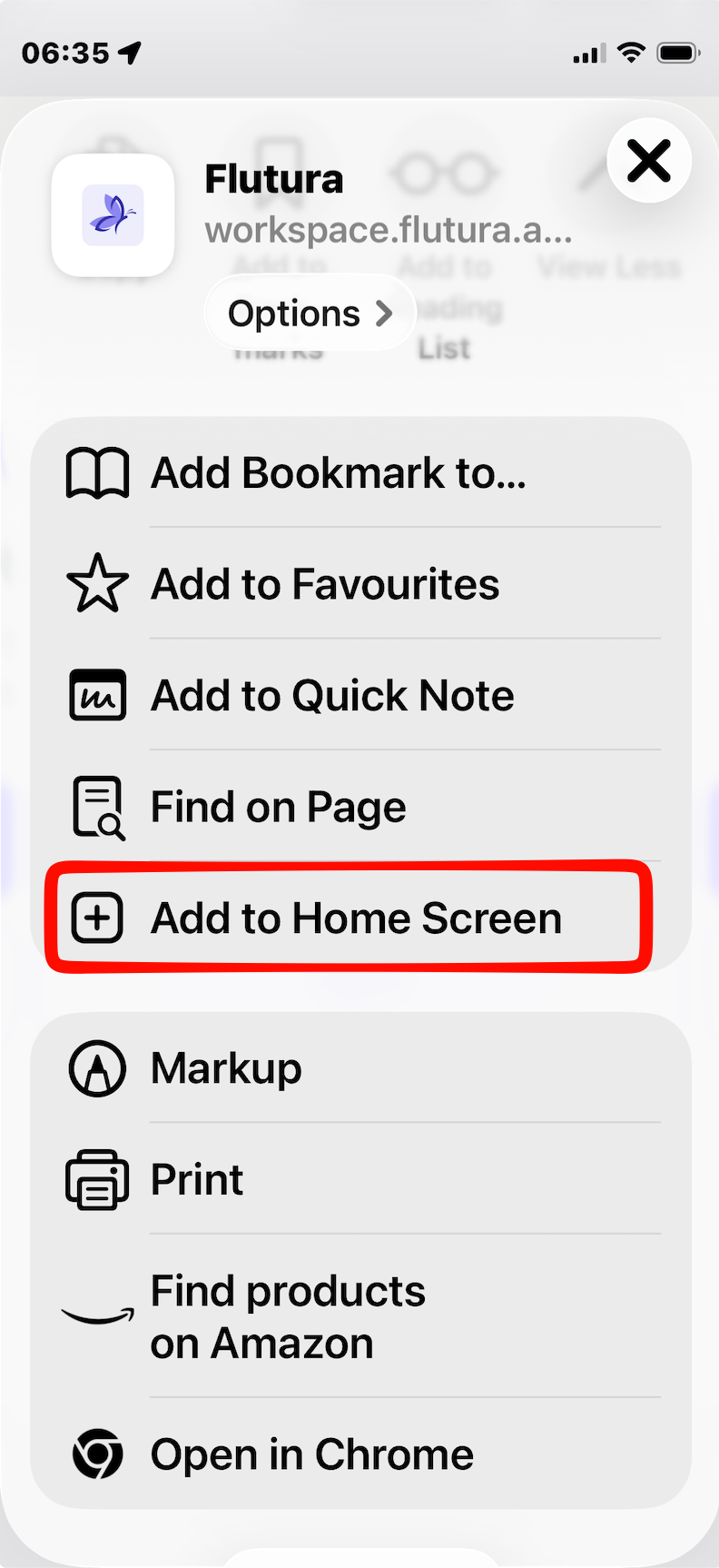
Scroll down and tap Add to Home Screen
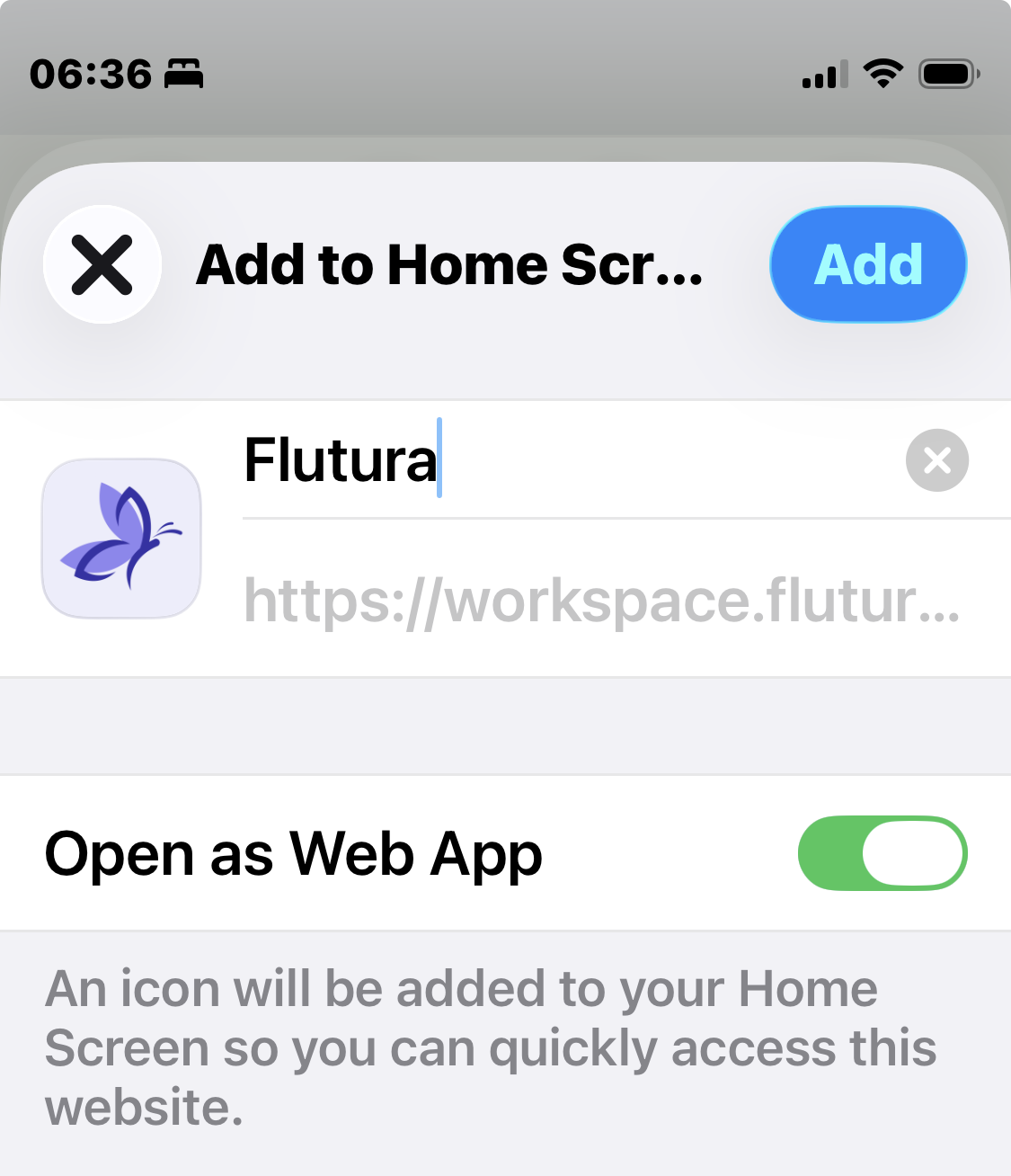
Tap Add in the top-right corner
In Chrome:
Open workspace.flutura.app in Chrome
Tap the Share button (the square with an upward arrow, in the address bar area)
Scroll down and tap Add to Home Screen
Tap Add in the top-right corner
iOS Safari share button location
iOS "Add to Home Screen" option in share sheet
iOS confirm "Add" dialog
The Flutura icon will now appear on your home screen. Tap it to open Flutura.
These steps work in Chrome, Samsung Internet, and other browsers.
In Chrome:
Open workspace.flutura.app in Chrome
Tap the three-dot menu in the top-right corner
Tap Install app or Add to Home Screen
Tap Install to confirm
In Samsung Internet:
Open workspace.flutura.app in Samsung Internet
Tap the three-line menu at the bottom
Tap Add page to then Home screen
Tap Add
[SCREENSHOT: Android Chrome three-dot menu]
[SCREENSHOT: Android "Install app" option]
[SCREENSHOT: Android install confirmation dialog]
The Flutura icon will now appear on your home screen. Tap it to open Flutura.
Open workspace.flutura.app in Chrome, Edge, or another Chromium-based browser
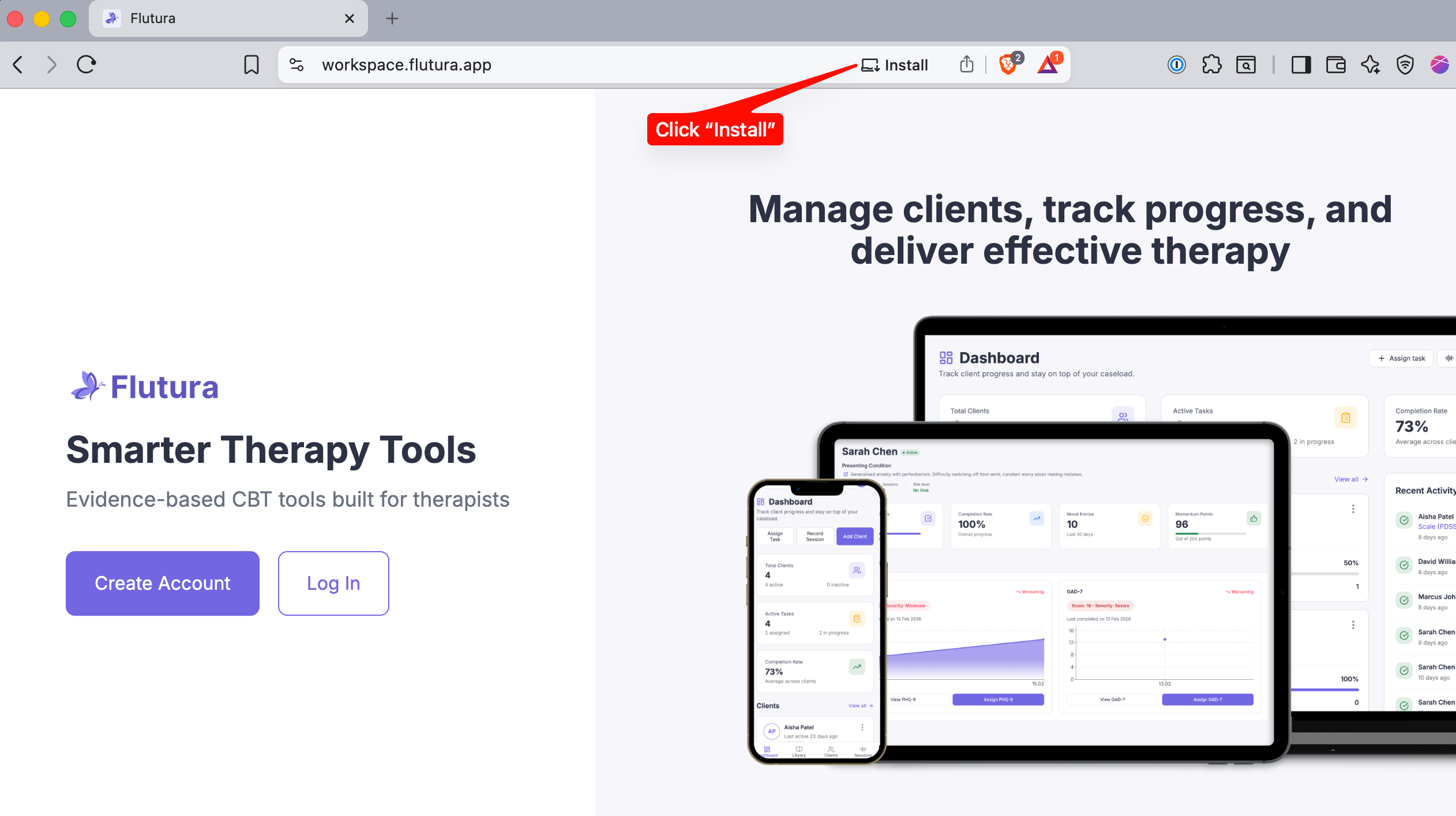
Look for the Install icon in the address bar (a small monitor with a down arrow, or a "+" icon)
Click Install
Desktop Chrome install icon in address bar
Desktop install confirmation dialog
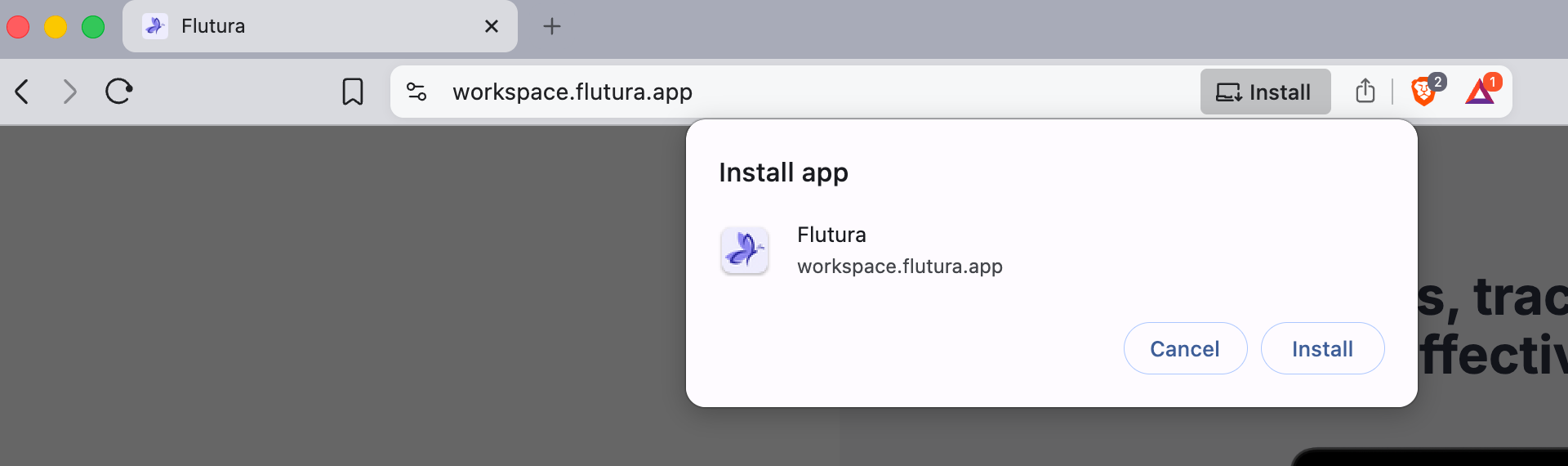
Flutura will open in its own window. You can find it in your Start menu (Windows) or Applications folder (Mac), and pin it to your taskbar or Dock.
We have upgraded Flutura to work directly through your browser, which means faster updates and a better experience.
Here is how to switch:
Follow the install steps above for your device
Log in with your existing email and password
All your data, assignments, and progress will be there; nothing is lost
Once you are comfortable with the new version, you can remove the old app from your device.
I cannot find the Share button (iPhone/iPad)
The Share button looks like a square with an upward arrow. In Safari, it is usually at the bottom centre of the screen. In Chrome, look near the address bar. If you still cannot find it, try scrolling up on the page first, as the toolbar may be hidden.
I do not see an Install option (Android)
Try these steps:
Make sure you are using the full address: workspace.flutura.app
Close the browser and reopen it
Clear your browser cache (Settings > Privacy > Clear browsing data)
Try using Chrome if you are on a different browser
I do not see the Install icon (Desktop)
The install icon only appears in Chromium-based browsers (Chrome, Edge, Brave, Arc). If you are using Firefox, you will not see it. Switch to Chrome or Edge and visit workspace.flutura.app.
The Flutura icon disappeared from my home screen
This can happen after a software update. Simply follow the install steps again to re-add it.
I am having trouble logging in
If you have forgotten your password, use the "Forgot password" link on the login page. If you are a new client, check your email for the invitation link from your therapist.
If you are stuck, your therapist can help you set this up during your next session. You can also email us at [email protected].