
Overview
The Help button in your workspace opens the help centre, and from there you can ask a question, report a problem or suggest a feature. You can add a screenshot or a screen recording to a report.
Open Help
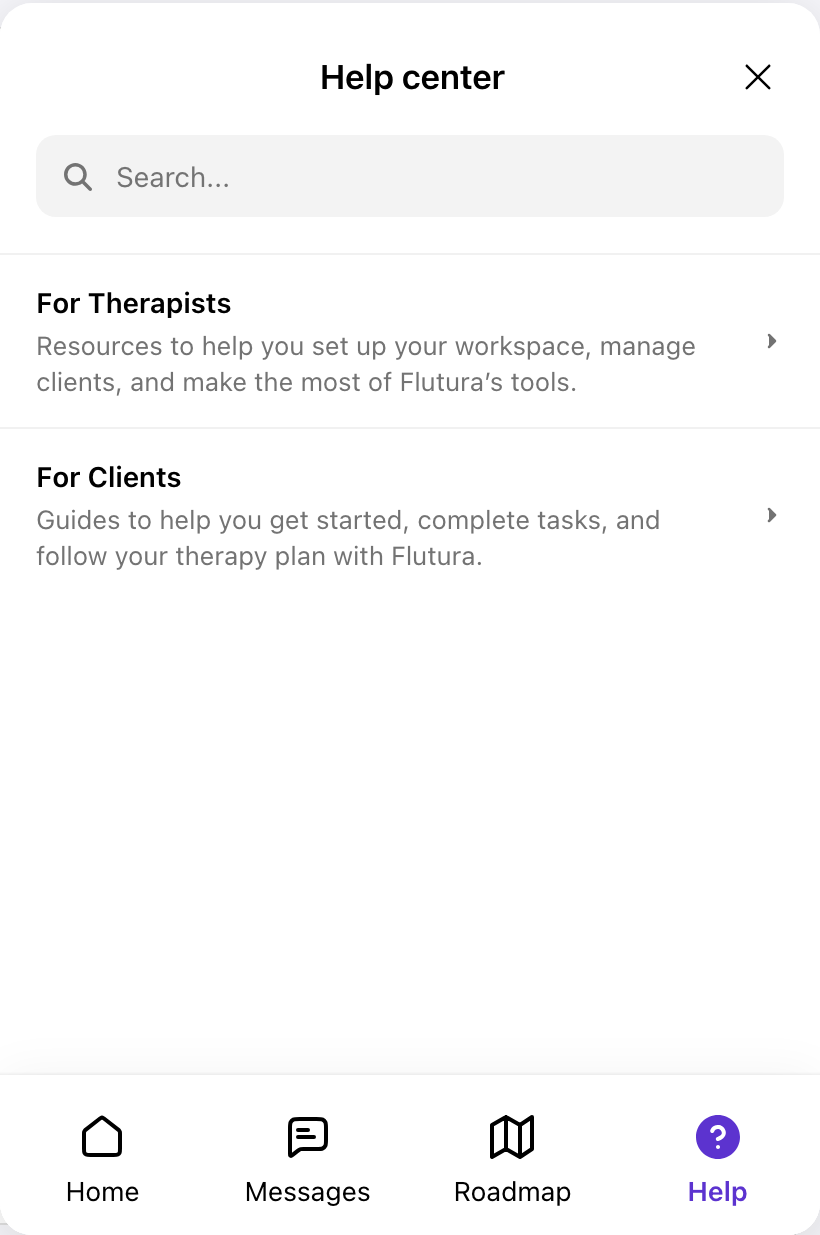
Select Help at the bottom of the left-hand menu. A window opens with four tabs along the bottom: Home, Messages, Roadmap and Help. The Help tab lists the help articles for therapists and for clients, with a search box.
Report an issue or request a feature
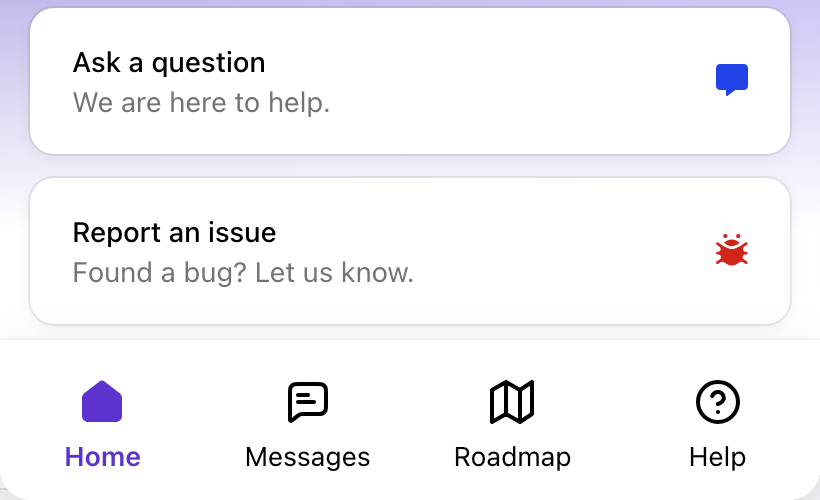
Select the Home tab.
Choose Ask a question, Report an issue ("Found a bug? Let us know.") or Request a feature ("What would you like to see next?").
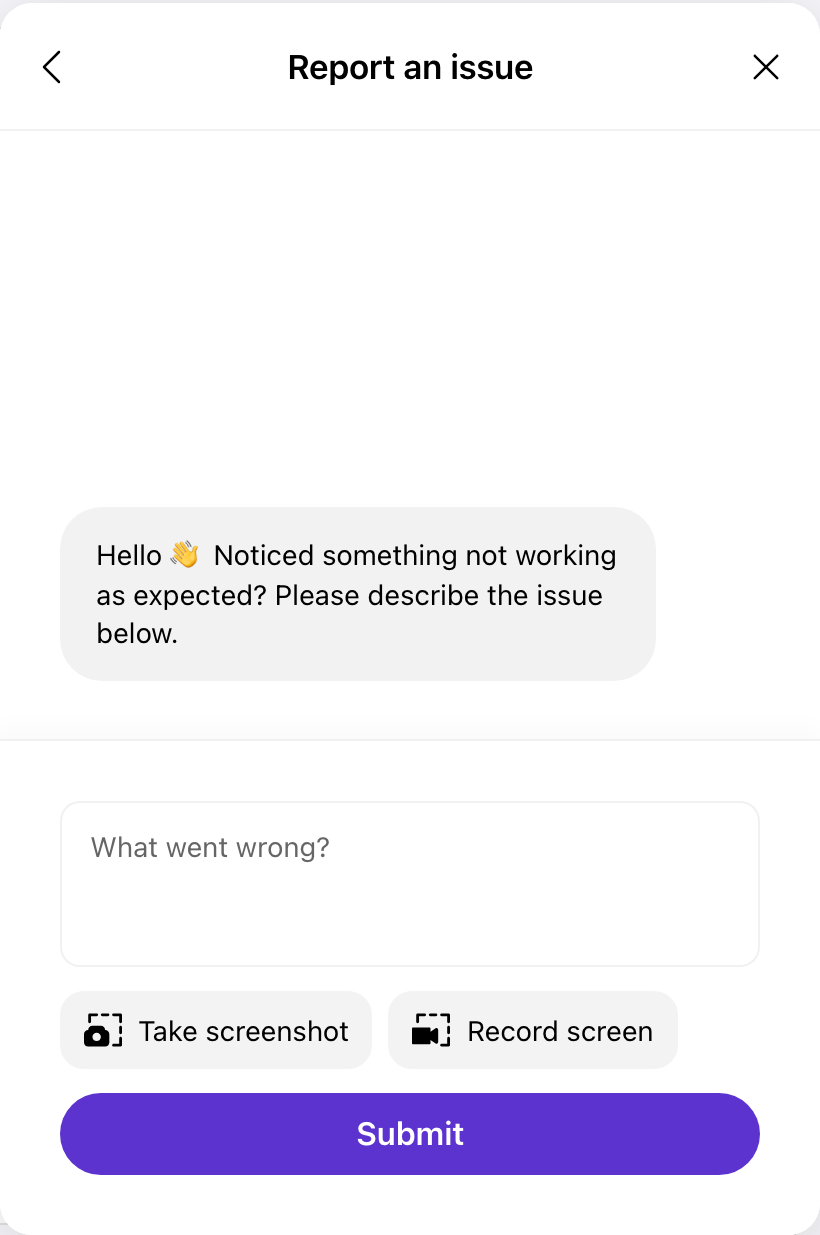
Describe what went wrong, or what you would like to see. For a bug report, you can select Take screenshot or Record screen to show us.
Select Submit.
See what happens next
Select the Roadmap tab to see the features other users have asked for, which can be sorted by most votes. Select Messages to see your earlier conversations with the team, or to send a new message.