When your therapist invites you to Flutura, you’ll receive an email link to create your account. This guide shows you how to set it up step by step so you can begin therapy tasks and track progress.
Click the invite link in the email from Flutura. This takes you to the Get Started screen.
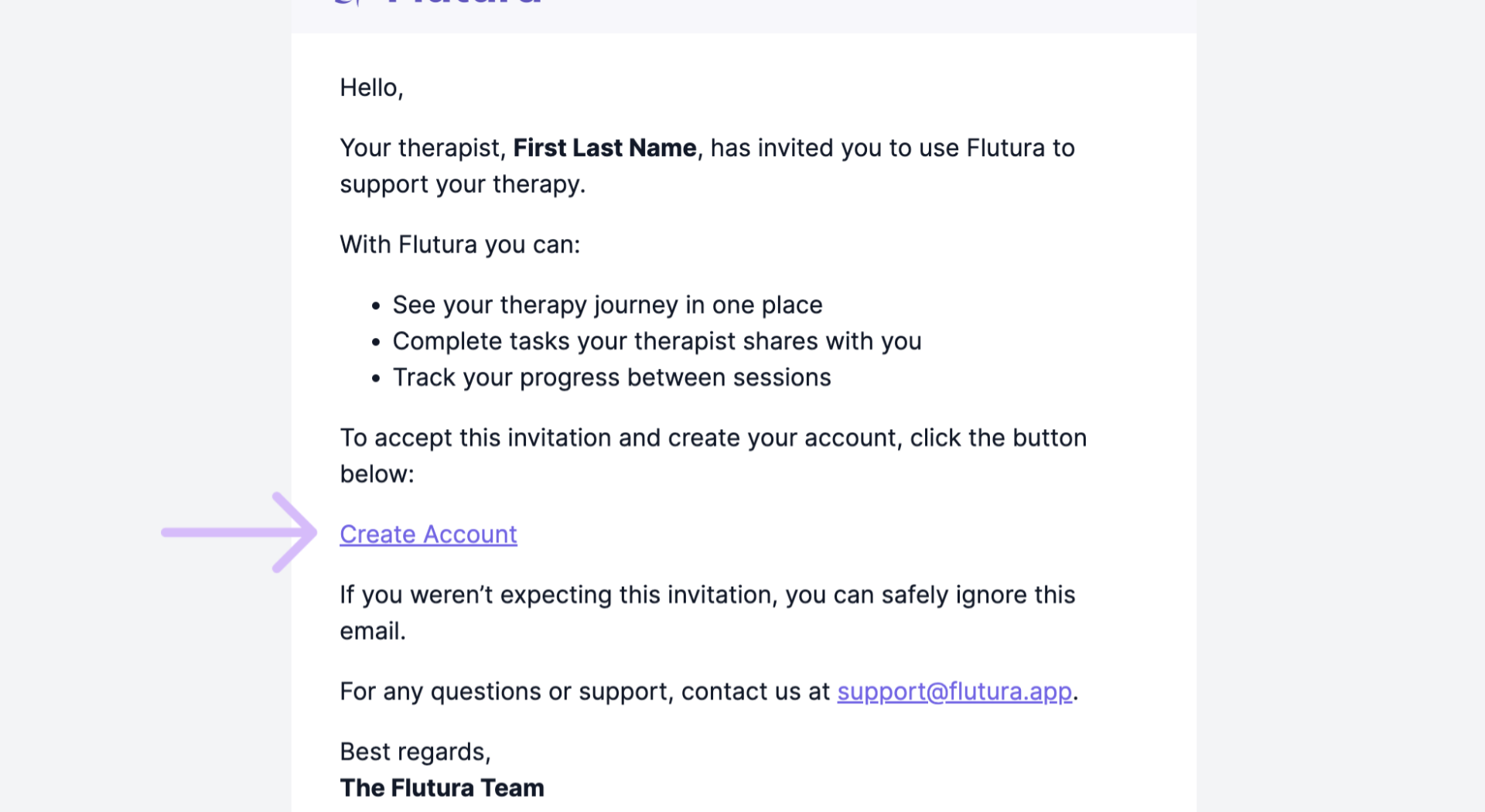
On the Get Started screen, click the button to begin creating your account.

Set a secure password, then verify your email by entering the one-time code sent to your inbox.
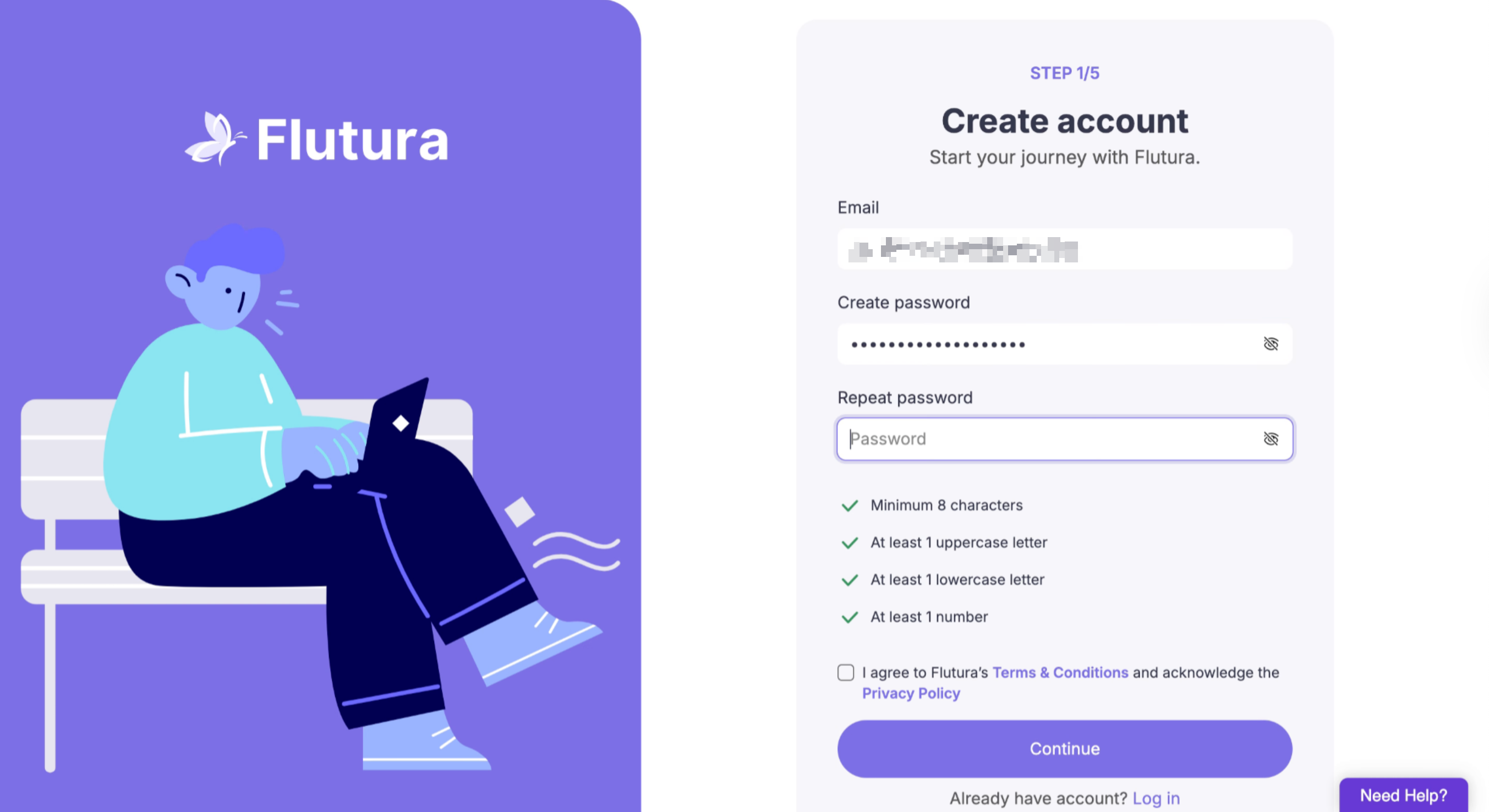
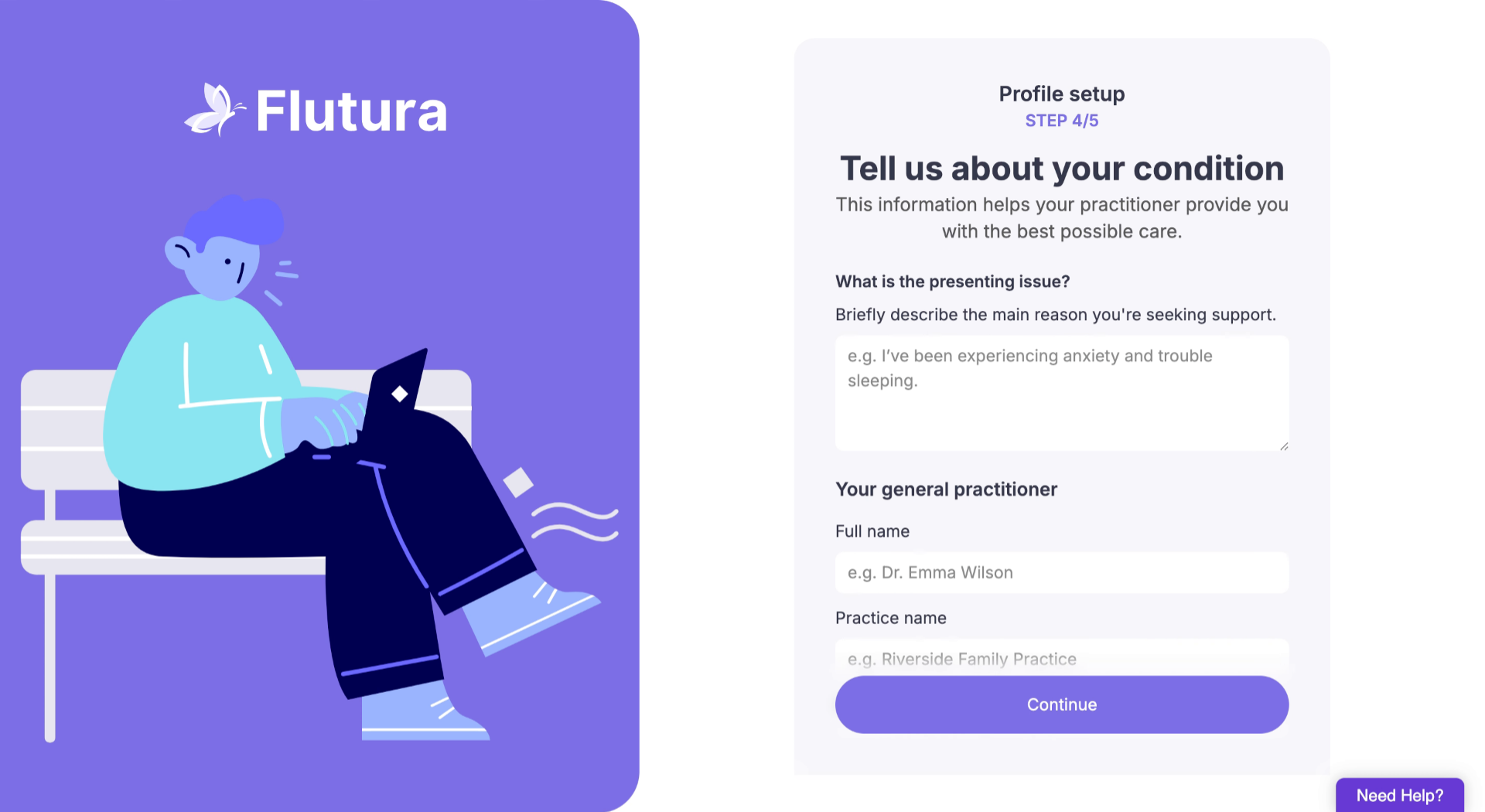
Add your address, phone number, and emergency contact. If relevant, you can also enter insurance details.
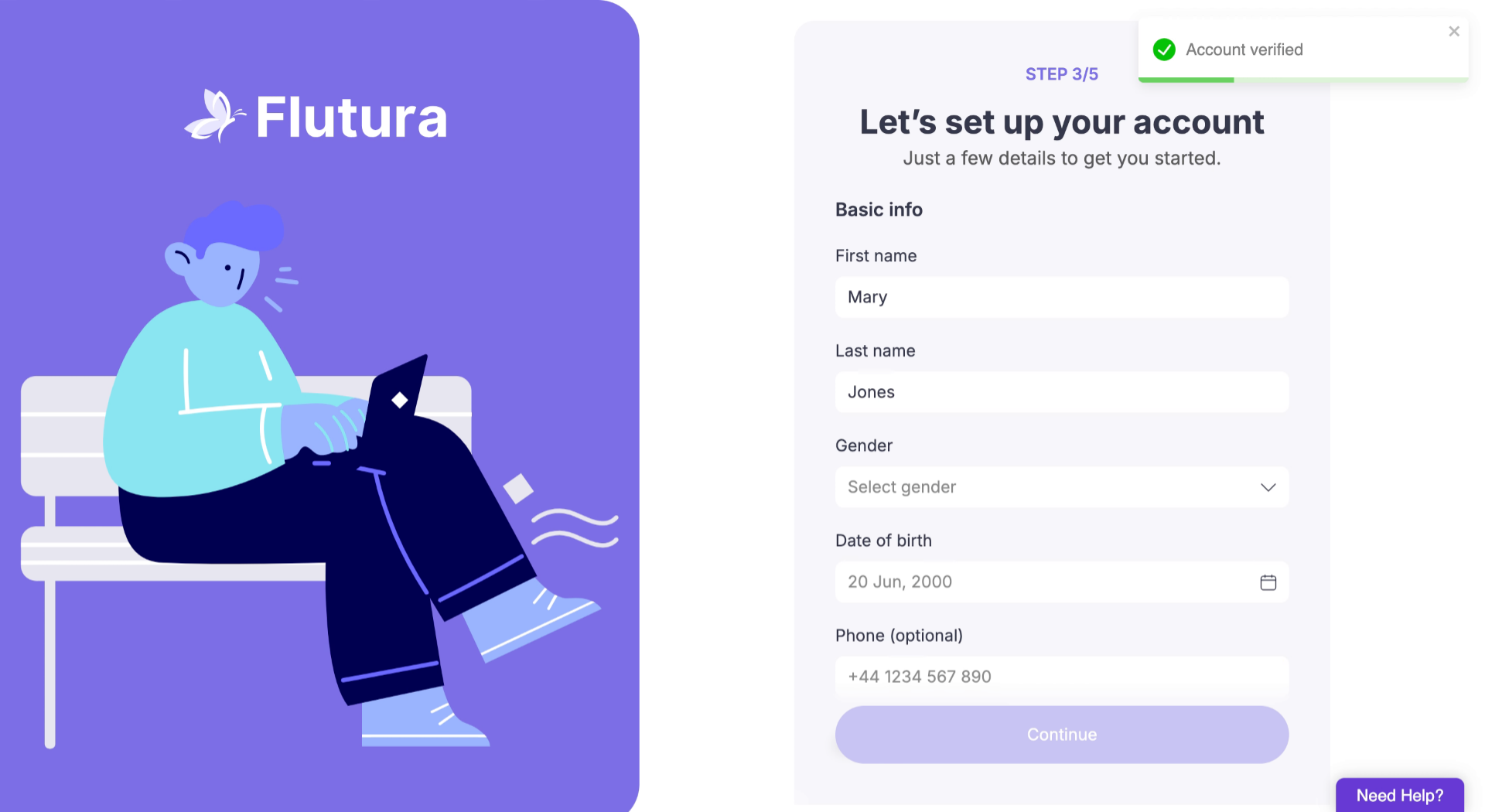
You'll also be asked to describe your condition briefly. Add your doctor's details. And confirm whether you have health insurance. These details are all optional. If you don't know them Click continue. You can always come back to them later.
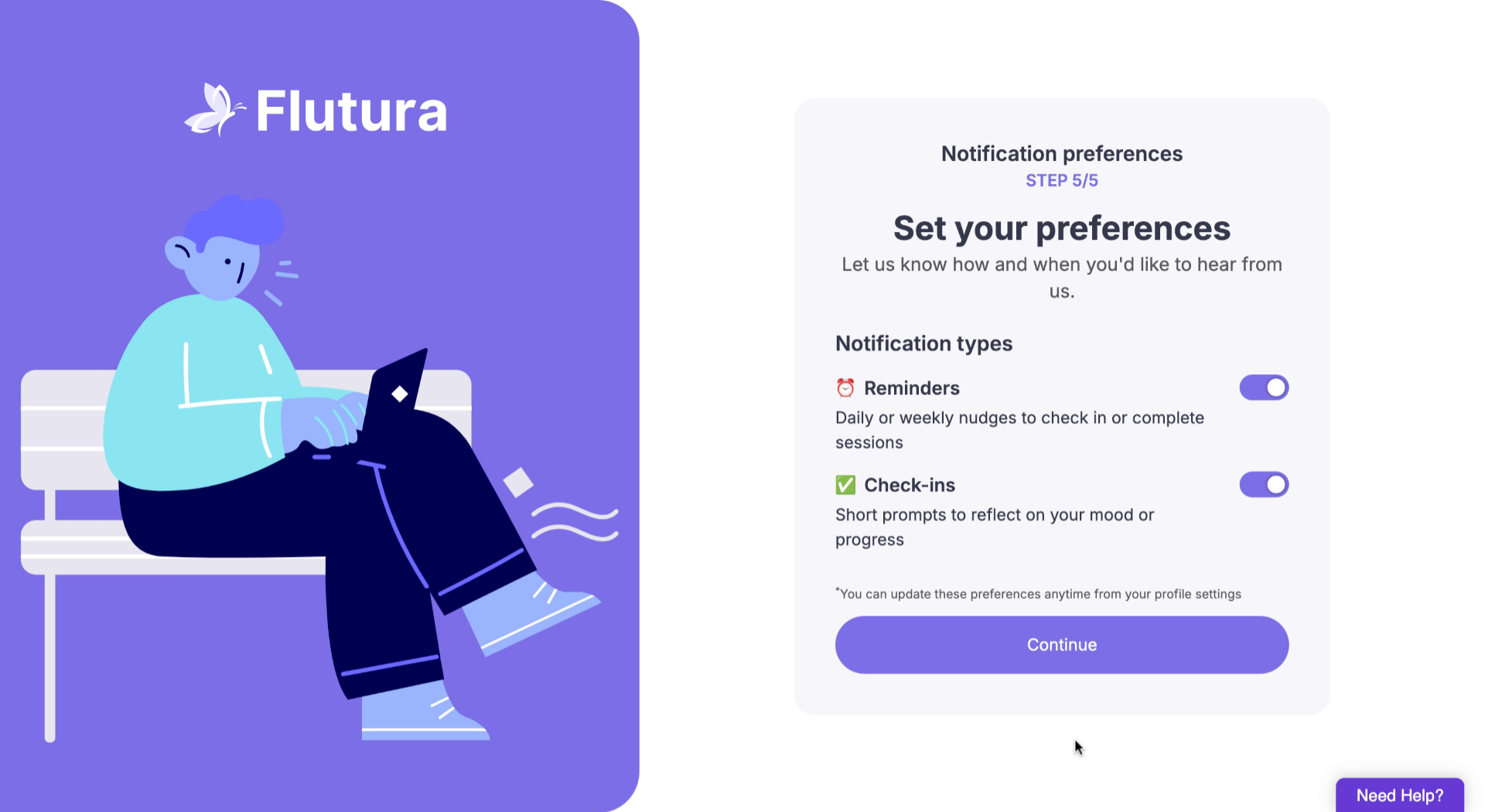
Choose whether to receive reminders to complete sessions and check-ins for short mood prompts. You can adjust these anytime in your profile.
That’s it! Your client account is now active. You can log in to Flutura, start completing worksheets, and your therapist will be able to track your progress.
Didn’t receive the invite email: Check your spam or junk folder, or ask your therapist to resend it.
One-time code not working: Request a new code from the verification screen and try again.
Form won’t save: Make sure all required fields are completed before continuing.
Consent signature not registering: Refresh the page and try signing again.
Accidentally skipped notification settings: You can update preferences anytime in your profile under Settings.