
The therapist dashboard is your workspace in Flutura. It gives you a clear snapshot of clients, tasks, activity, and resources. This guide walks you through each section so you can quickly find what you need.
View recent clients
At the top of the dashboard, see your most recent clients. Click a name to open their profile, or use the search bar.
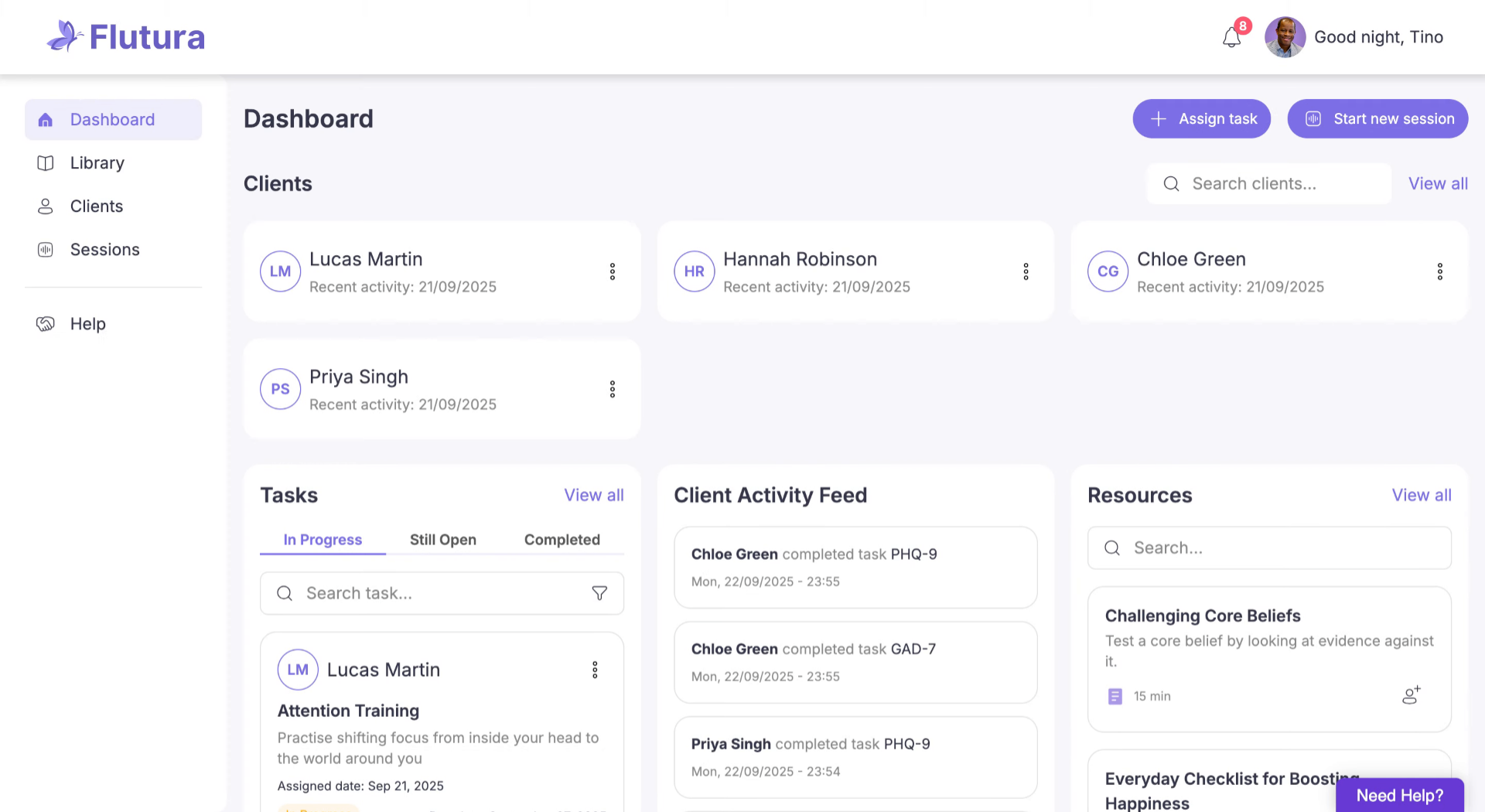
Find clients easily
Use the View all button to see your full client list. The search bar helps you quickly locate a client by name.
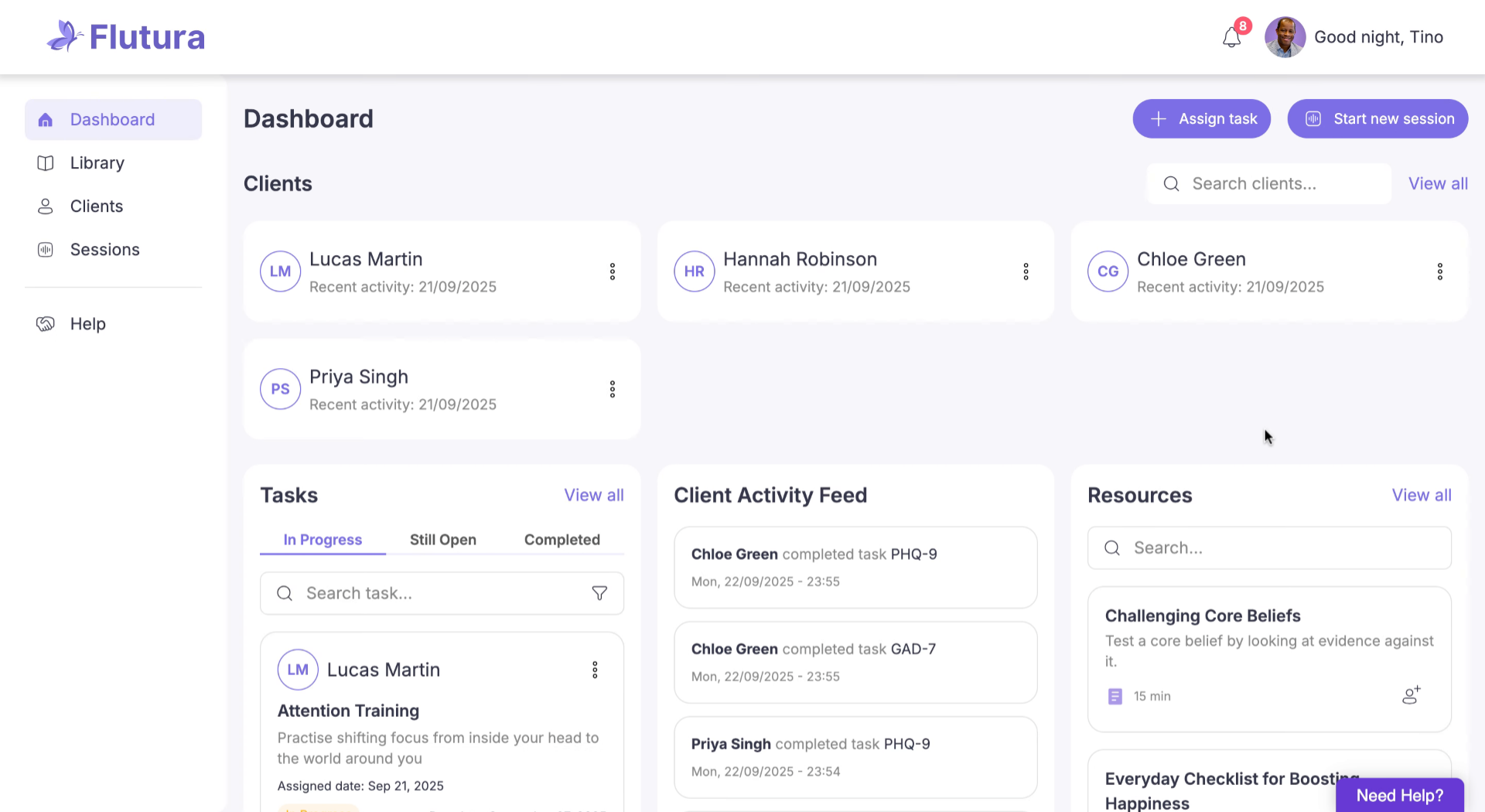
Take quick actions
In the top-right, use Assign task to send a worksheet or exercise, or Start new session to launch a recorded session.
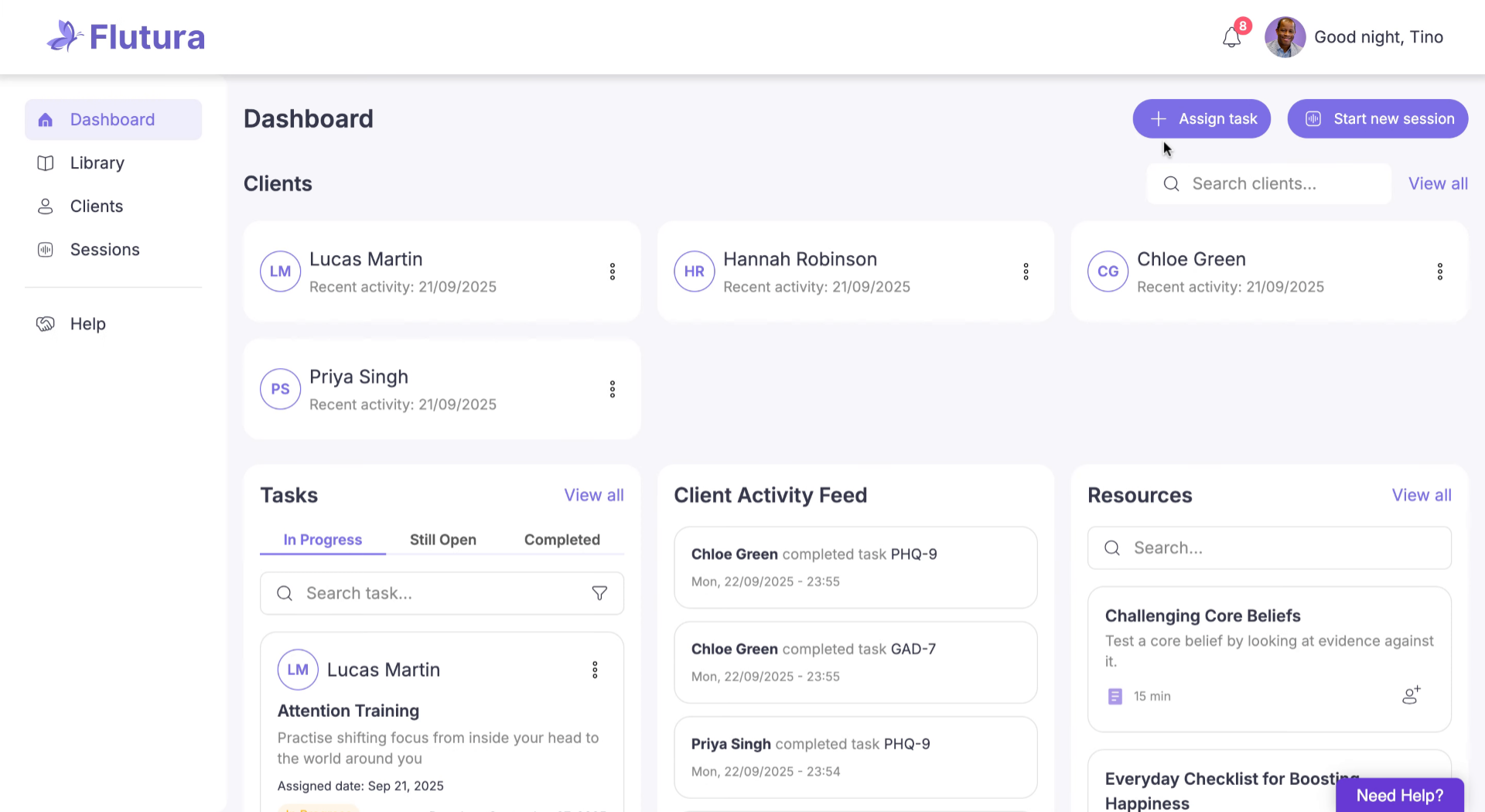
Track assigned tasks
In the left-hand column, see tasks you’ve assigned. Switch between In Progress, Still Open, and Completed to track progress.
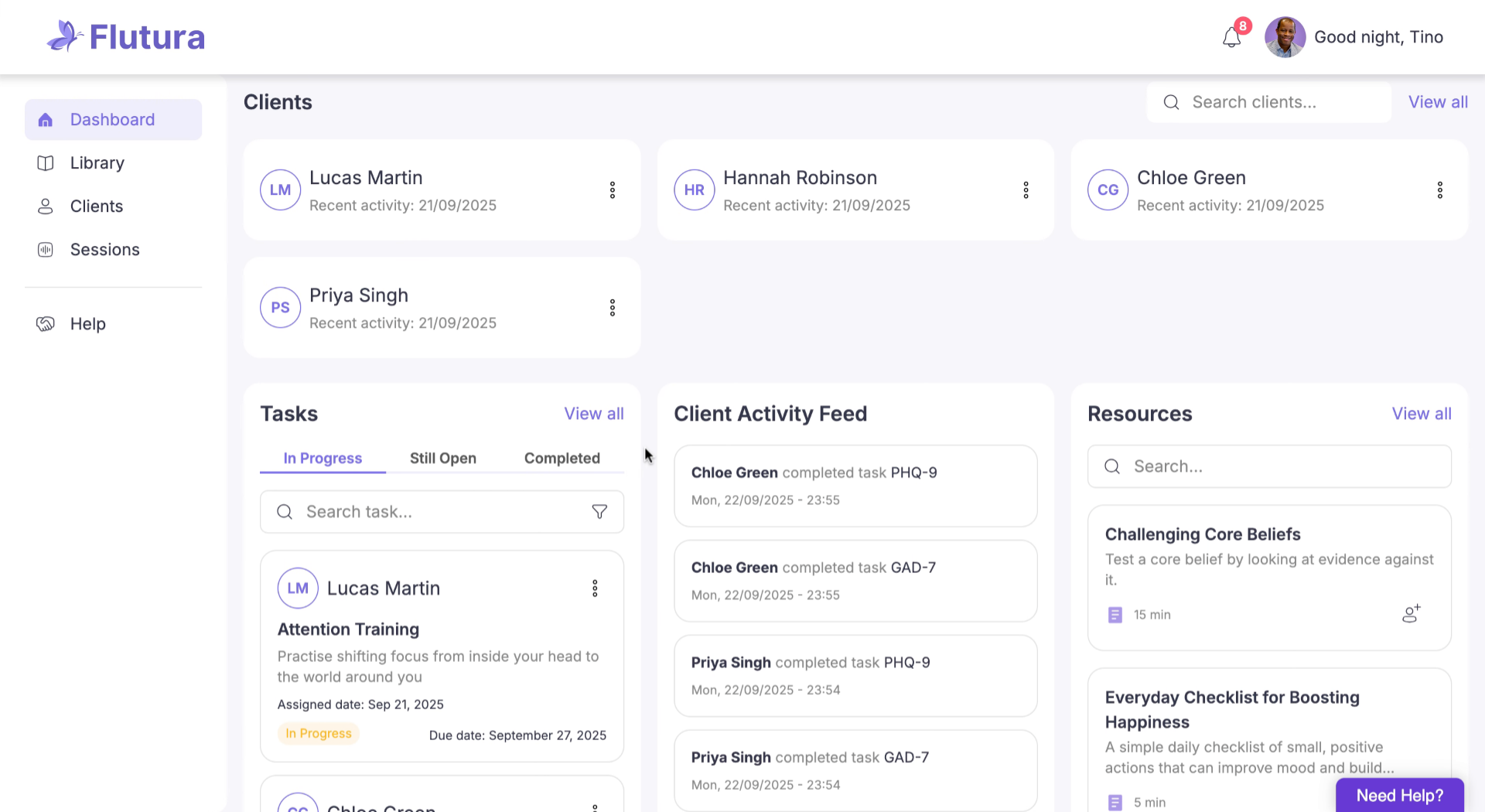
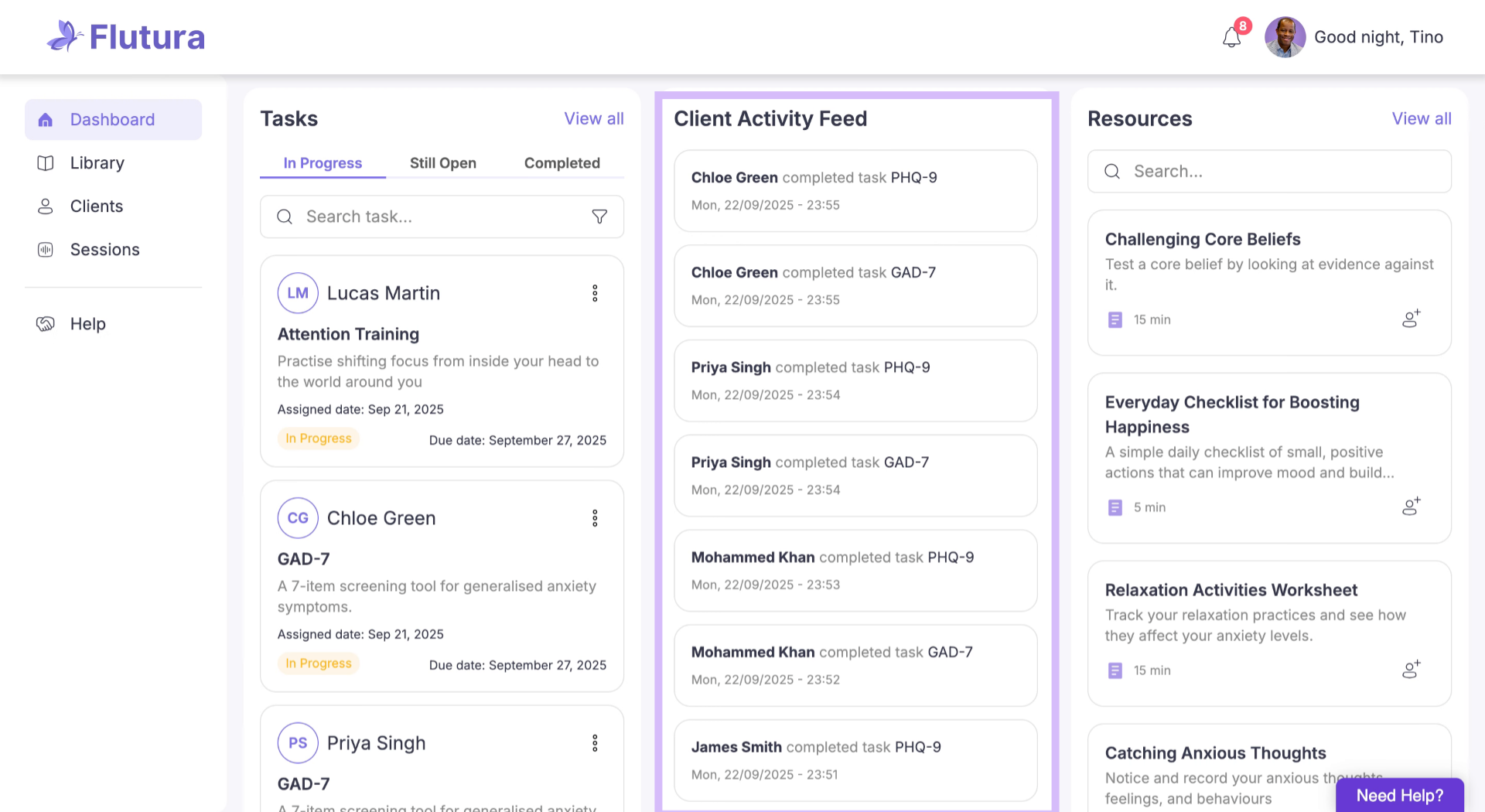
Client Activity Feed
The middle column shows the activity feed. This updates in real time with client completions, like outcome measures or worksheets.
Access resources
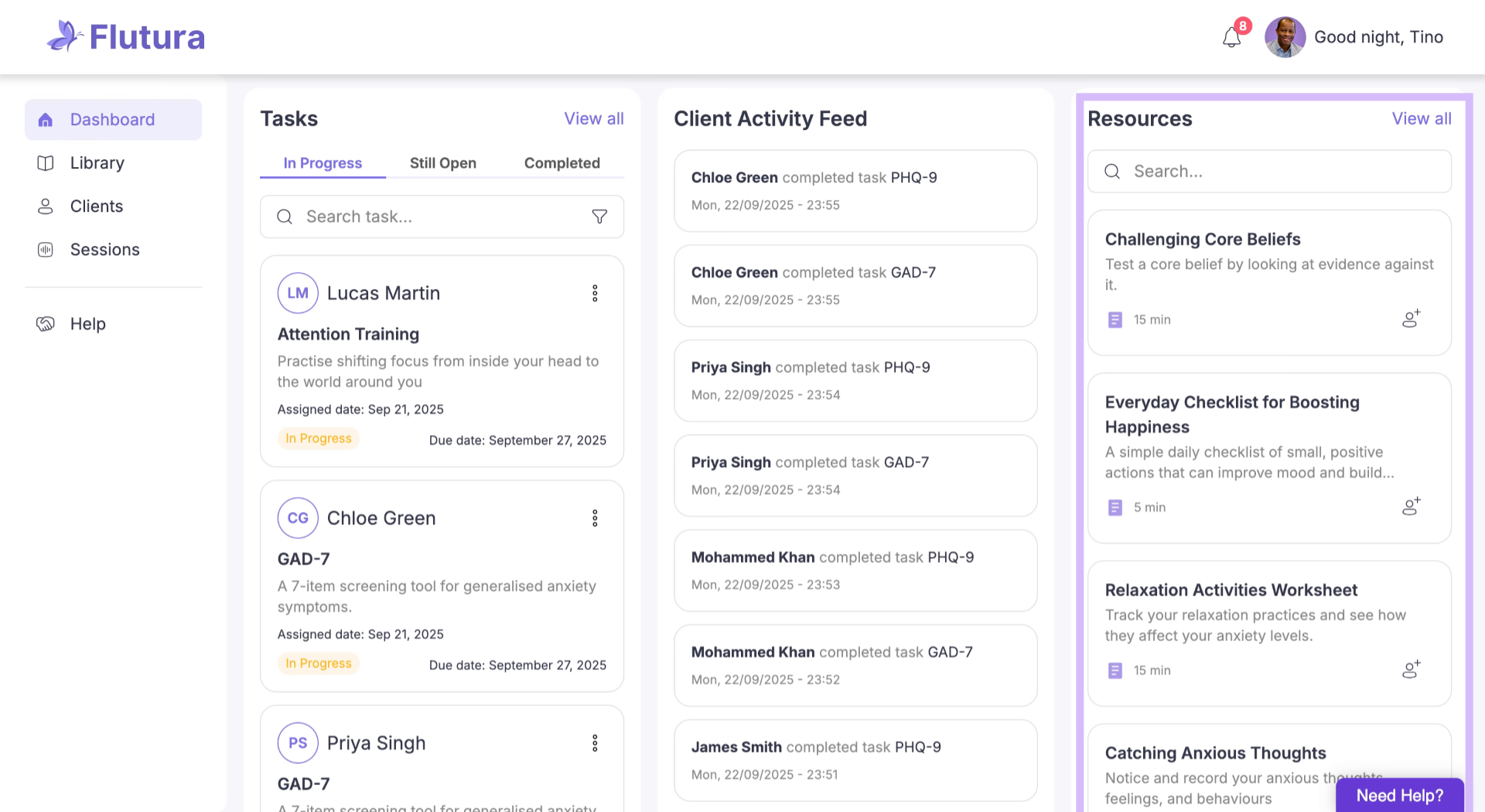
On the right, see a snapshot of worksheets and tools from your library. Use View all to explore the full collection.
Your dashboard gives you a clear overview of clients, tasks, activity, and resources. Everything you need to manage your practice.
Troubleshooting
Client not appearing in recent list: Use the search bar or click View all to locate them.
Tasks not updating correctly: Refresh the dashboard; completed tasks will move automatically.
Resources panel looks empty: Check your Library. Only available worksheets display in the snapshot view.
Error loading activity feed: Refresh the dashboard or log out and back in to refresh data.
Accidentally clicked the wrong client: Use the back button or return to the dashboard to reopen the correct profile.