This guide shows you how to assign worksheets from your Library. You can search, filter, and customise assignments with notes and deadlines.
From your dashboard, click Library in the left-hand menu.
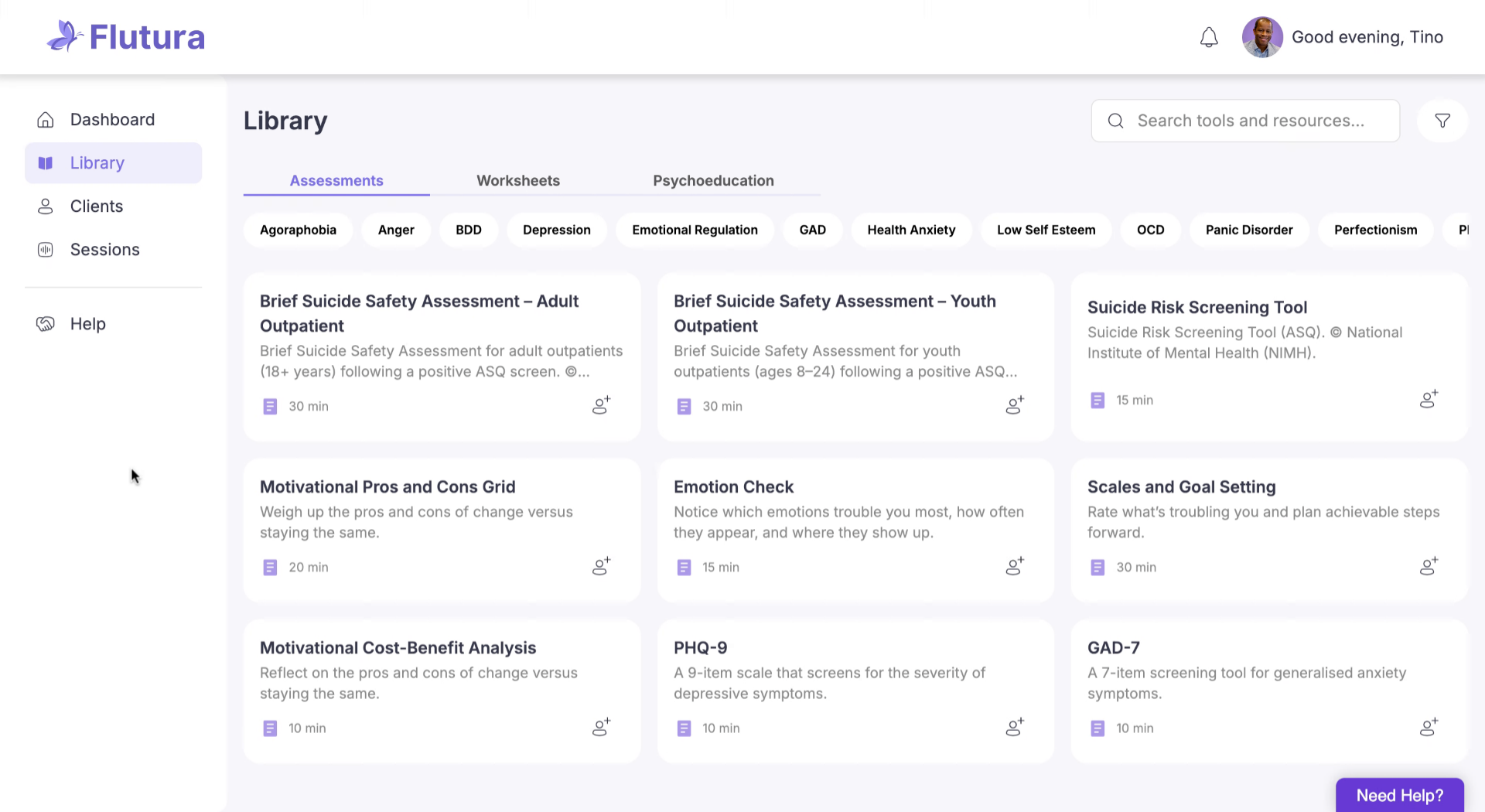
Select the Worksheets tab at the top of the Library screen.
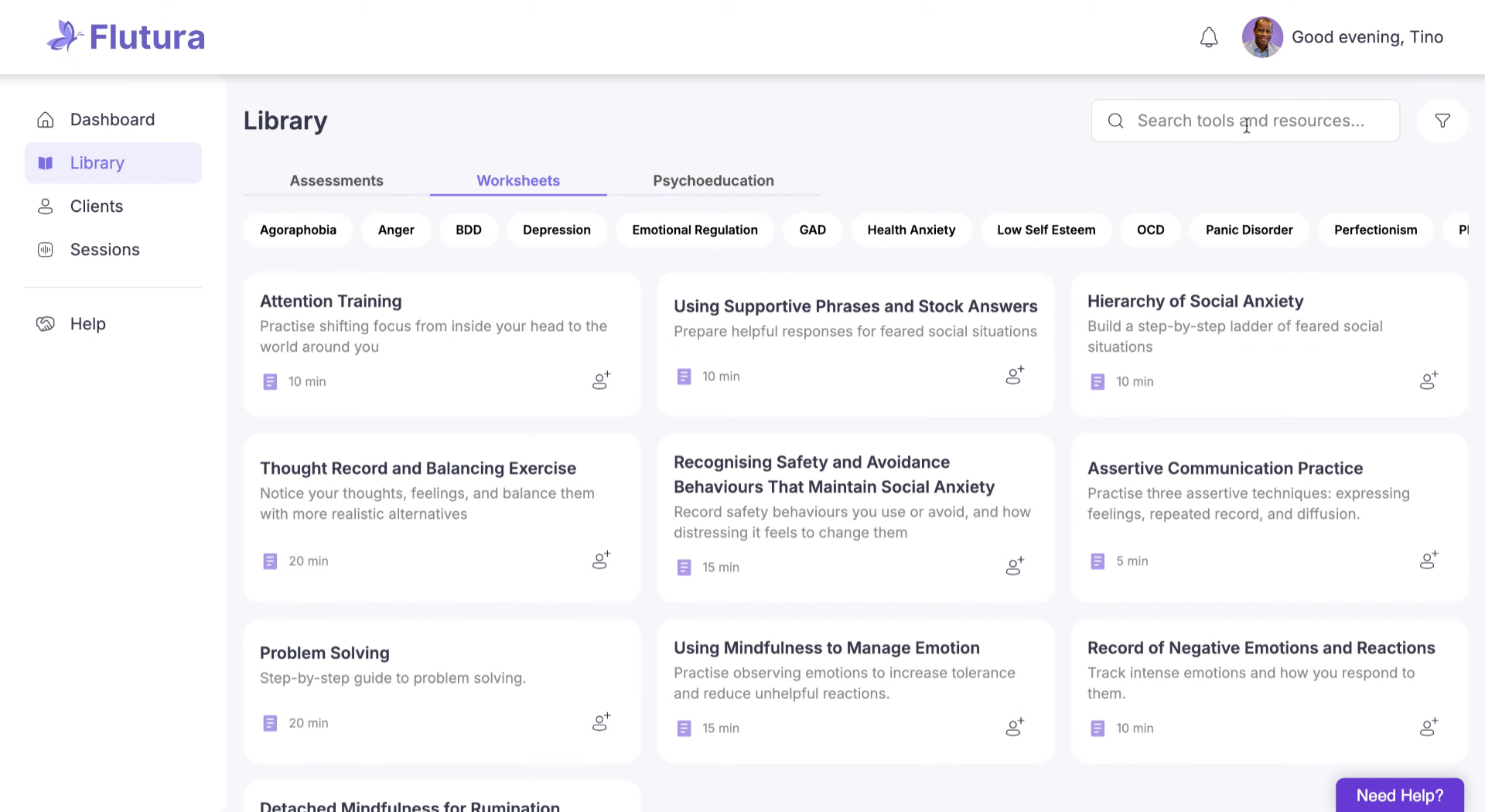
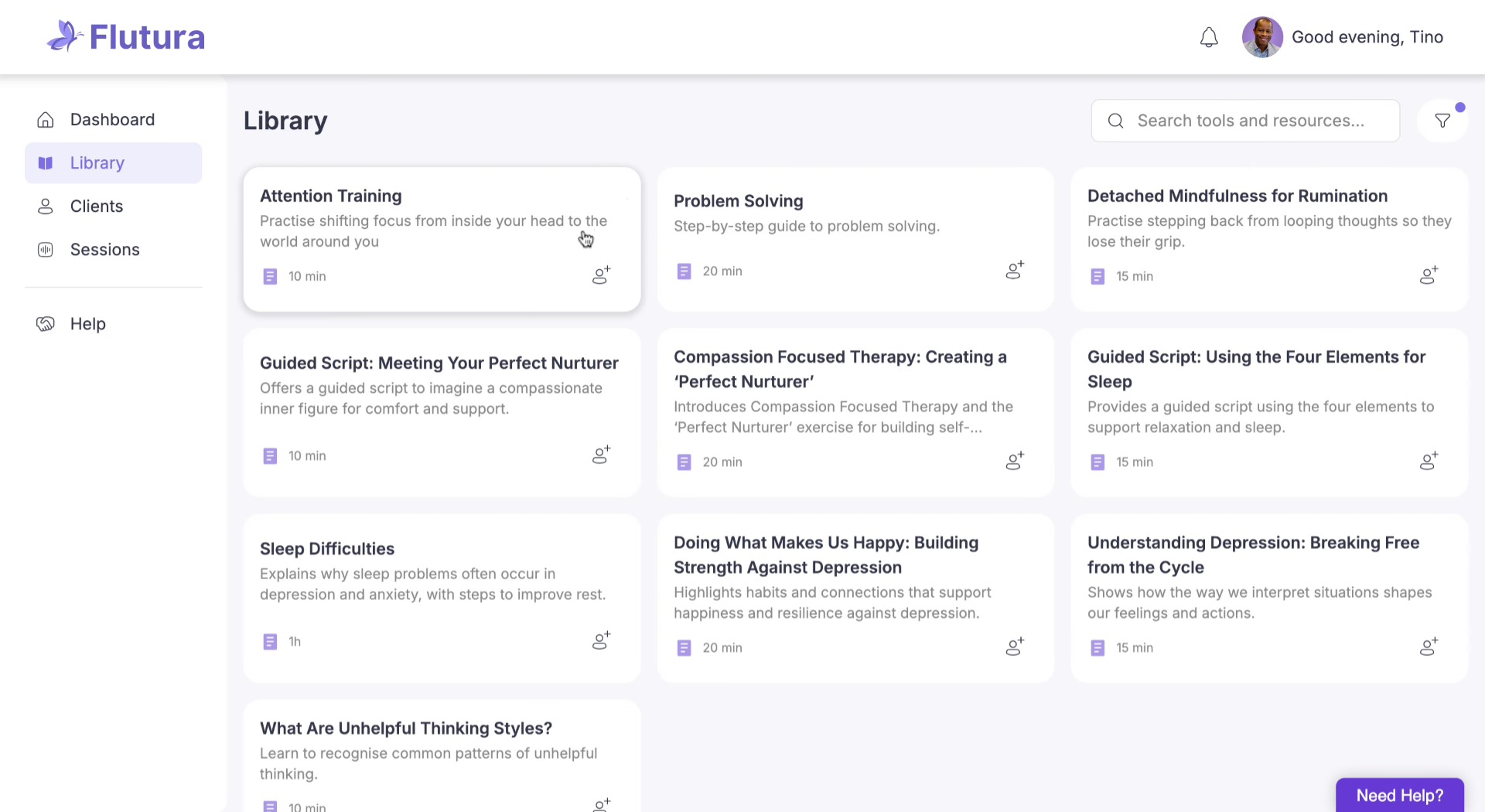
When you’ve found the worksheet, click Assign to client to begin.
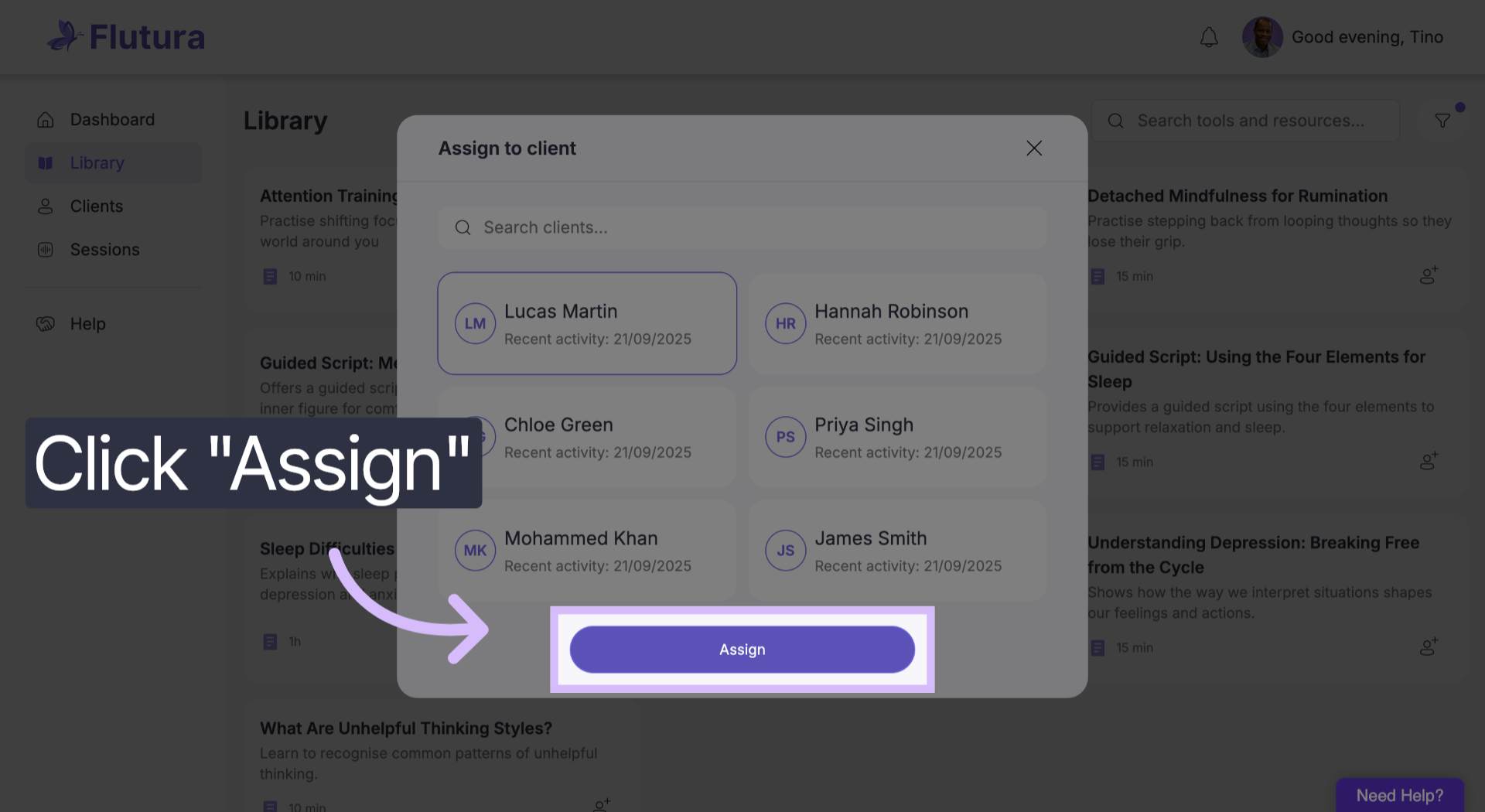
Choose one or more clients from the client selection panel.
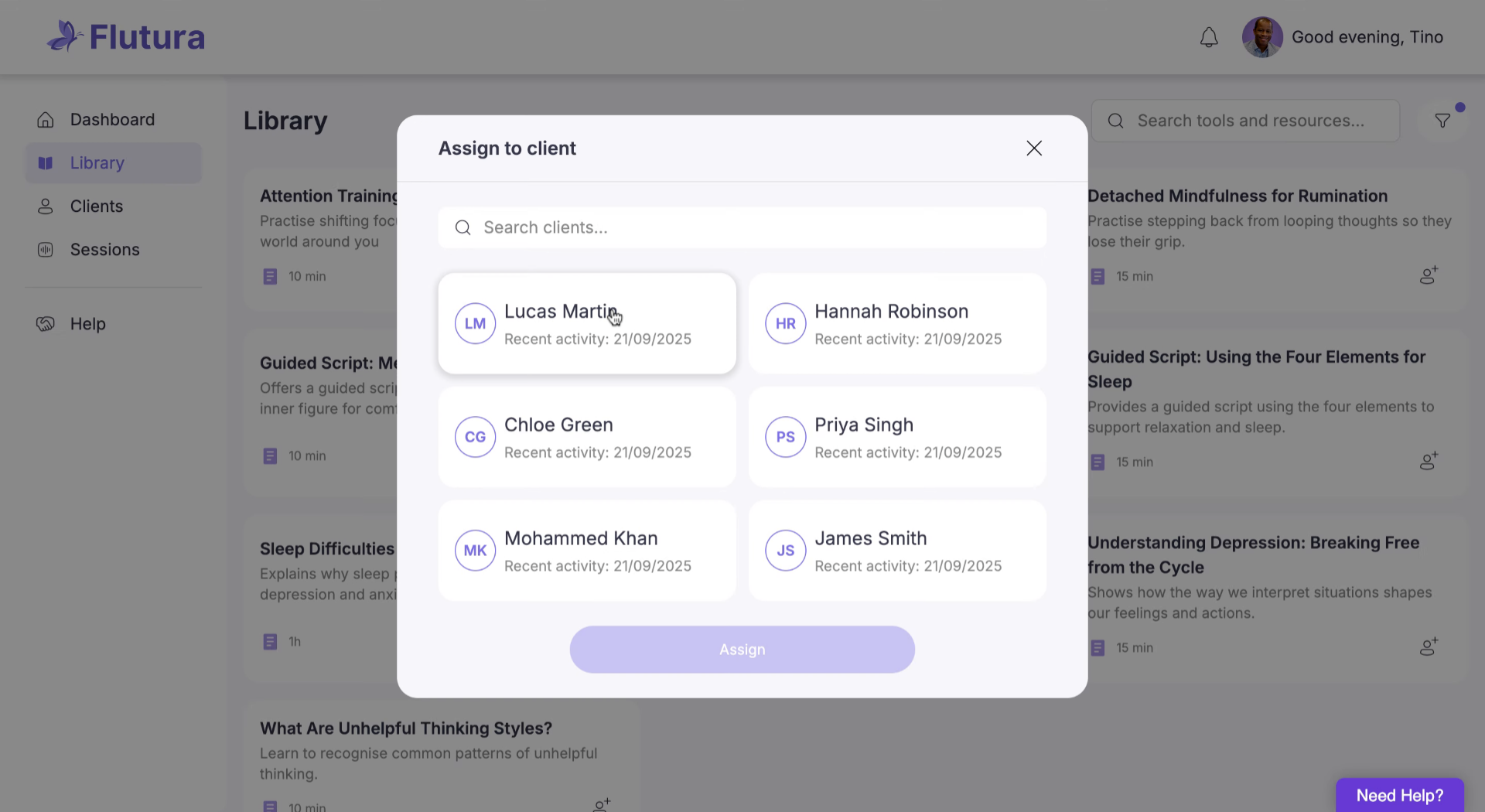
Click assign to proceed with assigning the worksheet to the selected clients.
Set due date. You can also choose whether to send a notification to the client. Or add an optional short- note with extra guidance or encouragement.
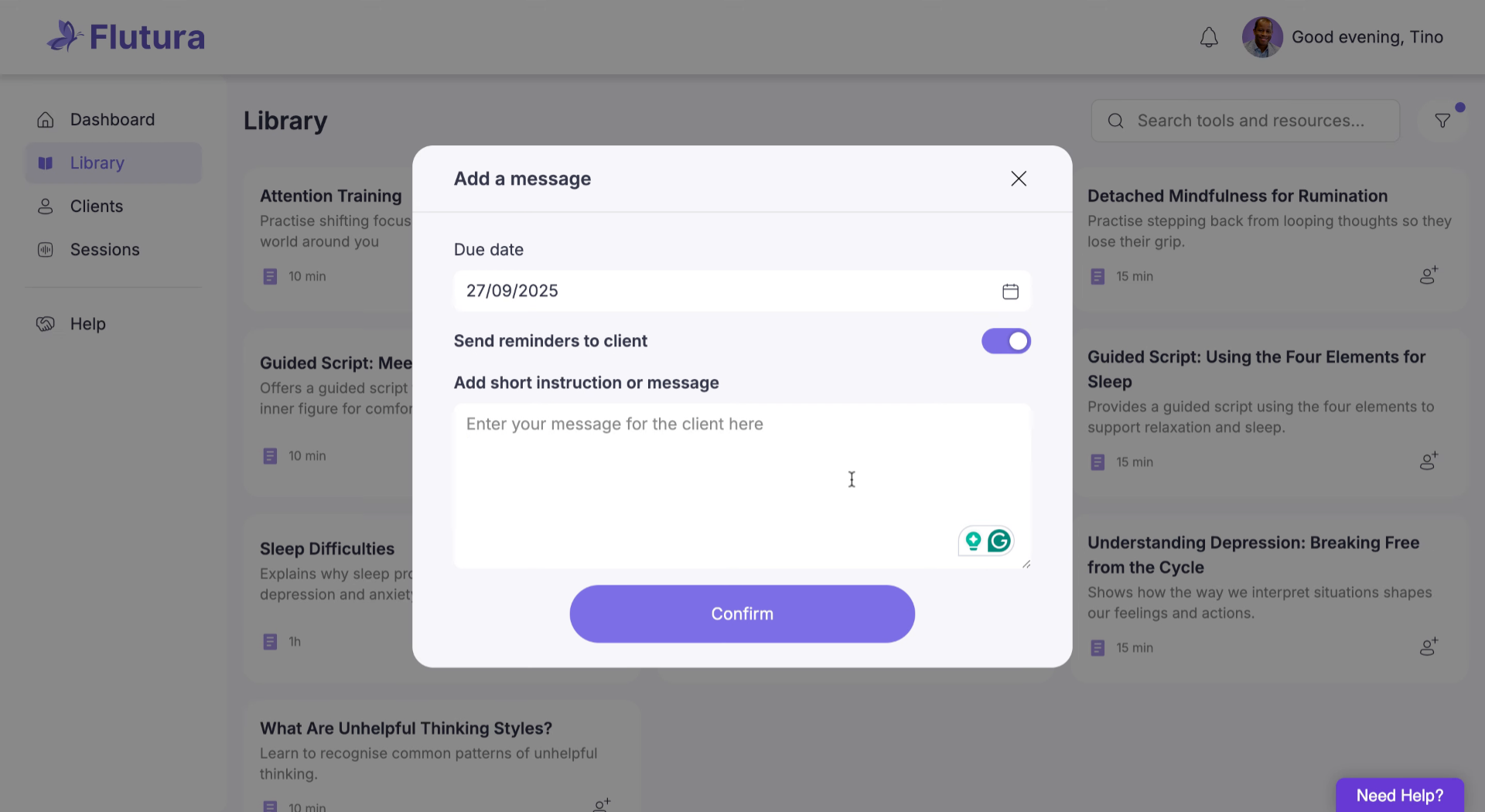
Click confirm That's it. The worksheet is now assigned. Your client will receive a notification in their app with the new task.
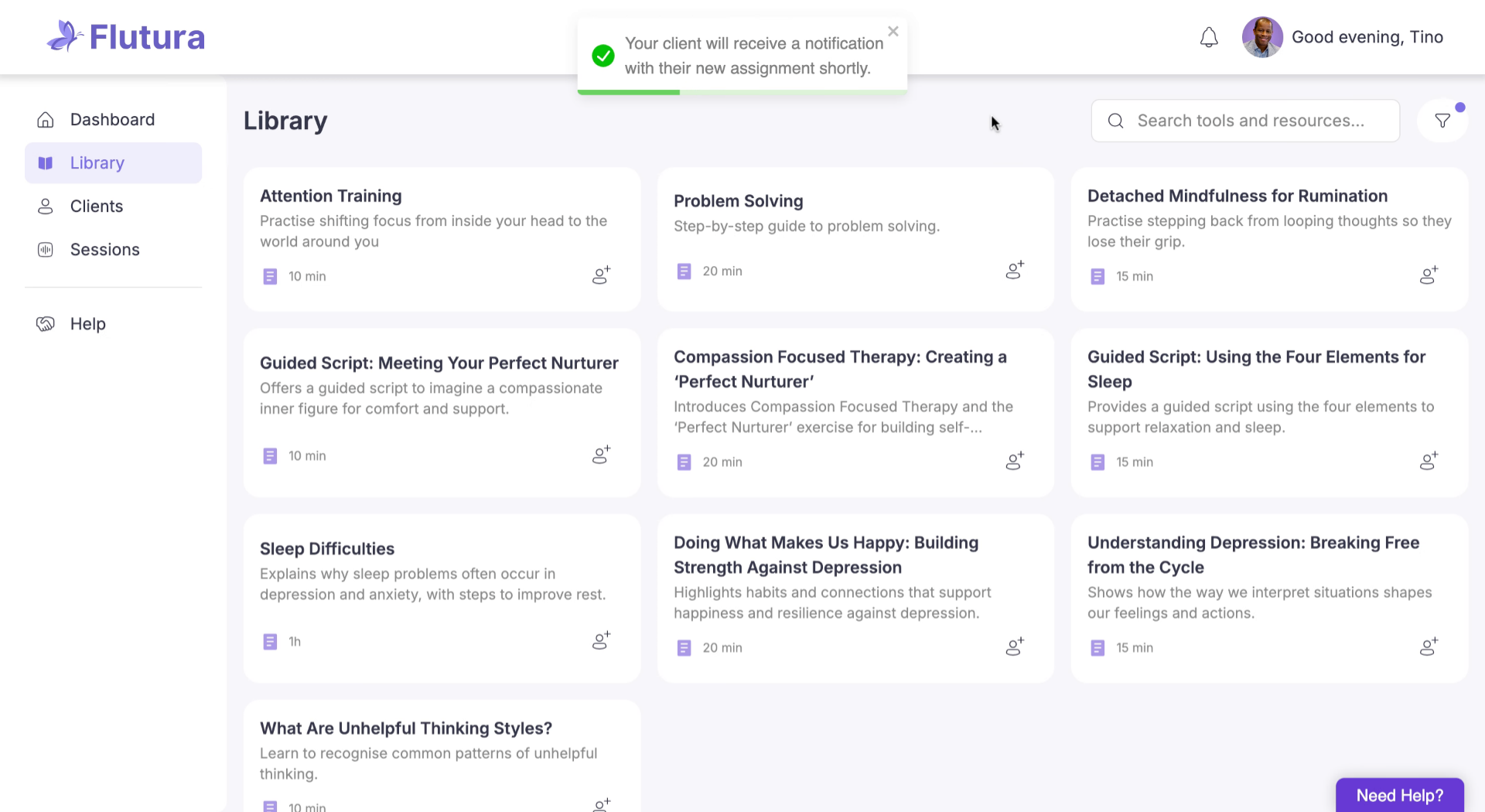
Thanks for watching. You're all set to assign worksheets. And keep your clients engaged between sessions.
Client didn’t receive the notification?
Ask them to refresh their app or check their task list.
Worksheet not appearing in the client’s account?
Confirm the assignment went through by reopening the worksheet in your Library and checking the assigned clients.
Accidentally assigned to the wrong client?
Go to the client’s task list, open the worksheet, and unassign it. You can then reassign it to the correct client.