
You can record a session in two ways: audio recording with auto-transcription or manual notes only.
Start from the Sessions screen
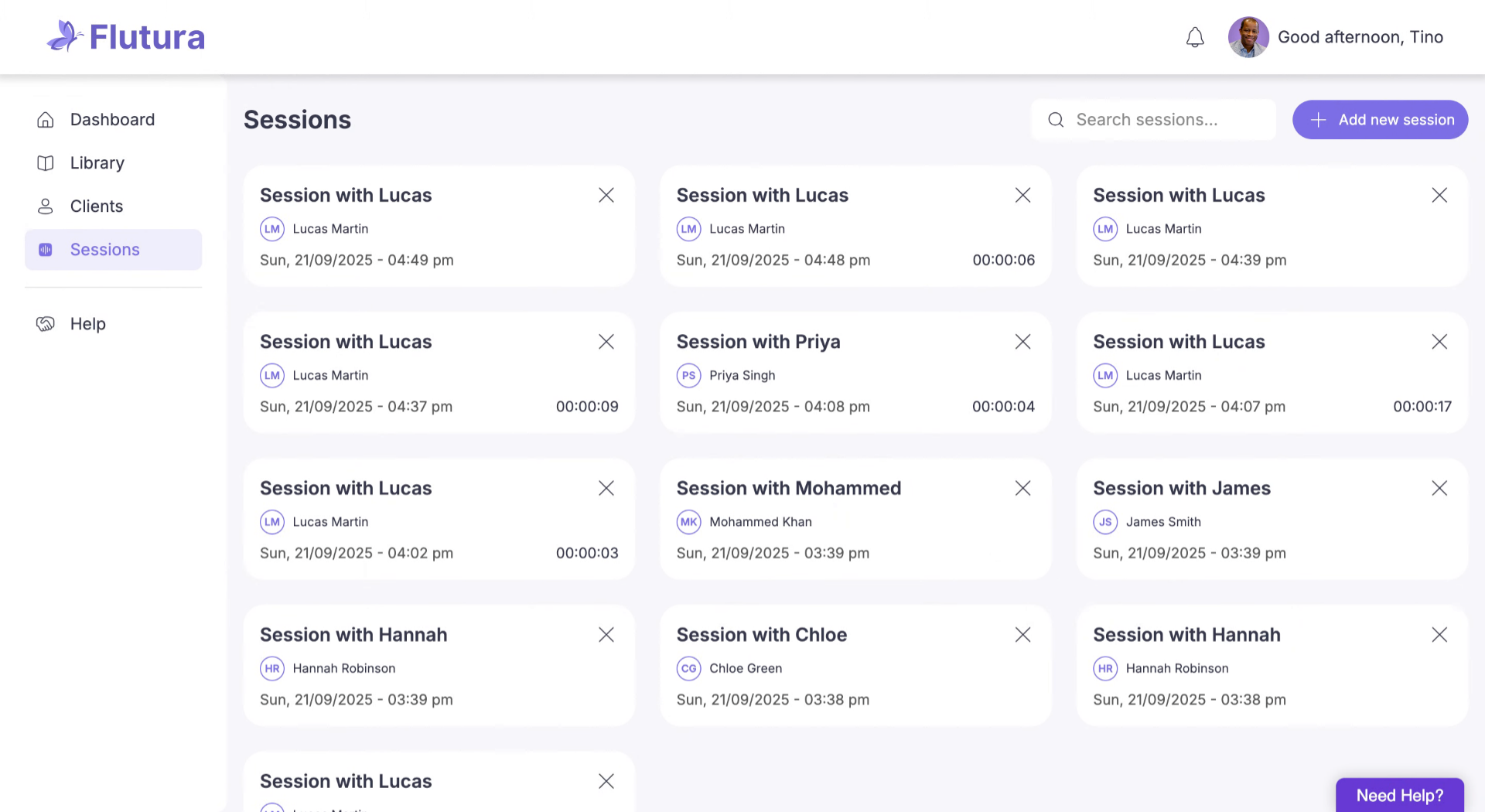
From your dashboard, click Sessions in the left-hand menu.
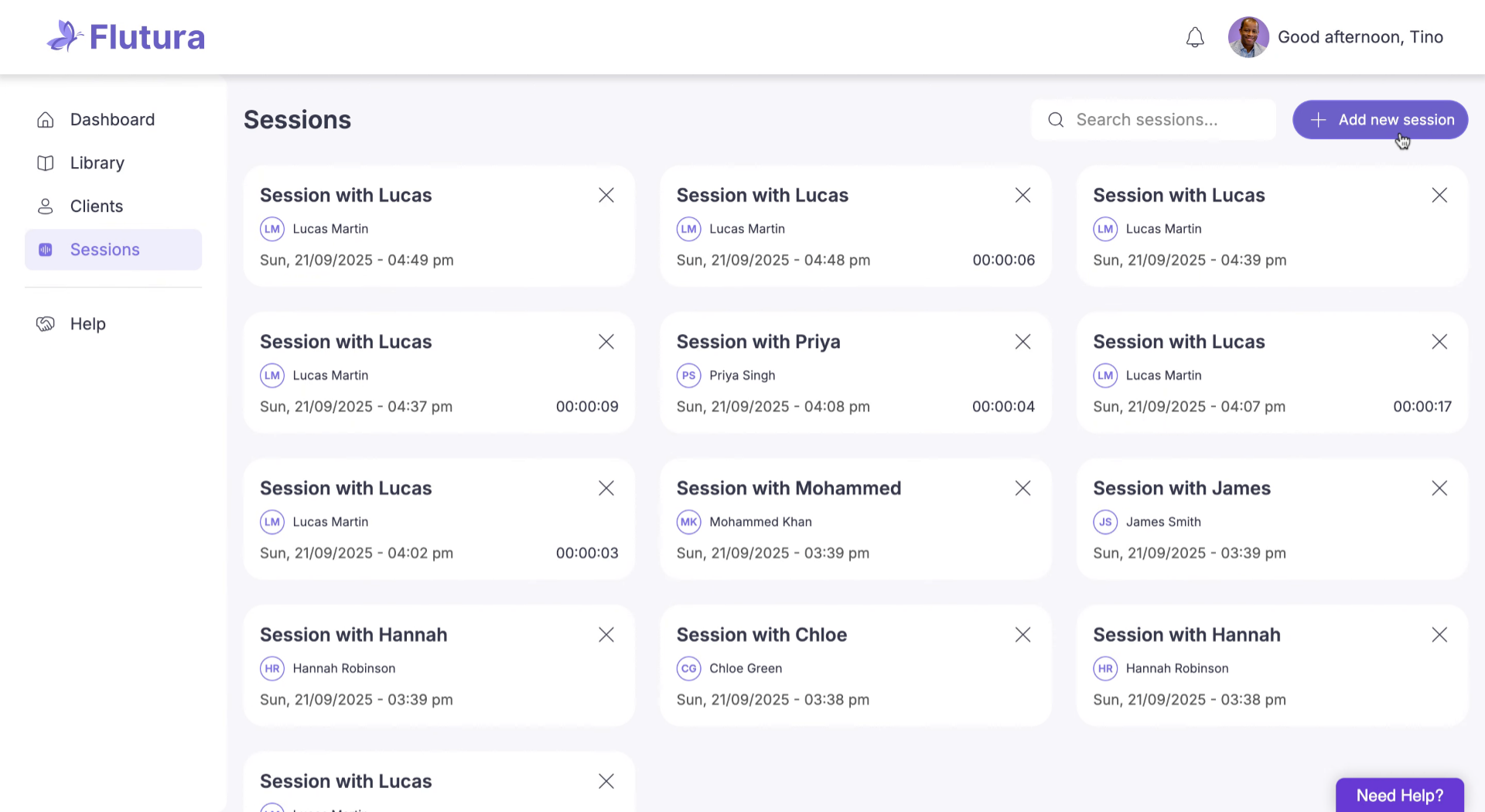
Click “Add new session”
At the top right, select Add new session.
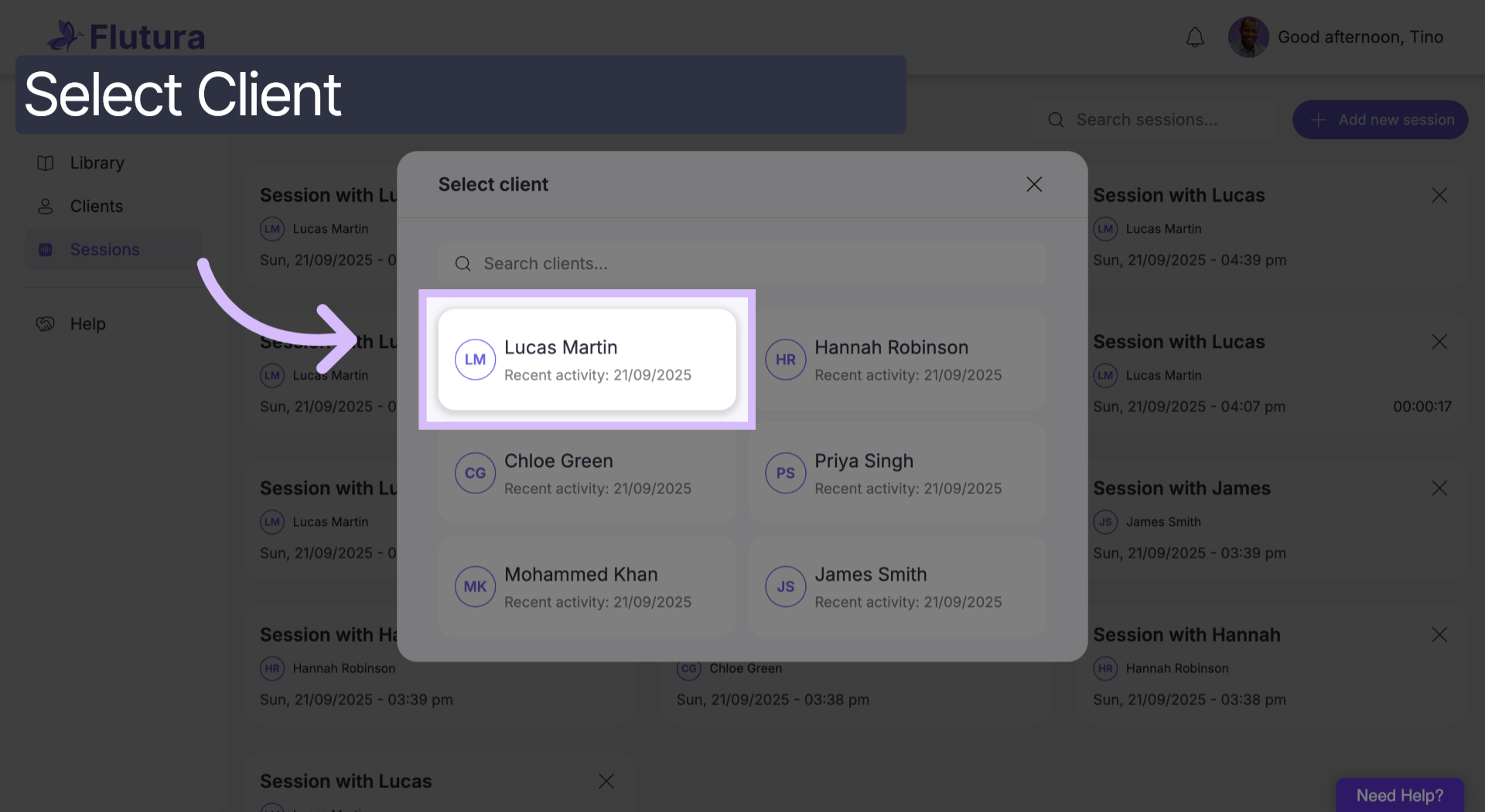
Select a client
Choose the client you want to record a session for.
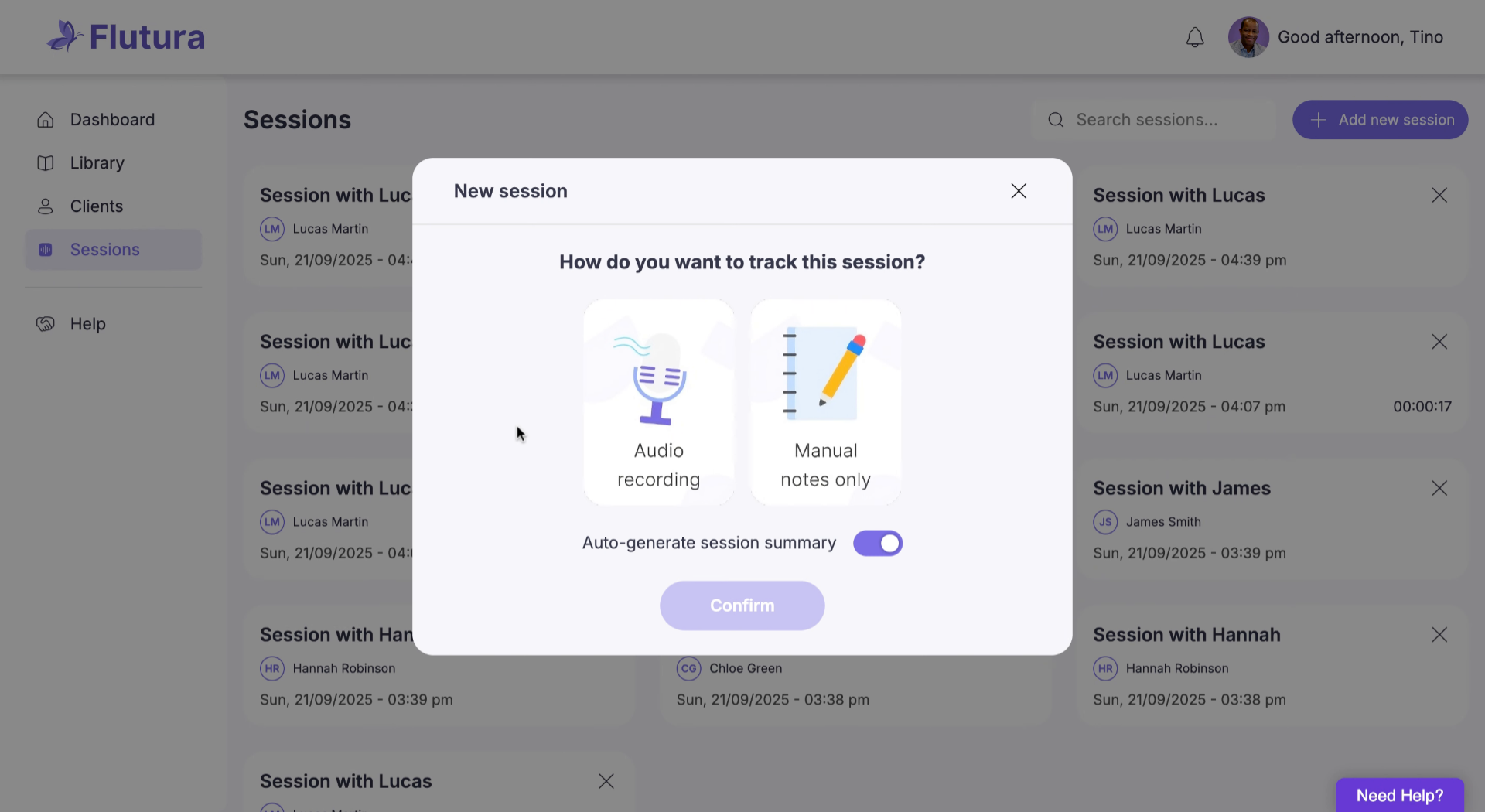
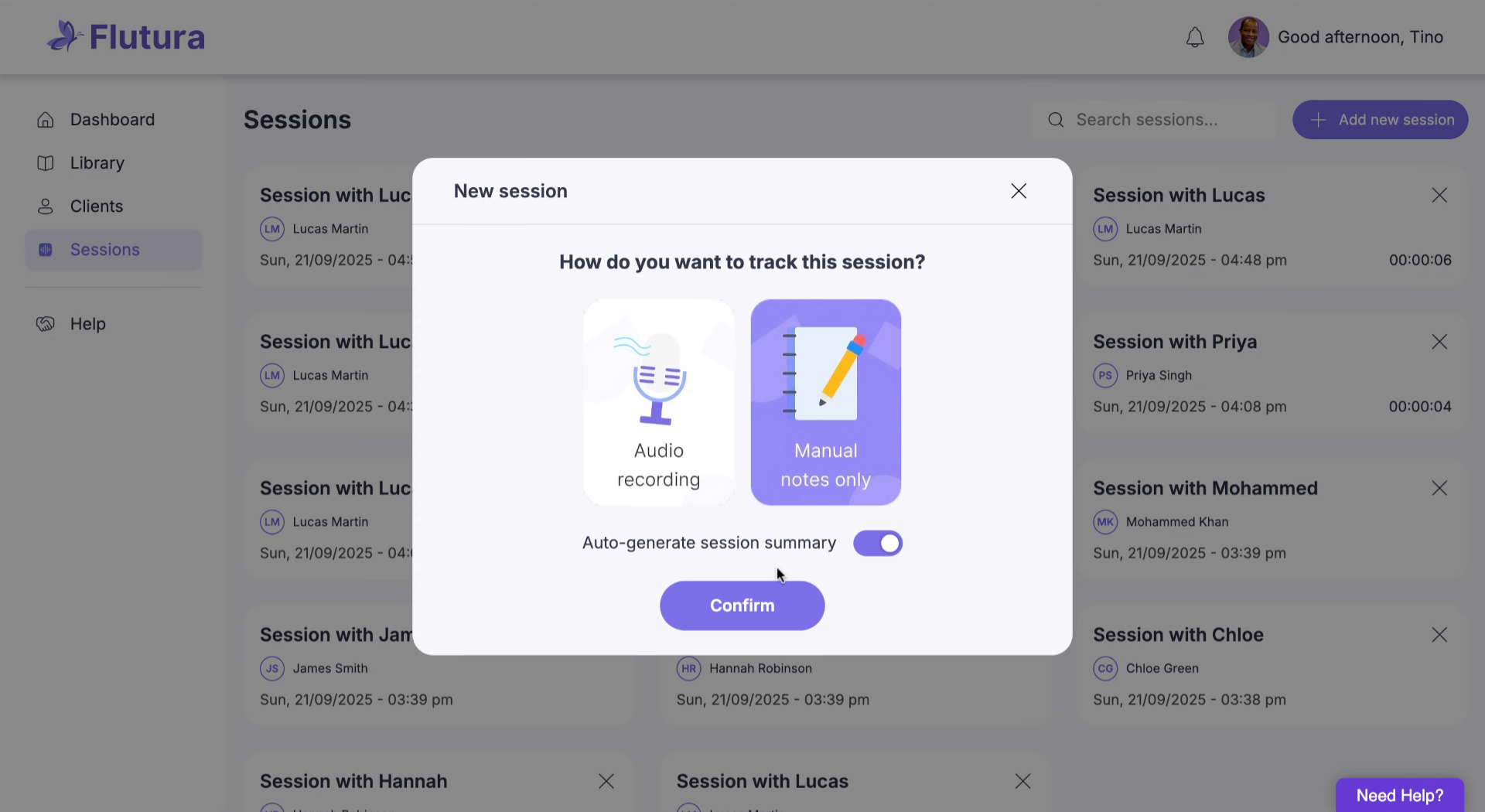
Choose how to track the session
Audio recording: Opens a recording panel.
Manual notes only: Creates a session with a Notes tab.
Recording with Audio
Click the Record button to begin.
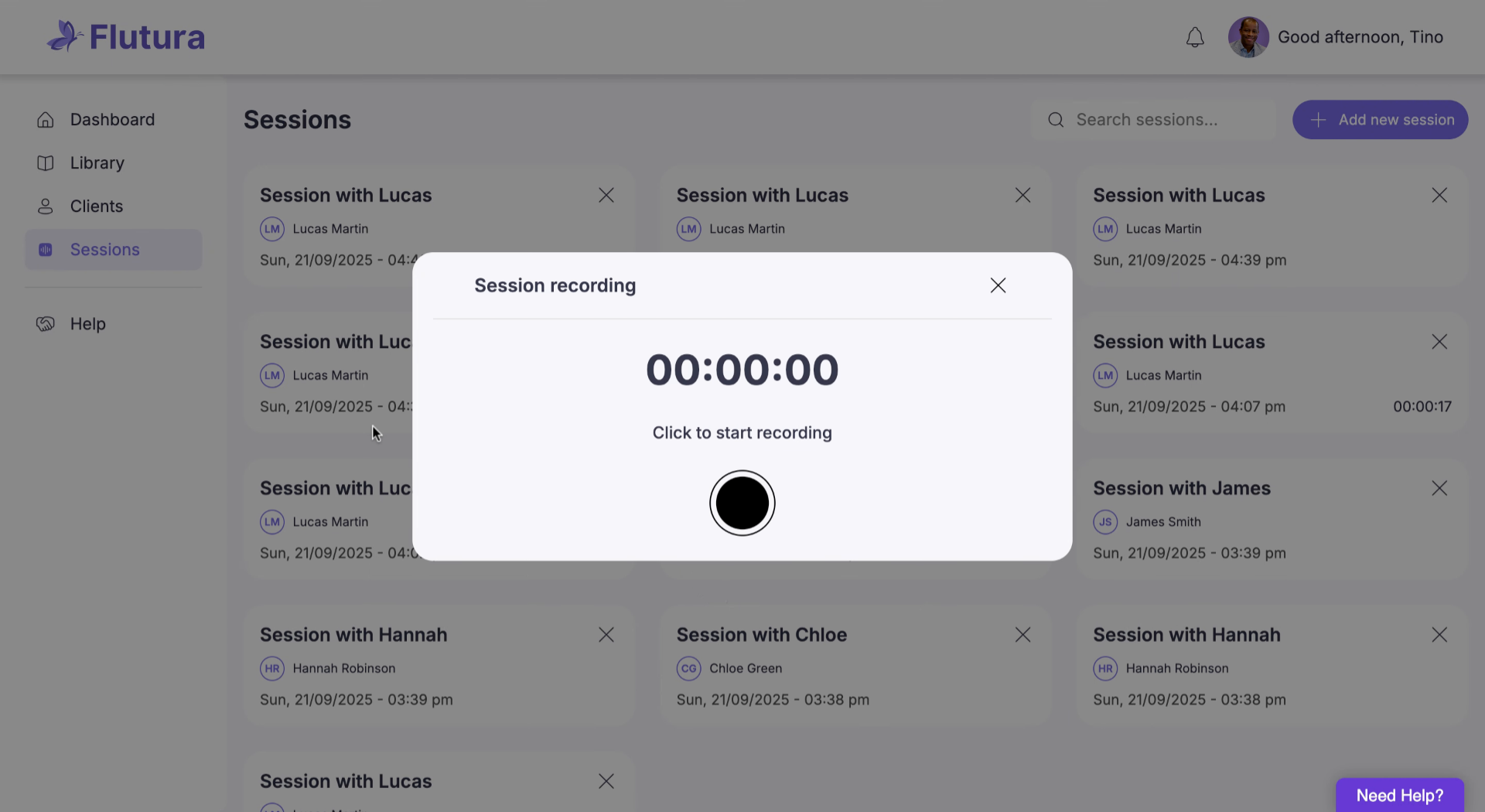
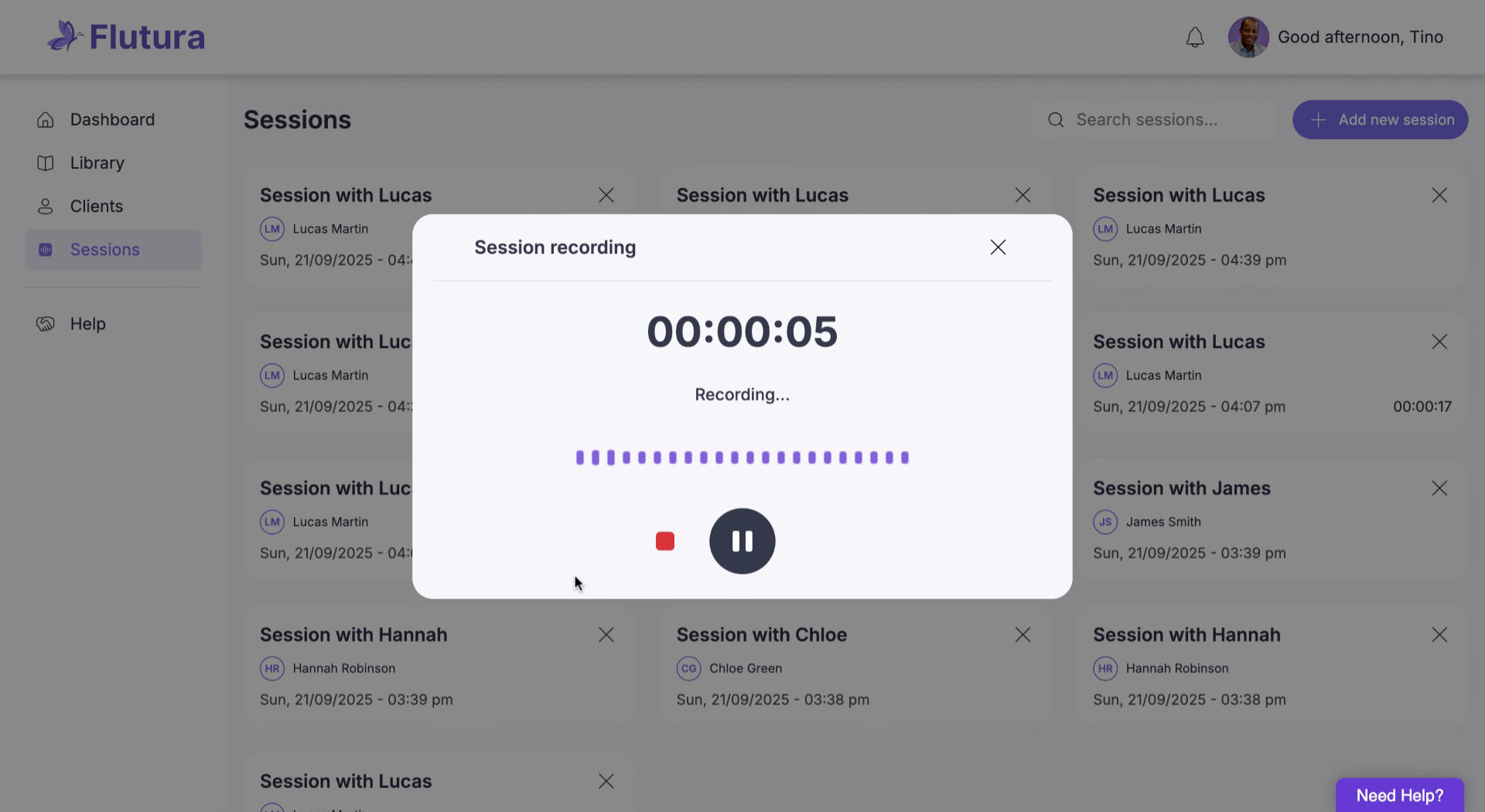
Pause or stop at any time.
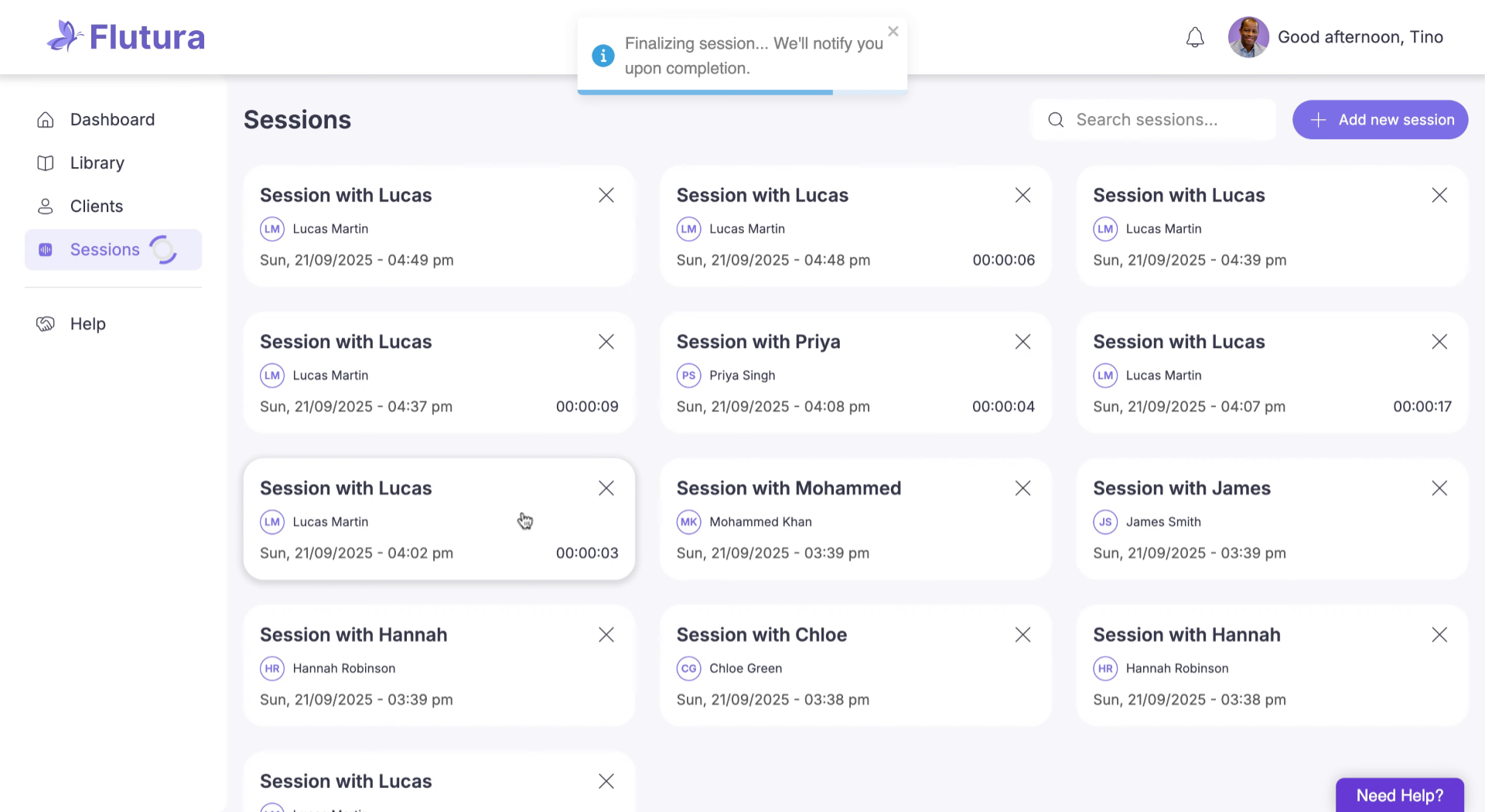
Stopping ends the session and triggers transcription.
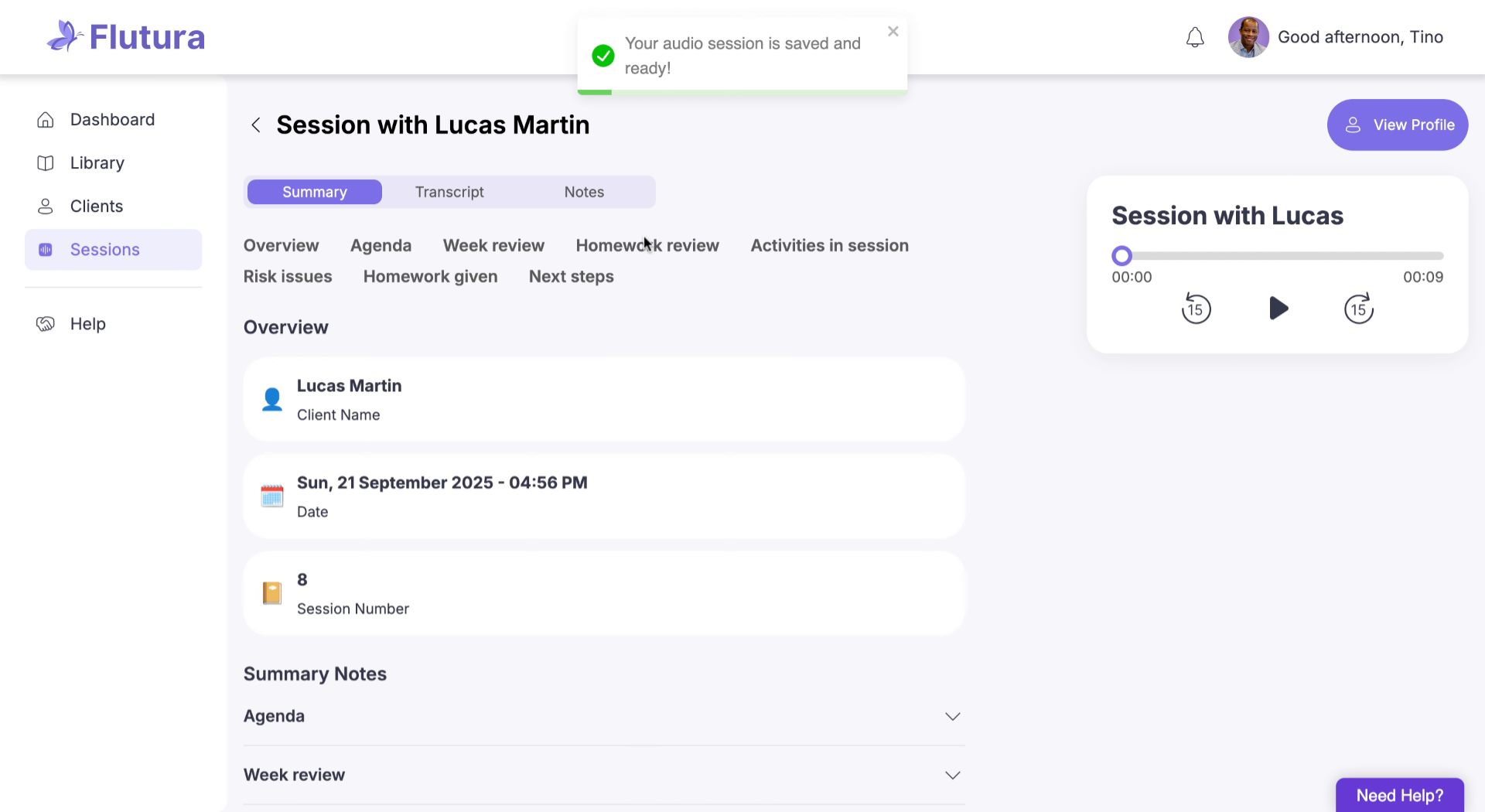
Within seconds, the session appears in your Sessions dashboard.
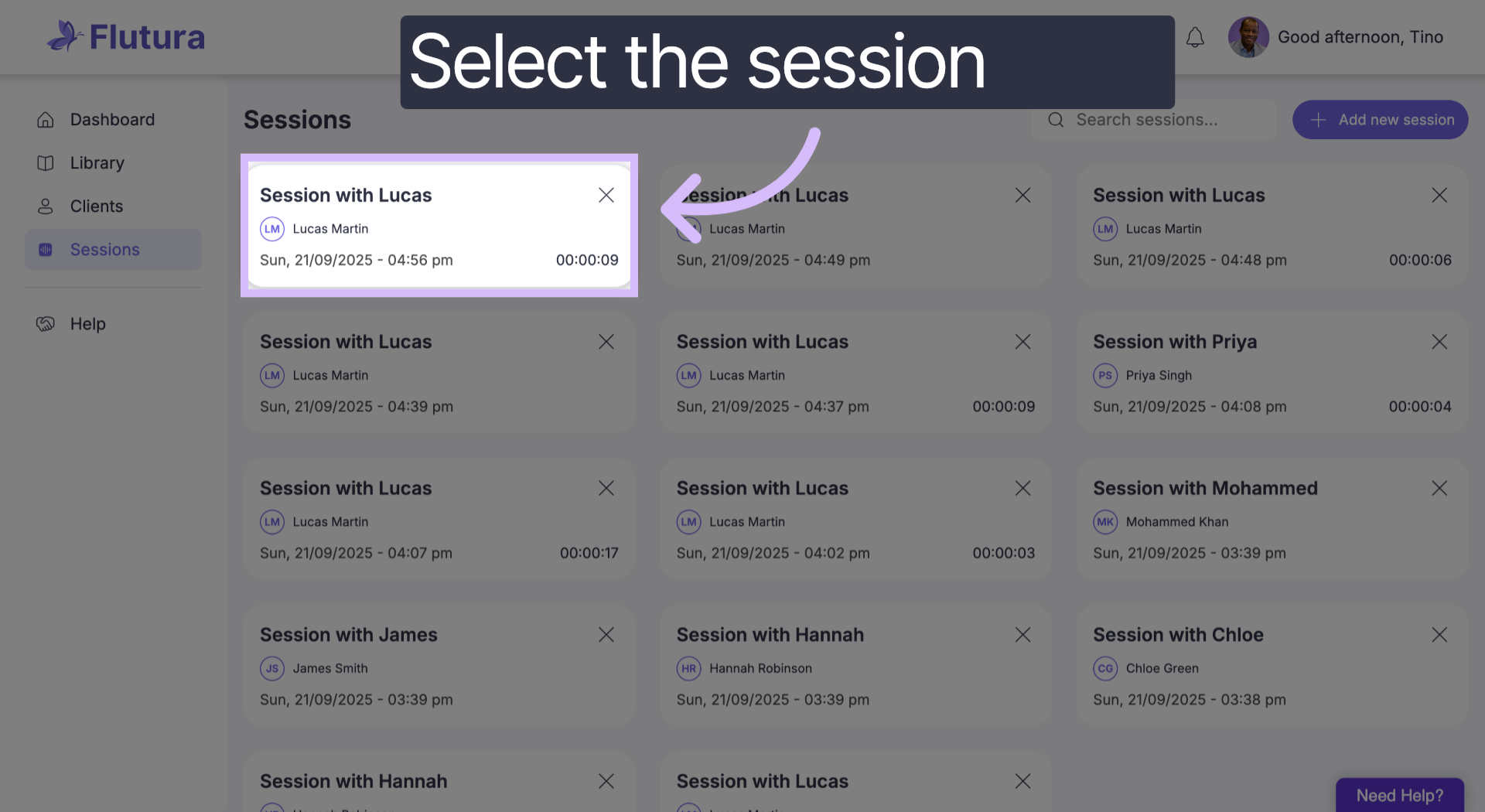
Select the session.
View the organised notes, transcript, and summary.
Recording with Manual Notes
Choose Manual notes only.
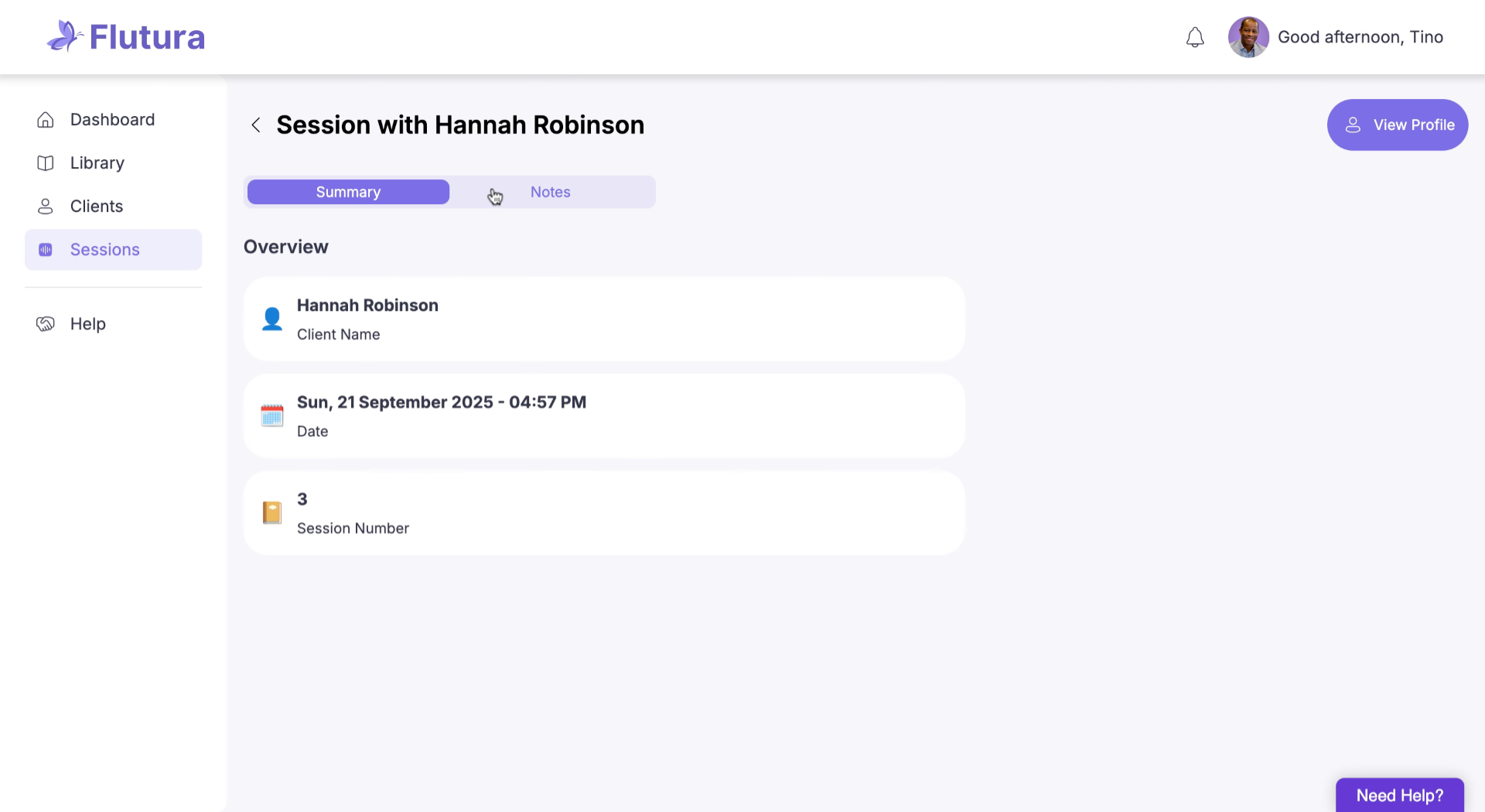
A new session is created.
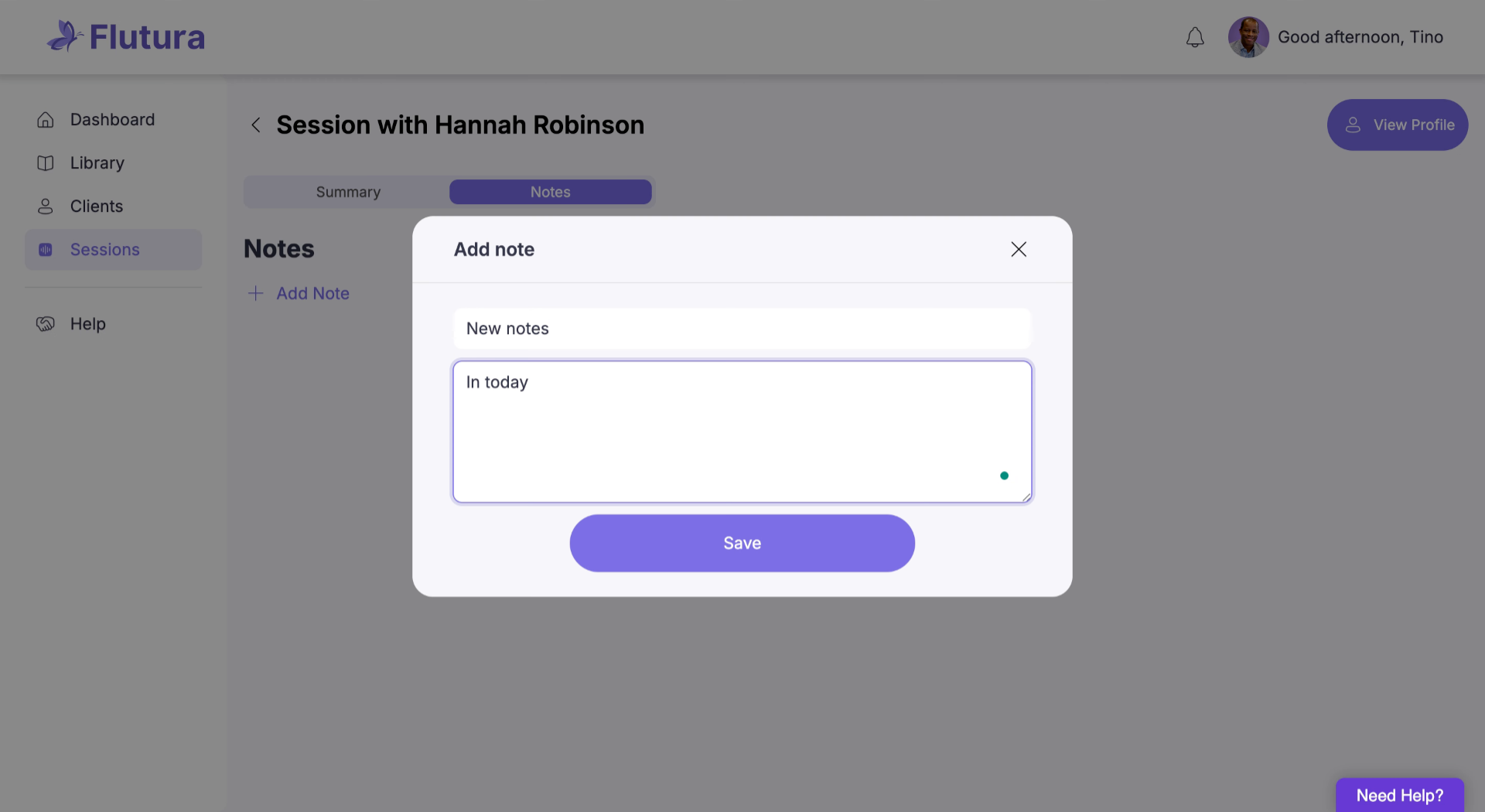
Open the Notes tab and click “Add Note.”
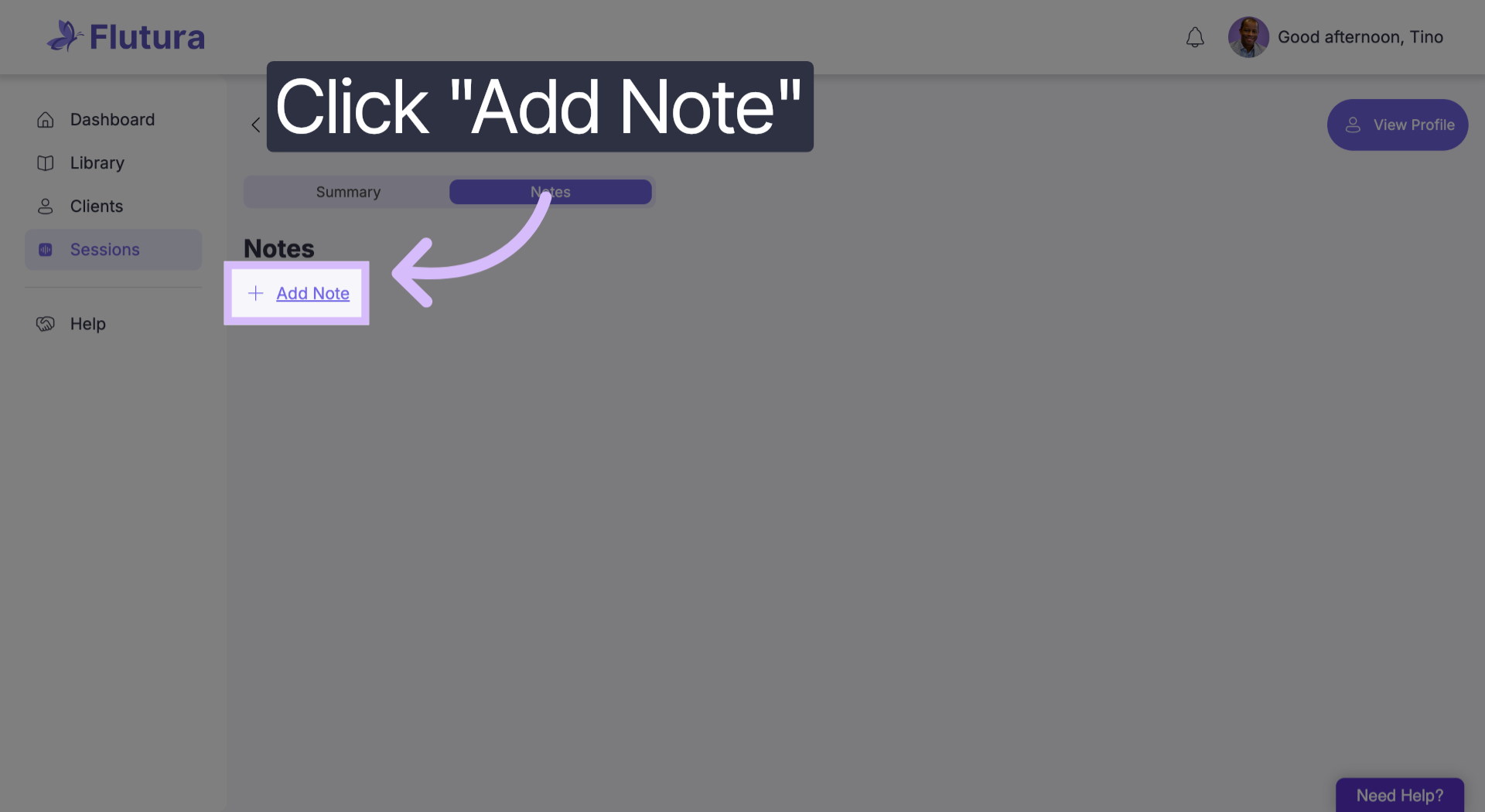
Type and save your notes before, during or after a session.
And that's it. You've recorded your therapy session. However, you choose to capture it your notes are safely stored and easy for you to access any time.
Troubleshooting
Recording didn’t start? Make sure microphone permissions are enabled.
Transcript missing? Refresh the page—processing can take a few moments.
Typed the wrong note? Open the Notes tab, click Edit, and update.