The PHQ-9 measures depression severity against DSM criteria. In Flutura, you can assign it from your library, let clients complete it in their own time, and track scores across treatment using clinical interpretation and trend charts. This guide covers the full workflow, from library to long-term review.
You'll need:
A client profile already created
The client's consent to complete outcome measures
The PHQ-9 and GAD-7 sit together under Clinical Metrics, so you can track both from one place.
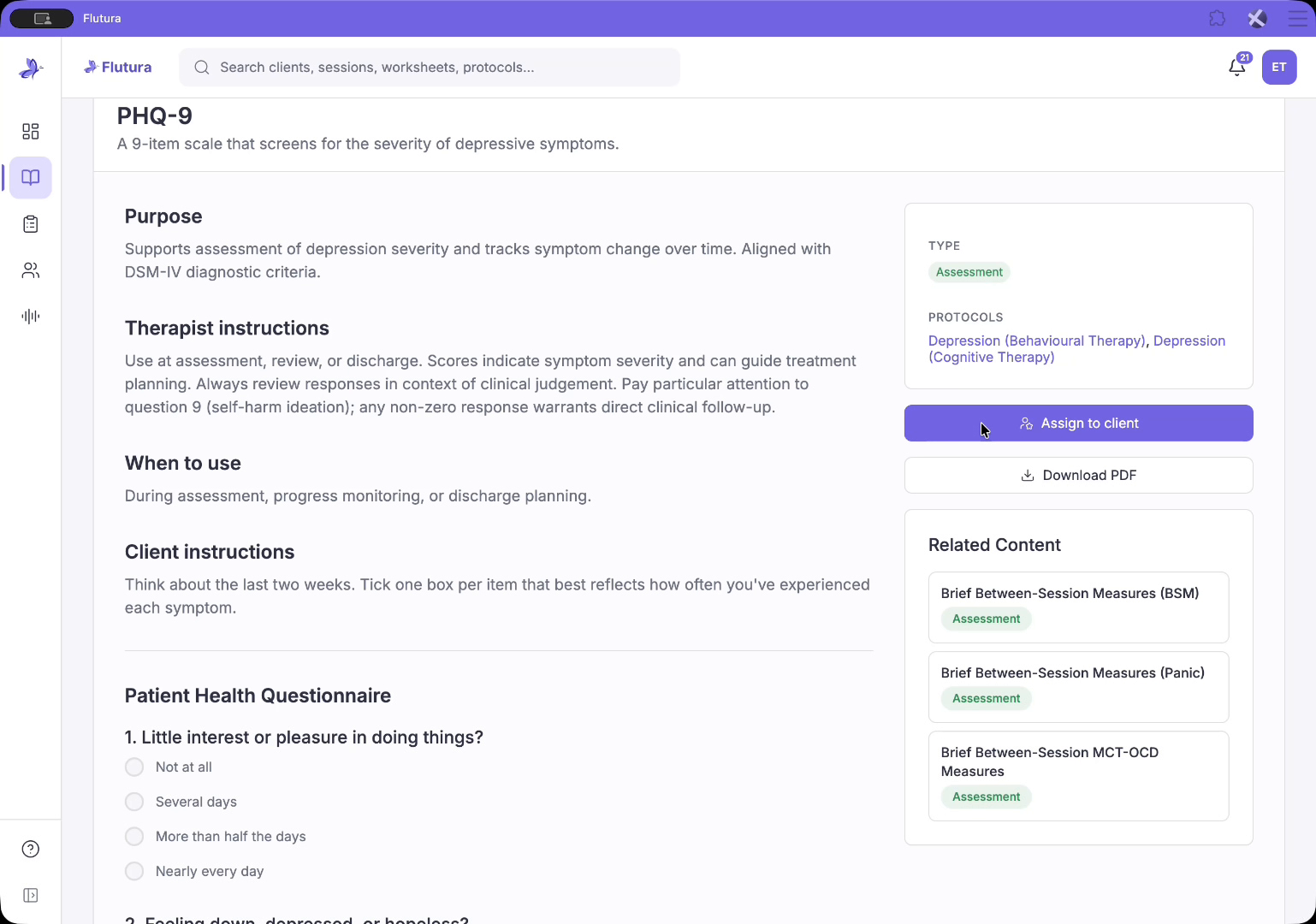
Open the PHQ-9 in your Flutura library to read the full detail before assigning it to a client.
The Purpose section confirms that this scale measures depression severity, based on DSM guidelines. Therapist instructions cover when and how to use the PHQ-9, whether for an initial assessment, a review, or discharge.
Pay close attention to question nine (thoughts of self-harm). Any response above zero requires direct follow-up with the client.
Just below, the When to use and Client instructions sections explain when to use the PHQ-9 and how your client will experience the questionnaire. You can also read all nine questions exactly as your clients will see them.
On the right of the PHQ-9 protocol page, you can assign the assessment to a client or download a PDF to use offline.
To assign the PHQ-9, select the Assign button on the PHQ-9 page.
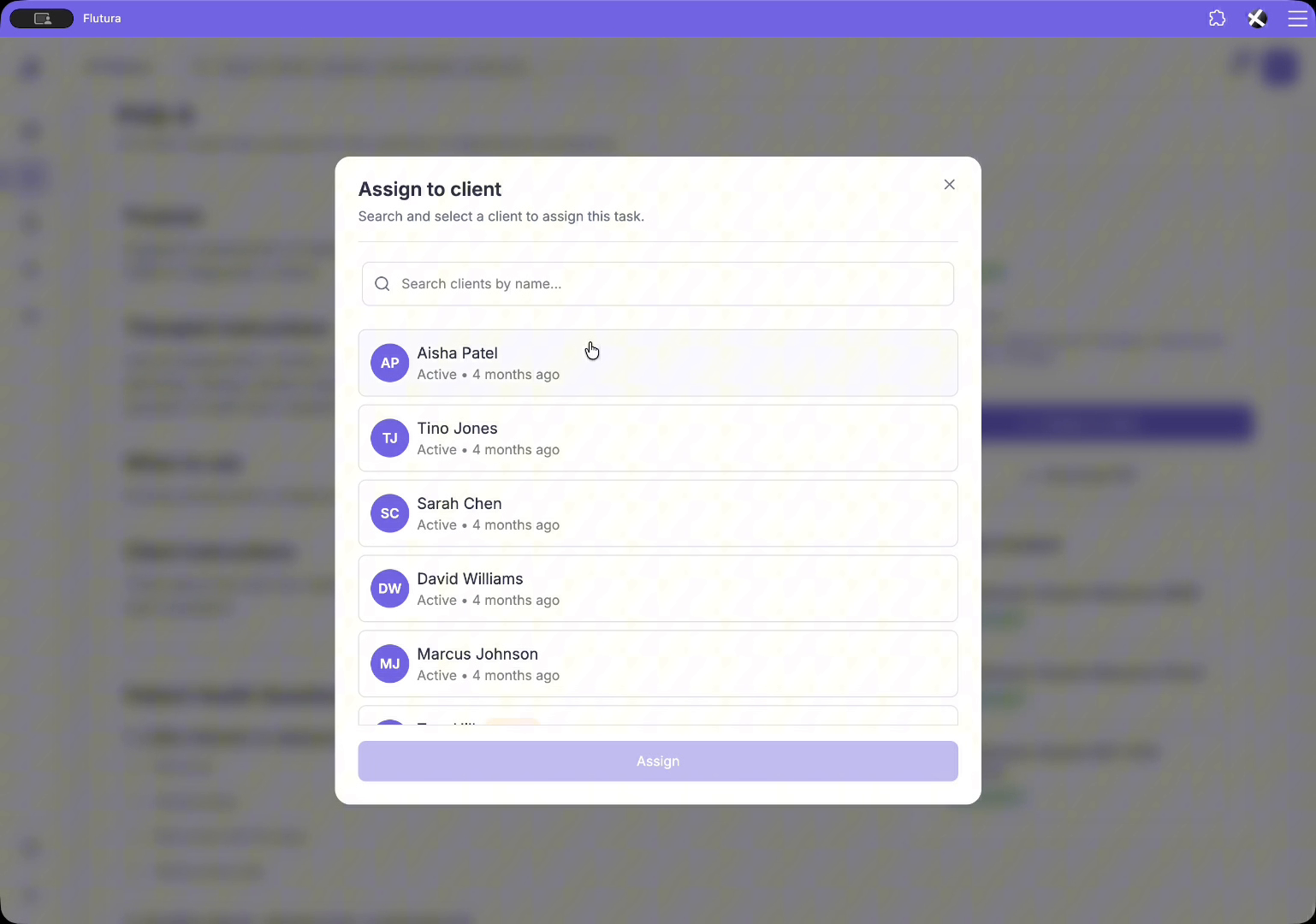
This opens the assignment window, where you can search for and select the right client.
In the assignment window, search for a client by name or select them from the list.
Once you have chosen your client, select Assign to continue.
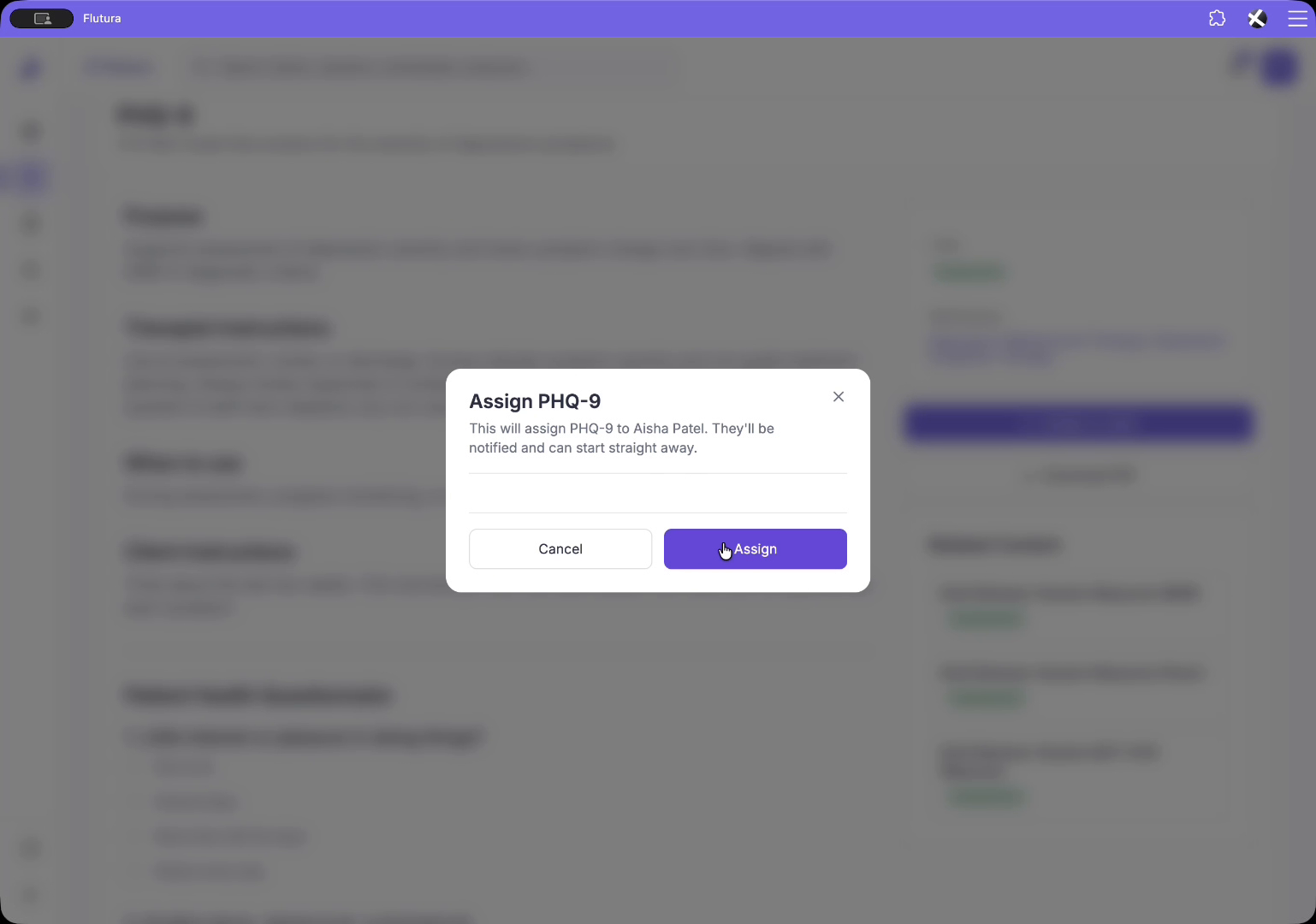
Then confirm your choice at the prompt.
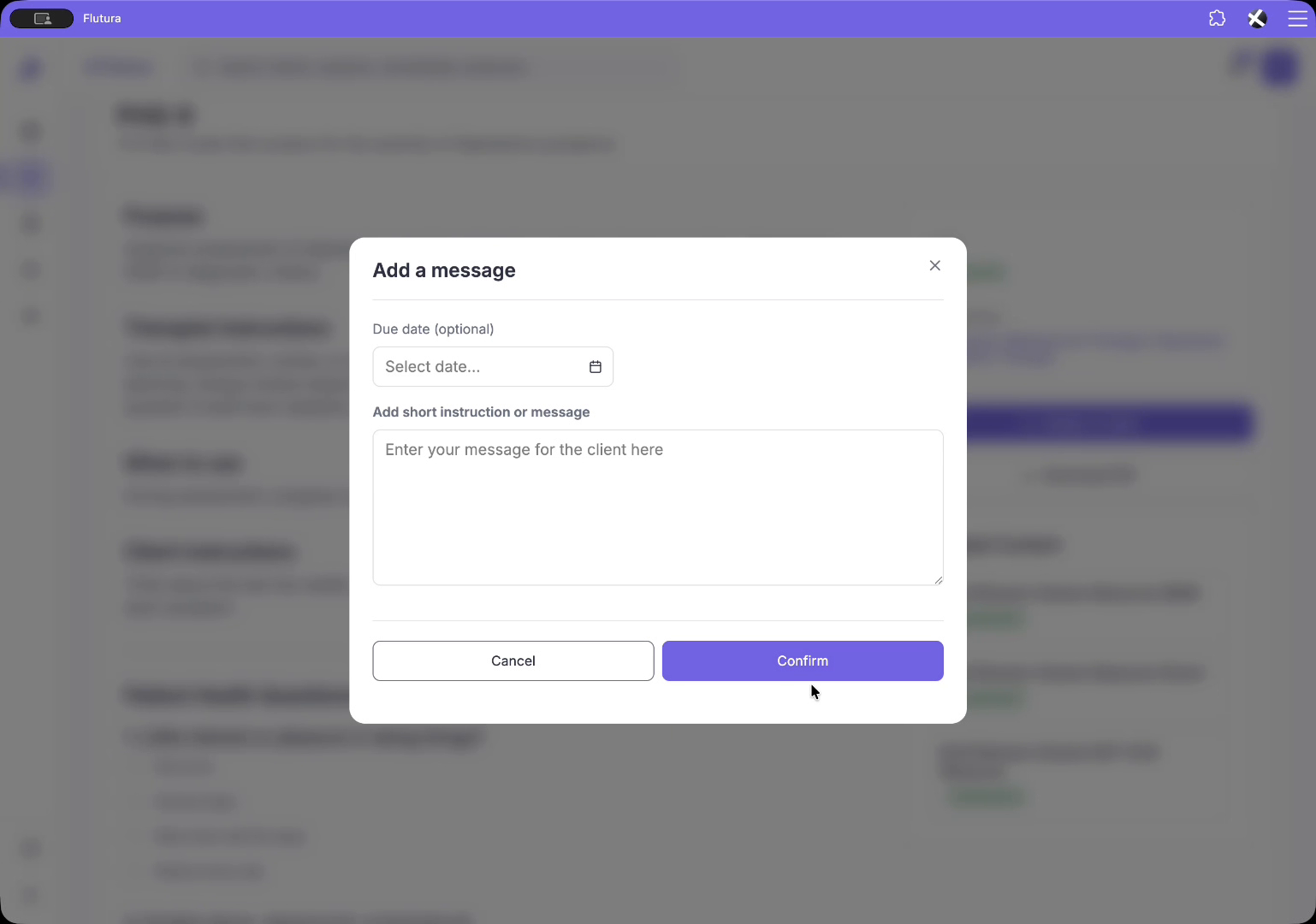
If you want, set a due date for when the PHQ-9 should be completed, and add a short instruction or message explaining why or when the client should complete it. When you are ready, select Confirm to send the PHQ-9 to your client.
The PHQ-9 appears immediately in the client's task list, and they can complete it whenever suits them. On submission, the score saves automatically to their profile.
Between sessions, review the PHQ-9 under Clinical Metrics on your client's profile. The PHQ-9 and GAD-7 are shown side by side here.
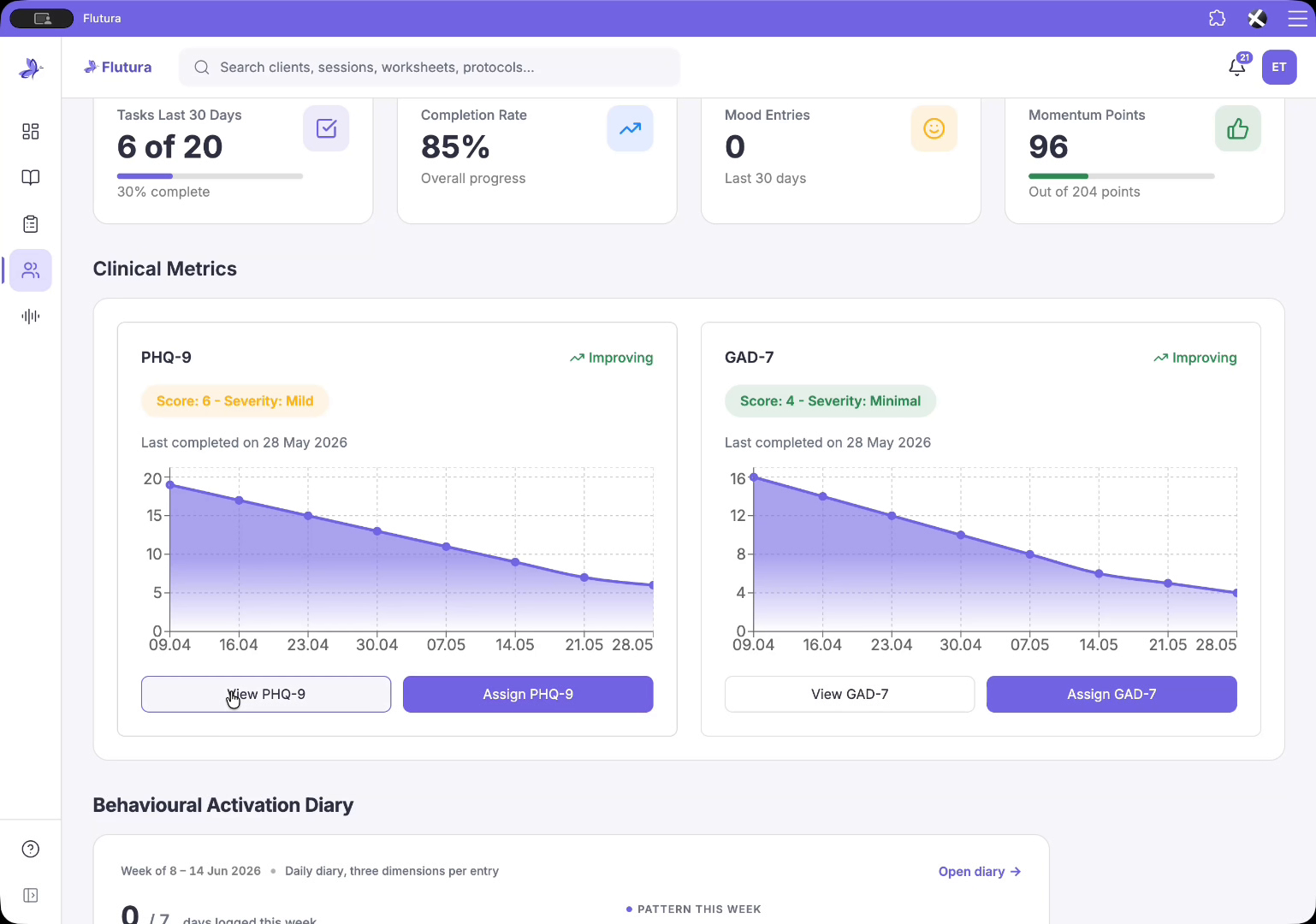
Each PHQ-9 card shows:
The latest score and severity range (for example, 6 – Mild)
A trend label indicating whether the score is rising, falling, or stable
A chart below plots every PHQ-9 over time, so you can see how scores change as treatment progresses (for example, a score falling from 19 to 6 since April). Hover over any point on the chart to view the detail for that PHQ-9.
The PHQ-9 card offers two main actions:
Assign PHQ-9: sends a new PHQ-9, letting you track progress over time
View PHQ-9: opens the latest completed assessment
Select View PHQ-9 on the client's profile to see the most recent completed assessment.
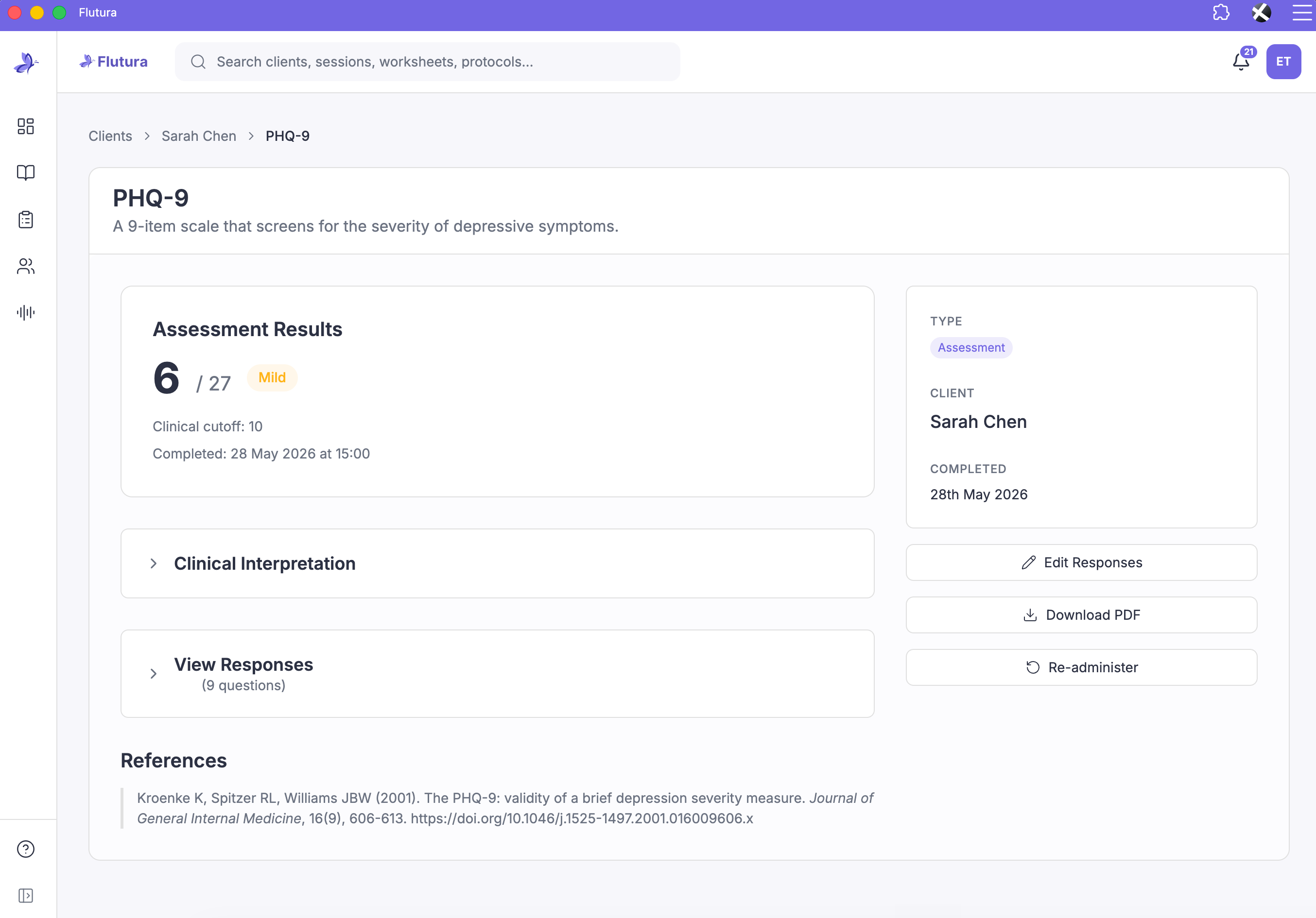
The result screen gives you a detailed breakdown:
The headline score and whether it sits above or below the clinical cutoff
The date and time of completion
An expandable clinical interpretation with a written summary
From here, you can also:
Review exactly how the client answered each of the nine questions
Edit a response to correct a data-entry error
Download the full result as a PDF for your records
Re-administer the PHQ-9, which works the same way as a new assignment
Used together, the library, one-click assignment, long-term charting, and detailed results let you monitor depression symptoms over time with minimal admin, using proven assessments such as the PHQ-9 and GAD-7.
Q: What should I do if question nine scores above zero?
A: Follow up with the client directly. Any response above zero on the self-harm item signals risk that needs your clinical attention.
Q: Can I correct a client's answer?
A: Yes. Open the result screen and edit the response. Use this only to fix data-entry errors, not to change the client's reported experience.
Q: How far back can I see a client's scores?
A: The trend chart plots every completed PHQ-9 for that client, so you can review the full history across treatment.